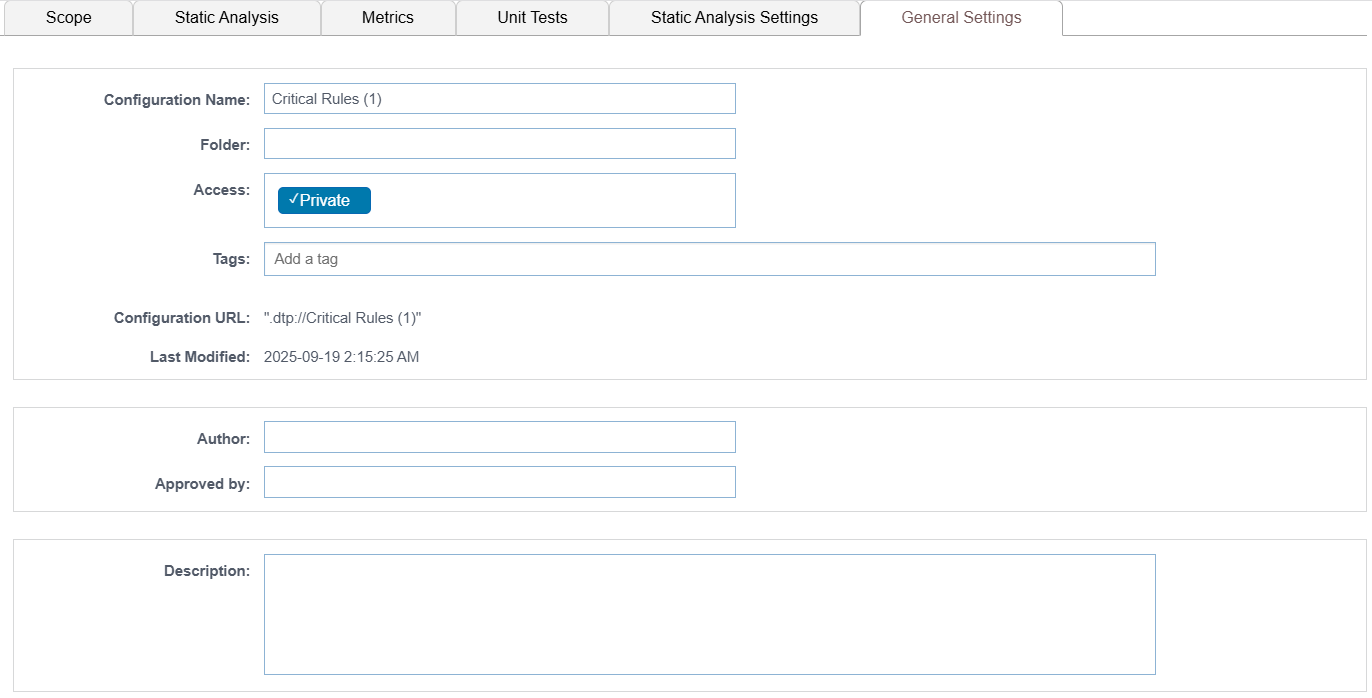
In this section:
To create a custom test configuration, you need to:
- Duplicate an existing test configuration locally or on DTP.
- Modify the duplicated configuration to meet your organization’s development policy.
Creating and Customizing Test Configurations Locally
To create a custom configuration locally, you need to copy a selected built-in configuration to the User directory, and then customize the duplicated configuration.
Click Parasoft in the menu bar and choose Options (Visual Studio) or Preferences (Eclipse). Then select Configuration.
Right-click the test configuration you want to duplicate, then choose Duplicate Locally.
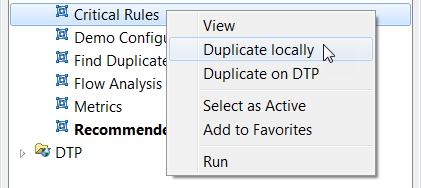 The configuration will be added to the User directory and nested in a parent directory matching the source.
Right-click the duplicate configuration and choose Edit to open the Test Configuration Editor in your browser.
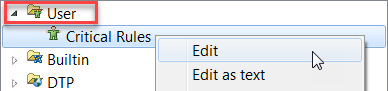
Note: If the Test Configuration Editor does not open, see What if the Test Configuration Editor does not open when I try to edit a configuration?.
Choosing Edit as text opens a textual representation of the configuration in a simple configuration editor (deprecated). If needed, you can copy the test configuration settings and save them to a .properties file.- Click a tab to access a group of related test configuration settings. For additional information about test configuration settings, mouse over an information icon ("i") next to a configuration setting. The following tabs are available:
Creating and Customizing Test Configurations on DTP
Click Parasoft in the menu bar and choose Options (Visual Studio) or Preferences (Eclipse).
Then select Configuration.
Right-click the Built-in or User test configuration you want to duplicate, then choose Duplicate on DTP.
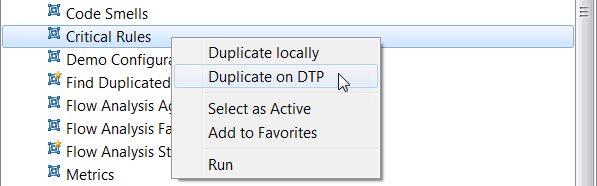 The configuration will be added to the DTP directory and uploaded to the DTP server (see Connecting to DTP)
 - Right-click the duplicate configuration and choose Open in DTP.
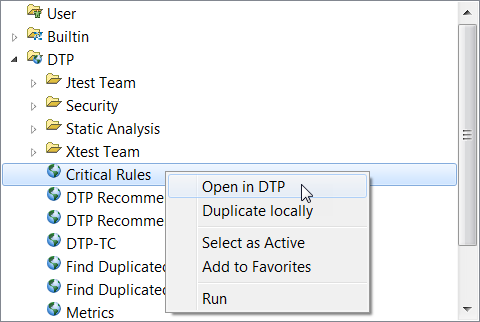
If you are not logged in DTP, the DTP login page will open in a browser. Provide your credentials to log in.
The Test Configuration page in DTP will open. - Open the list of test configurations. The duplicated test configuration will be available in the configurations lists.
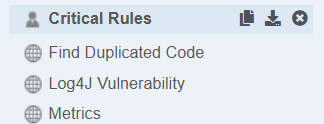
- Click the duplicated test configuration to open the configuration interface. See the DTP documentation for details about how to customize test configurations on DTP.