In order for CTP to gather coverage information related to your manual tests, you will need to configure the components in your environment to use one of your deployed application coverage agents. This section assumes that you have already configured coverage agents for the application under test (AUT) using Parasoft dotTEST or Jtest (the recommended method), or using one of the command line coverage tools shipped with SOAtest or CTP that you can use to analyze application binaries when you don't have access to the project's source code. If you have not, please see Configuring the Application Under Test for Coverage for more information.
Connecting Coverage Agents to CTP Components
You can confirm that the components in your environment have been connected to coverage agents easily. Open the Environment Manager and edit your environment diagram. Click the Coverage Agents tab and you will see a convenient table organized by component name that includes coverage agent, build ID, and DTP project information for each, as applicable.
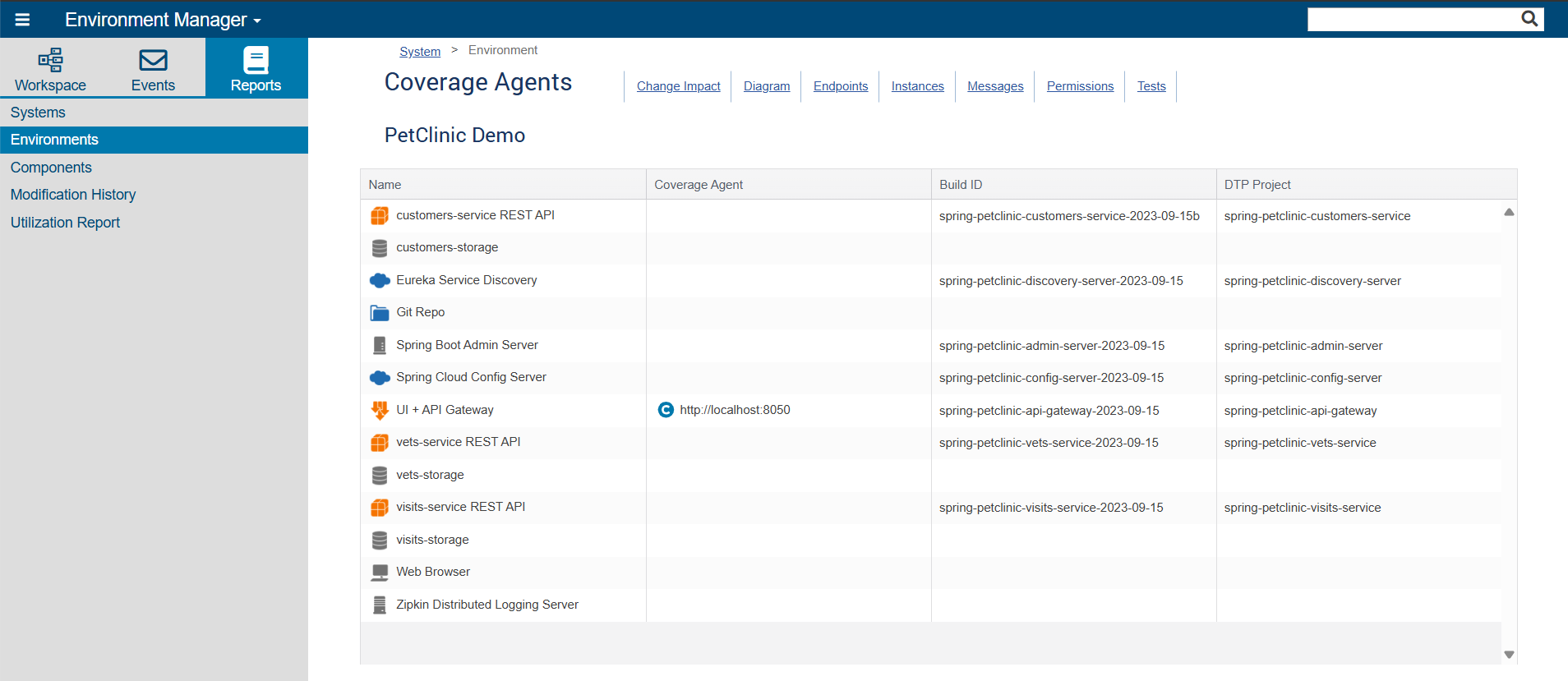
If you find a component that needs to be connected to a coverage agent but is not, go back to the Diagram tab to configure that connection:
If you want to edit other agent.properties or agent.config.json files without needing to come to this dialog for each component, you can reuse the settings for Note: You will need to update these DTP settings when a new version of your application is deployed. You can do this either in this dialog or in the agent's properties file (agent.properties or agent.config.json); the settings will be updated automatically the next time the agent is started.ctp.websocket.url and the ctp.subscription.queue that you need to add to your agent properties file (agent.properties for Java or agent.config.json for .NET); you can copy the settings directly from here. See Application Coverage for more information about configuring coverage agents.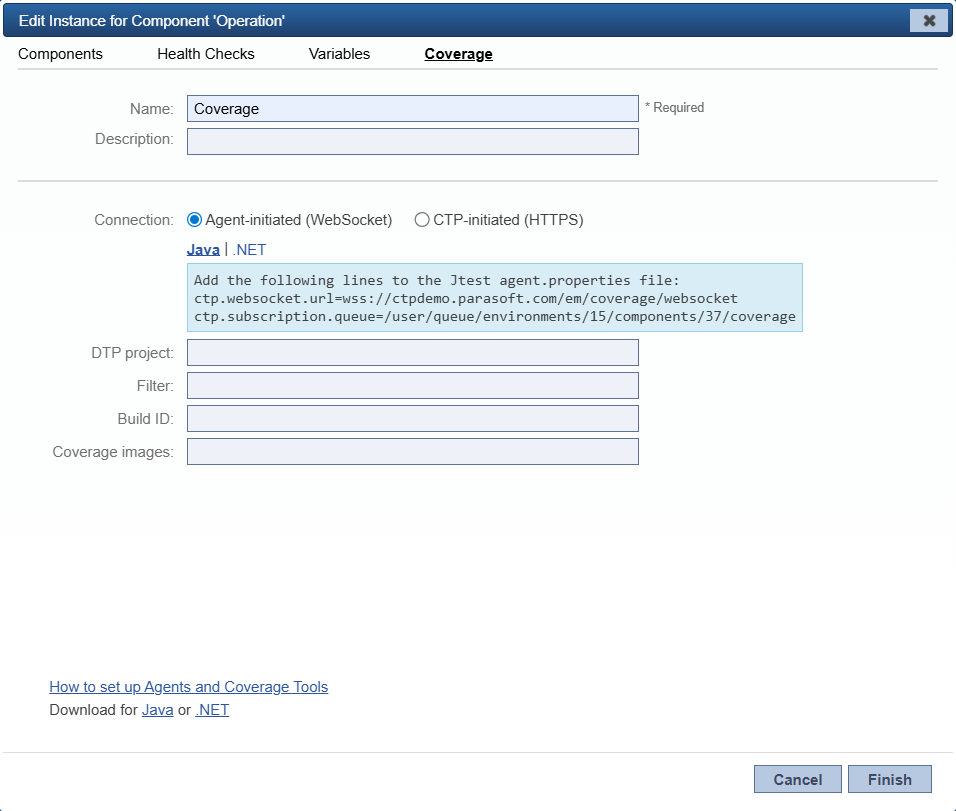
ctp.websocket.url and ctp.subscription.queue, just replace the environment ID and component ID with the values for the new component in the latter. You can find those values easily by clicking the component in your diagram and checking the URL field in your browser.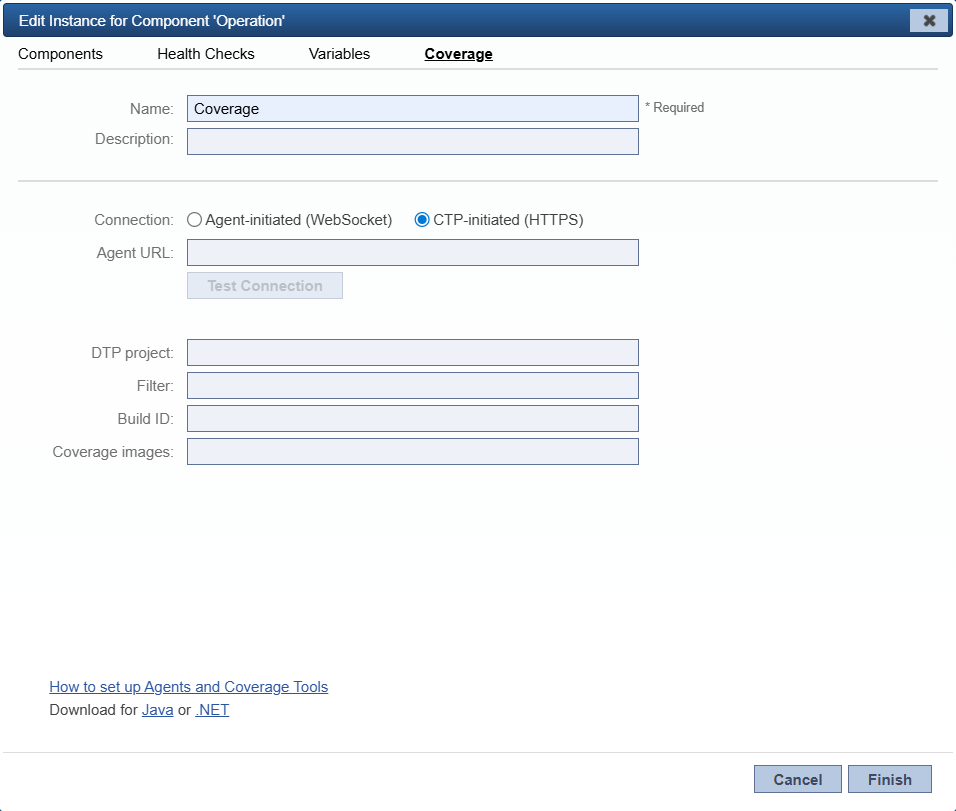
Coverage Agents in Multi-User Mode
If you have multiple testers working on a web application at the same time, it is recommended that you run your coverage agents in multi-user mode. When a component in an environment is configured to a coverage agent running in single-user mode, you will only be able to run one test at a time in that environment. How you run your coverage agent in multi-user mode depends on which coverage agents you're using.
- Jtest: Be sure both
jtest.agent.enableMultiuserCoverageandjtest.agent.autoloadMultiuserLibsare enabled in the agent.properties file.- Note: When
jtest.agent.enableMultiuserCoverageis enabled, jtest-otel-ext.jar and opentelemetry-javaagent.jar will be automatically loaded from the agent.jar directory. All three are included in the coverage agent download and should be deployed to the same directory when the coverage agent is installed.
- Note: When
- dotTEST: Be sure
multiUseris enabled in the agent.config.json file.
See Application Coverage for more information about configuring coverage agents.
Regardless of which coverage agent you are using, each tester's browser needs to be set up to inject the following HTTP header (where <USER> is the tester's CTP username): baggage: test-operator-id=<USER>
If this header is not injected, you will not capture any coverage data. You can inject this header using a browser extension. The screenshot below shows the header injected in a Chrome browser with such an extension.

Configuring Coverage Agents to Track Impacted Manual Tests
If you want CTP to be able to report on manual tests that have been impacted by code changes, you need to configure your coverage agents with the location of your application under test so that, when changes are made to it, it will be able to determine what classes changed. How you do this depends on which coverage agents you're using.
- Jtest: Enable
jtest.agent.appLocationIncludesand (if applicable)jtest.agent.appLocationExcludesin the agent.properties file and configure them appropriately. See Jtest Coverage Agent settings for more information about Jtest coverage agent parameters. - dotTEST: Enable
appLocationIncludesand (if applicable)appLocationExcludesin the agent.config.json file and configure them appropriately. See dotTEST Coverage Agent settings for more information about dotTEST coverage agent parameters.
