Parasoft SOAtest/Virtualize Server を使用するには、ライセンスが必要です。WAR ファイルがデプロイされたマシンにアクセスできる場合、サーバーを起動する前に、<SOAVIRT_HOME>/WEB-INF/ ディレクトリにある config.properties ファイルを編集してライセンス設定を行うことができます。config.properties ファイルにアクセスできない場合、または自動化プロセスの一部としてサーバーを構成している場合、REST API を使ってライセンス設定を実施できます。
パスワードの暗号化
License Server、または SOAtest/Virtualize Server の DTP にライセンスを要求するには、ユーザー名とパスワードが必要です。認証と安全な接続を確実に行うために、パスワードを暗号化することを強く推奨します。WAR が または を OS に合わせて実行します。encodepass スクリプトは、AES 256 ビット暗号化を使用してパスワードを暗号化します。 どちらも暗号化された文字列を生成します。これは、SOAtest および Virtualize Server 構成ファイルの password プロパティの代わりに使用できます。 <SOAVIRT_HOME> にデプロイされた後、以下を実行してパスワードを暗号化できます。<SOAVIRT_HOME>/scripts/encodepass.sh <YOUR_PASSWORD><SOAVIRT_HOME>/scripts/encodepass.bat <YOUR_PASSWORD>-encodepass フラグを使用して SOAtest または Virtualize のコマンド ライン インスタンスを実行することもできます。この場合も AES 256 ビット暗号化が使用されます。例:soatestcli.exe -encodepass <YOUR_PASSWORD> virtualizecli.exe -encodepass <YOUR_PASSWORD>
License Server ライセンスの使用
License Server のライセンスを使用するには、次の設定を行います。
SOAtest および Virtualize
license.network.use.specified.server=true
license.network.url=<URL for License Server in the form https://host[:port][/context-path]>

virtualize.license.use_network=true
virtualize.license.network.edition=performance_server_edition
virtualize.license.custom_edition_features=<comma-separated list of features>
virtualize.license.enabled=true

soatest.license.use_network=true
soatest.license.network.edition=server_edition
soatest.license.custom_edition_features=<comma-separated list of features>
soatest.license.enabled=true
組織で購入済みのライセンス タイプを把握するには、組織の Parasoft 担当者に問い合わせてください (例: server_edition)。Custom Edition を使用している場合、少なくとも Virtualize の Service Enabled 機能あるいは SOAtest の Server API Enabled 機能を指定する必要があります。サーバーが HTTPS プロトコルを使用している場合は、license.network.url でホスト名の先頭に https:// を追加します。
Virtualize のみ
license.network.use.specified.server=true
license.network.url=<URL for License Server in the form https://host[:port][/context-path]>

virtualize.license.use_network=true
virtualize.license.network.edition=performance_server_edition
virtualize.license.custom_edition_features=<comma-separated list of features>
virtualize.license.enabled=true

soatest.license.enabled=false
サーバーが HTTPS プロトコルを使用している場合は、license.network.url でホスト名の先頭に https:// を追加します。
SOAtest のみ
license.network.use.specified.server=true
license.network.url=<URL for License Server in the form https://host[:port][/context-path]>

virtualize.license.enabled=false

soatest.license.use_network=true
soatest.license.network.edition=server_edition
soatest.license.custom_edition_features=<comma-separated list of features>
soatest.license.enabled=true
サーバーが HTTPS プロトコルを使用している場合は、license.network.url でホスト名の先頭に https:// を追加します。
詳細については「サーバーの設定」を参照してください。詳細設定については「サーバーの詳細設定オプション」を参照してください。
DTP ライセンスの使用
SOAtest および Virtualize Server を Parasoft DTP に接続して、ライセンスを取得できます。
license.network.use.specified.server=false
virtualize.license.use_network=true
soatest.license.use_network=true

dtp.url=<URL for DTP in the form https://host[:port][/context-path]>
dtp.user=<username for account on DTP>
dtp.password=<password for account on DTP>
マシンロック ライセンスの使用
ローカル ライセンスを使用するには、次の設定を行います。
virtualize.license.use_network=false
virtualize.license.local.password=<password sent to you from Parasoft>

soatest.license.use_network=false
soatest.license.local.password=<password sent to you from Parasoft>
ライセンス設定の詳細については「サーバーの設定」を参照してください。詳細設定については「サーバーの詳細設定オプション」を参照してください。
エンドユーザー使用許諾契約の同意
次のプロパティを設定して、Parasoft エンドユーザー使用許諾契約に同意します (https://www.techmatrix.co.jp/quality/support/parasoft/license でお読みください)。
parasoft.eula.accepted=true
サーバー起動後のライセンス設定
REST API を使ってサーバーのライセンスを設定できます。API を使用して CTP への接続を構成することもできます( サーバーの設定 の env.manager.* 設定を参照)。
Web ブラウザーから REST API ページを使用する
- サーバーを起動して、
preferencesエンドポイントのドキュメントを開きます。http://<HOST>:<PORT>/soavirt/api/v6#!/preferences/preferencesPUT_config
- [Try it out!] をクリックし、[新規コンフィギュレーション] 入力フィールドに JSON オブジェクトとしてライセンス設定を入力します。有効なオブジェクトの構造について説明が表示されます。コピーして UI に貼り付けることができる例については Example Requests を参照してください。
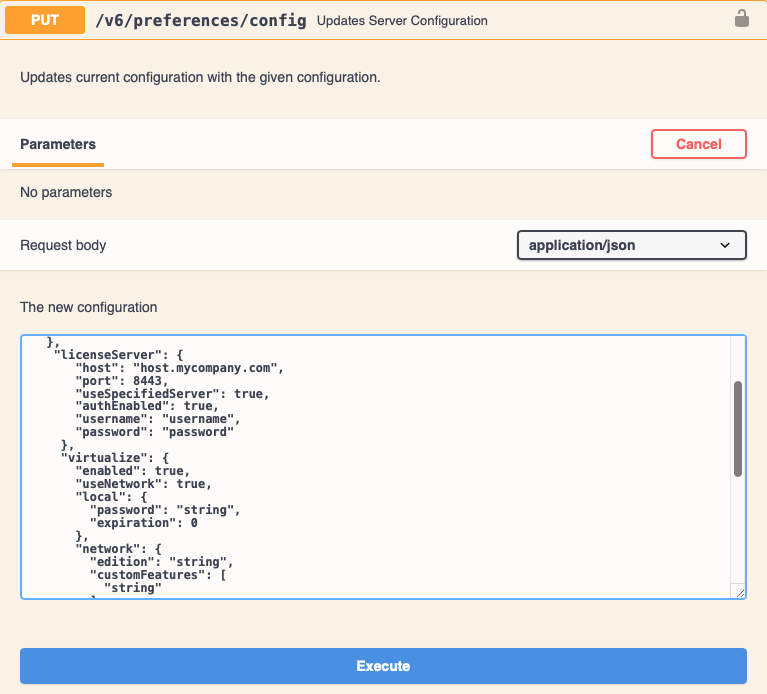
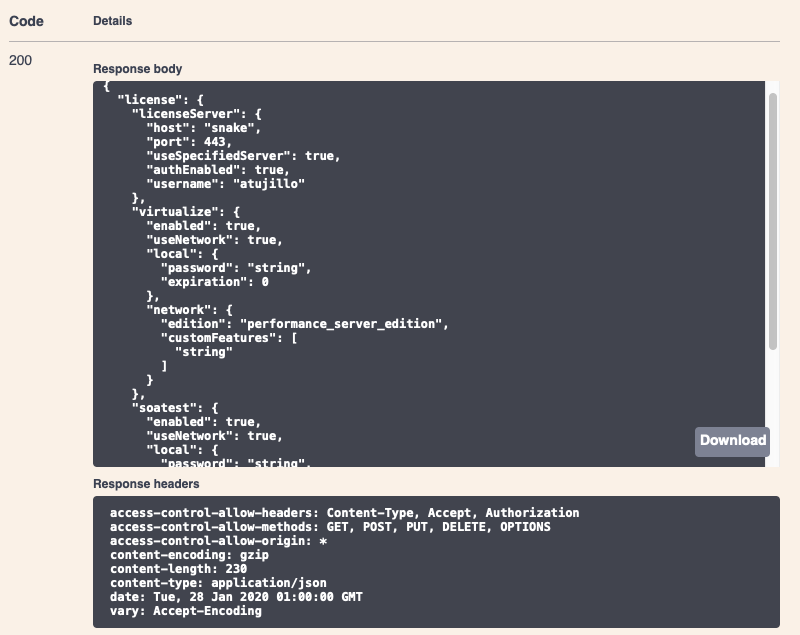
- [実行] をクリックしてリクエストを送信します。レスポンス ボディには、パスワードが削除された構成設定が含まれます。
statusエンドポイントに GET リクエストを送信して、ライセンスが正常に設定されたことを確認します。http://<HOST>:<PORT>/soavirt/api#!/status/statusGET
これにより、サーバーホストと各ライセンス機能の状態に関する情報が表示されます。
リクエストの例
手始めに、以下の JSON の例をコピーして REST API エンドポイントに貼り付けると便利です。使用するライセンスに合わせて、ホスト、ポート、および機能の設定を変更してください。エンドユーザー使用許諾契約 (EULA) に同意するには、"accepted」 フィールド true に更新します。製品を使用するには、EULA に同意する必要があります。EULA は https://www.techmatrix.co.jp/quality/support/parasoft/license/ で読むことができます。
{
    "eula" : {
        "accepted" : false
    },
    "license" : {
    "licenseServer": {
      "host": "<your-LS-host>",
      "port": <your-LS-port>
    },
    "virtualize": {
      "enabled": true,
      "useNetwork": true,
      "network": {
        "edition": "performance_server_edition"
      }
    },
    "soatest": {
      "enabled": true,
      "useNetwork": true,
      "network": {
        "edition": "server_edition"
      }
    }
  }
}
{
    "eula" : {
        "accepted" : false
    },
    "license" : {
    "licenseServer": {
      "host": "<your-LS-host>",
      "port": <your-LS-port>
    },
    "virtualize": {
      "enabled": true,
      "useNetwork": true,
      "network": {
        "edition": "custom_edition",
		"customFeatures": [
		"<comma-separated-list-of-features>"
		]
      }
    },
    "soatest": {
      "enabled": true,
      "useNetwork": true,
      "network": {
        "edition": "custom_edition",
 		"customFeatures": [
		"<comma-separated-list-of-features>"
		]
      }
    }
  }
}
{
    "eula" : {
        "accepted" : false
    },
    "license" : {
    "dtp": {
      "host": "<your-DTP-host>",
      "port": <your-DTP-port>,
      "username": "<your-DTP-username>",
      "password": "<your-DTP-password>"
    },
    "virtualize": {
      "enabled": true,
      "useNetwork": true,
      "network": {
        "edition": "performance_server_edition"
      }
    }
  }
}
{
    "eula" : {
        "accepted" : false
    },
    "license" : {
    "dtp": {
      "host": "<your-DTP-host>",
      "port": <your-DTP-port>,
      "username": "<your-DTP-username>",
      "password": "<your-DTP-password>"
    },
    "virtualize": {
      "enabled": true,
      "useNetwork": true,
      "network": {
        "edition": "performance_server_edition"
      }
    },
    "soatest": {
      "enabled": true,
      "useNetwork": true,
      "network": {
        "edition": "server_edition"
      }
    }
  }
}
{
    "eula" : {
        "accepted" : false
    },
    "license" : {
        "virtualize" : {
            "enabled" : true,
            "useNetwork" : false,
            "local" : {
                "password" : "<virtualize-password>"
            }
        },
        "soatest" : {
            "enabled" : true,
            "useNetwork" : false,
            "local" : {
                "password" : "<soatest-password>"
            }
        }
    }
}
コマンドラインから REST API を使用する
コマンドラインを使用して REST API 経由でライセンスを適用することもできます。以下は、ノードロック ライセンスを Virtualize に適用する方法の例です。
まず、Parasoft からライセンスを取得するために、リモート サーバーのマシン ID を取得する必要があります。REST API を使用してこれを行うには、次のコマンドを実行します。
curl -X GET "http://server.example.com:9080/soavirt/api/v6/status?fields=machineId" -H "accept: application/json"
レスポンスでマシン ID が返されます。たとえば、Linux サーバーでは、レスポンスは次のようになります。
{"machineId":"LINUX2-xxxxxxx (Default)"}
Parasoft 製品の担当者からライセンス パスワードを受け取ったら、それを適用できます。REST API を使用してノードロック ライセンスを適用するには、次のコマンドを実行します。以下のコマンドの PASSWORD_TEXT を実際のパスワードに置き換えてください。
curl -X PUT "http://server.example.com:9080/soavirt/api/v6/preferences/config" -H "accept: application/json" -H "Content-Type: application/json" -d "{\"eula\":{\"accepted\":false},\"license\":{\"virtualize\":{\"enabled\":true,\"useNetwork\":false,\"local\":{\"password\":\"PASSWORD_TEXT\"}},\"soatest\":{\"enabled\":false,\"useNetwork\":false}}}"
上記の例では、EULA は同意されていません。EULA に同意するには、手動で \"eula\":{\"accepted\":false} to \"eula\":{\"accepted\":true} に変更する必要があります。製品を使用するには、EULA に同意する必要があります。https://www.techmatrix.co.jp/quality/support/parasoft/license/ で EULA をお読みください。
製品がライセンスされていることを確認するには:
curl -X GET "http://server.example.com:9080/soavirt/api/v6/status" -H "accept: application/json"
返された出力で、"virtualize" フィールドの下にある "licensed": true を探します。
