If DTP is integrated with your source control system, you can view the tested source code in an explorer view. If integration with your source control system has not been configured, you can still view sources tested by Parasoft code analysis and test execution tools (C/C++test, dotTEST, Jtest) by setting the report.dtp.publish.src setting to full or min when configuring the tool. This instructs the tool to transfer client source code to DTP when generating the report. See the documentation for your tools for additional information.
Users must also have permissions to view source code. See this table for additional information.
When viewing functional or manual tests, the source code panel shows a hierarchical view of the test suite data collected. No additional permissions are required to view functional test data. See Viewing Functional and Manual Test Sources for information on viewing functional test data.
Viewing Unit Test Source Code
Click on a file link in the Traces or Coverage tab to load the contents of a source file into the sources panel. This enables you to view test and coverage information in the context of the code. Displayed sources are marked with color coded flags for at-a-glance coverage information after clicking links in the Coverage tab of the actions panel. Lines with green flags are covered. Lines with red flags are uncovered.
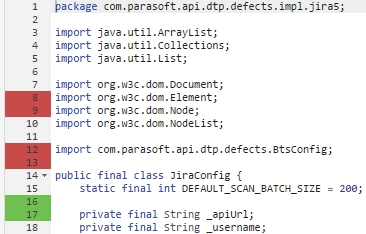
Clicking on links in the Traces tab also loads sources into the sources panel. Lines of code where the failure occurred are flagged so you can easily find the test in the trace stack.

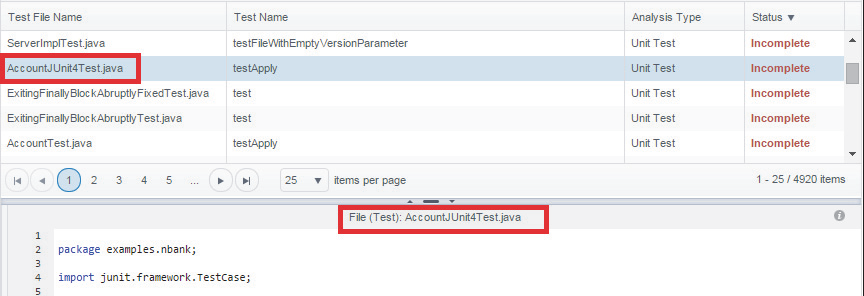
When you make a selection in the tests table, the file name and the component that opened the file appears in the code panel.
Viewing Functional and Manual Test Sources
Click on a test in the search results panel to view functional tests performed with SOAtest 9.x or later in the Test Explorer. SOAtest 9.9.2 or later is required to view test authorship and parameterized tests. Data Collector parses the XML report file generated by SOAtest and displays the .tst file data, so the .tst file does not need to be published to DTP or stored in source control.

The selected test suite is highlighted in the panel. You can click on the disclosure triangles to navigate the test data. Each node shows how much of the test suite was executed successfully. Failed test suites are displayed in red.
