The most common workflow is to open the Test Explorer by clicking on a test-related widget in your DTP dashboard, which will populate based on the parameters configured in the widget. You can also modify the search parameters to home in on specific parameters.
Click Change Search to open the search dialog and configure your search criteria. The following search criteria are available:
Filter Target Build | A filter and build ID are the minimum criteria for searching tests. By default, the latest build selected when you change the filter, but you can choose a different build from the menu. See the following sections for additional information: |
|---|---|
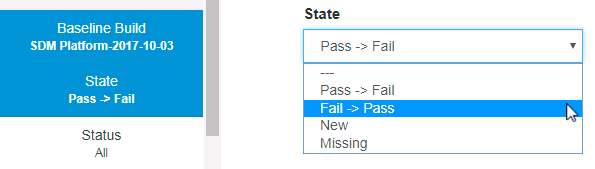
Baseline Build State | A baseline build is any historical build used for comparison with another build. Choose a baseline build from the menu to search for tests reported from the baseline build to the build selected with the filter. You can search for tests with the following states:
|
| Status | You can search for tests based on the following statuses:
|
| Coverage Image | If one or more coverage images have been configured for the filter, you can choose an image from the menu to search for tests that have coverage associated with the tests. A coverage image is a unique identifier used to aggregate coverage data from runs with the same build ID. See DTP Concepts for additional information about coverage images. |
| Analysis Type | You can choose one or more of the following test types to include in the search:
|
| Test Environment | You can specify a test environment tag to search for tests that were executed in a specify environment (also see Viewing Tests Executed in Different Environments). Refer to the test execution tool documentation for details about configuring test environment tags. |
| Priority | You can choose one or more of the following priority levels to include in the search:
You can use the REST API to customize priorities. |
Include File Pattern Exclude File Pattern | You can specify Ant-style patterns to narrow or broaden the scope of your search. See Using File Patterns in DTP for more information about configuring file patterns. |
| Risk/Impact | You can search by one or more risk/impact values. Risk/impact is the extent to which a test impacts the business. Risk/impact can be customized through the REST API. |
| Reference Number | You can constrict your search to a specific reference number. Reference numbers can be added manually or automated through the REST API. |
| Author | You can search by one or more code authors. Authorship is determined from the settings in the code analysis tool. |
| Action | You can search by one or more assigned actions. Actions can be customized through the REST API. |
| Assignee | You can search by one or more assignees. |
| Artifact | If DTP is integrated with a third-party ALM system and you have deployed the Traceability Pack your environment, you will be able to access a traceability report that links tests sent to DTP with work items tracked in the ALM system. Clicking on a link to the Test Explorer from the traceability report will include the artifact (work item) ID as a search parameter. The ID only appears for informational purposes. The field will not appear unless the specific traceability path has been taken. You can clear the ID in this field, but you cannot use it to search for tests based on artifact ID. See Integrating with External Systems and Traceability Pack for details. |
| Limit | Specify a limit to the number of tests returned by the search. |
Some states disable the limit on test cases returned
The Pass → Fail and Fail → Pass state parameters disable the limit on number of test cases returned in the search results area.