Supported Systems
You can connect a project in DTP to a project in one of the following requirements/issue tracking systems:
- Azure DevOps - see Integrating with Azure DevOps
- CodeBeamer ALM - see Integrating with Codebeamer ALM
- DOORS Next - see Integrating with DOORS Next
- Jama Connect - see Integrating with Jama Connect
- Jira - see Integrating with Jira
- Polarion ALM - see Integrating with Polarion ALM
Creating an Issue
The integration enables you to create issues in the connected ALM system from tests in the Prioritization panel.
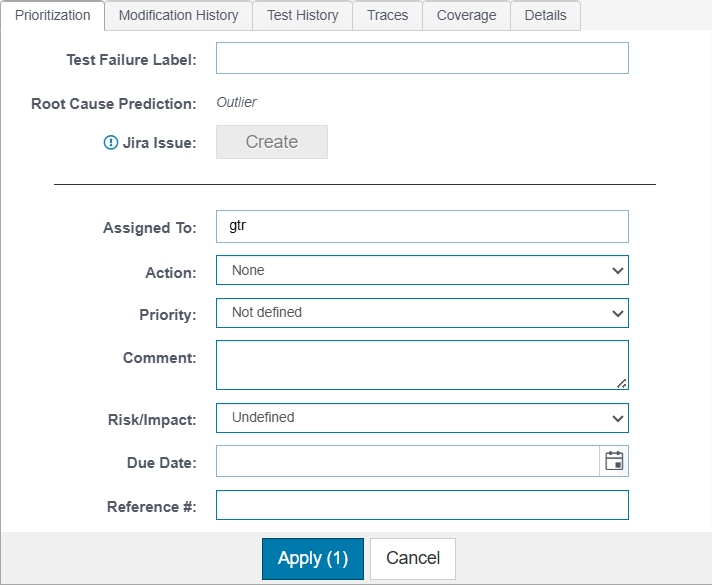
- Select a test in the search results area and click the Prioritization tab in the actions panel.
- Click Create and specify information about the work item you are creating:
Project The name of the ALM project in which the new issue will be created appears in the Project field. The association between a DTP project and the external ALM project is defined by your DTP administrator. See the following sections for details:
Type Choose the type of item to create from the menu. Terminology varies across ALMs, but DTP supports the following types of work items by default:
- For Azure DevOps, Jira, or Codebeamer, choose Bug or Task.
- For Jama Connect, choose Defect.
- For Polarion ALM, choose Issue or Task.
- For DOORS Next, choose Task or Defect.
Summary By default, the test name is prepended with "Review Test" and used as the summary, but you can make any necessary changes. Description This field populates the description field in the third-party system. It will include a link back to DTP based on the Display URL field setting in the External Application configuration page. - Click Create.
An issue will be created in your external system that links back to the test in DTP. Additionally, a link to the issue will appear in the Prioritization tab, create a bi-directional path between DTP and your external system.
Unlinking a Created Issue
Once an issue has been created, it will be linked to the violation. You can unlink the issue from the violation by clicking the "X" icon beside it.

Only the link will be removed; the issue in the third-party system will not be affected.
