Parasoft Recorder is a Google Chrome extension that might not work on older versions of the browser; check your version against the requirements mentioned below. While it is free to download and use, you might still need a valid Selenic license to use what it records to create Selenium tests. Standard and manual installation procedures are described below.
System Requirements
Parasoft Recorder requires Google Chrome version 142+.
Licensing
You can freely download and install Parasoft Recorder, but a valid license is required to use the Selenium test creation and management features in Parasoft Selenic. Contact your Parasoft representative for complete licensing information.
Installation
Standard Installation
Parasoft Recorder is a Chrome Browser extension shipped with Selenic that enables you to capture UI actions that Selenic can use to create Selenium tests and Selenium JUnit test projects. <SELENIC_INSTALL>/recorder directory and run the Windows or MacOS installer.
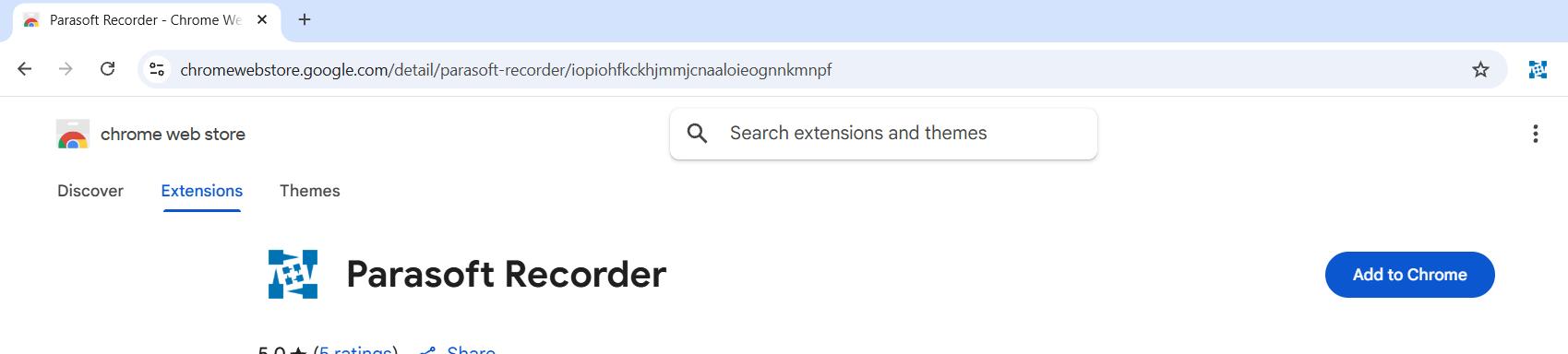
Install from the Chrome Web Store
You can also install the Parasoft Recorder Chrome extension from the Chrome Web Store.