Click on the Prioritization tab to access several actions to help you remediate unit and functional test failures.
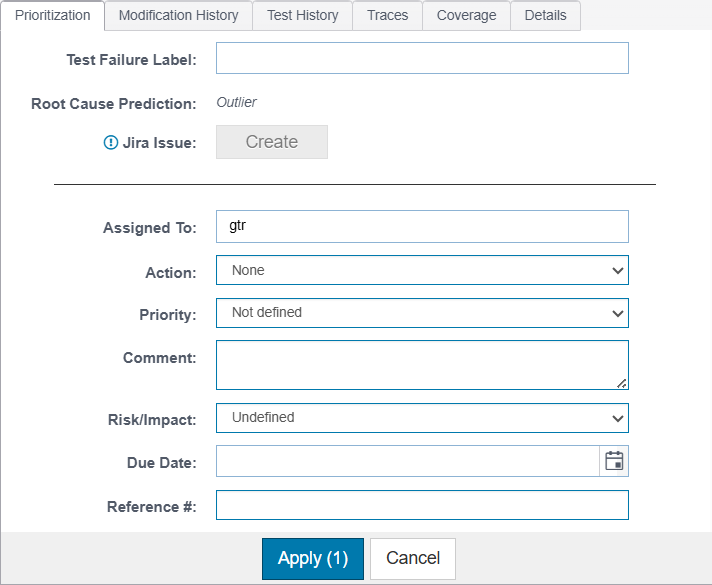
You can perform the following actions:
- Add comments.
- Assign a user by entering a username in the Assigned To field.
- Set the priority by choosing an option from the Priority menu.
- Define an action for the assignee by choosing an option from the Action menu.
- Actions are strings of metadata that you can use to define how you choose to remediate test failures. DTP ships with set of predefined actions: None, Fix, Reassign, Review, Suppress, and Other. You can edit or remove the predefined action types (except for the None type) using the API. For details on configuring actions, go to Help > API Documentation in the Report Center navigation bar.
- Associate a business risk or impact to the test by choosing an option in the Risk/Impact menu.
- Assign a due data by entering a date in the Due Date field or by using the date picker.
- Assign a reference number to the test be entering a value in the Reference # field.
Click Apply to save the test metadata.
Permissions Must be Configured to Update Test Metadata and View Sources
Users must have permissions to set unit and functional test metadata (prioritize), as well as view sources. Permission can be granted for all tests or limited to tests owned by the user. The following table describes a project membership scenario and how permissions may be assigned (see Built-in Permissions and Groups for additional information):
User Type Additional Permission Access Granted Admin Leader Member Non-member 1 No access Non-member 2 project Non-member 3 project, prioritizeOwner Non-member 4 project, viewSources
