The Attachments Tool allows you to add MIME attachments to an outgoing message before it is sent. This tool is primarily used to add binary attachments to a SOAP message according to the "SOAP with Attachments" (SwA) specification. This tool should not be used to configure MTOM/XOP message attachments. For MTOM attachments, see the Misc tab in the SOAP Client.
To use the Attachments Tool:
Add the Attachments Tool as an output to a messaging tool (right-click > Add Output). It is available in Request > Traffic or Request > SOAP Envelope for message clients or Outgoing Response > Payload for message responders.
- Open the Attachments Tool and click Add. A new attachment entry appears in the Attachments table.
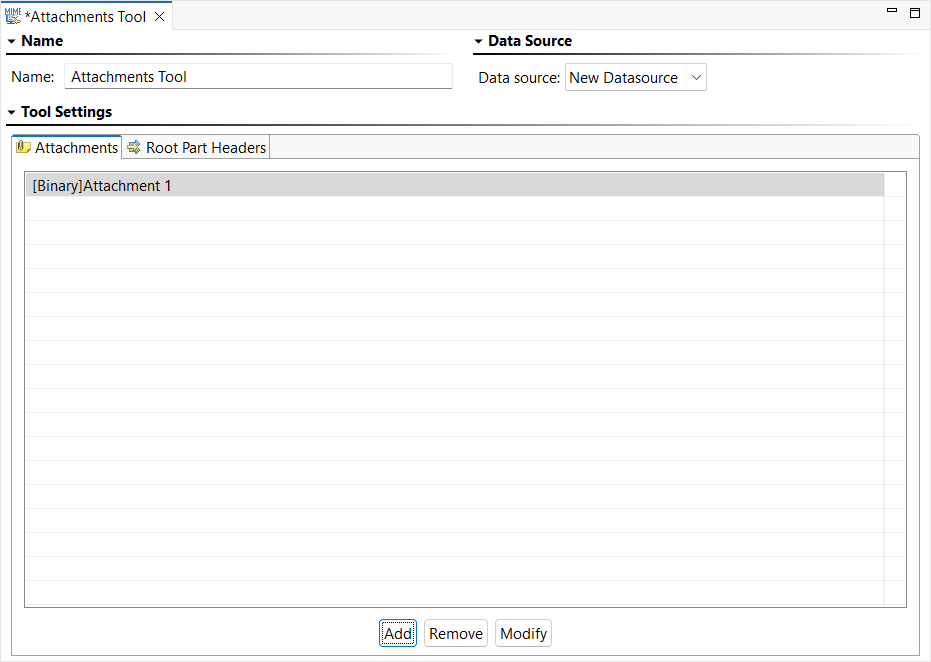
- Open the attachment entry by double clicking it or by selecting it then clicking Modify. An Edit Attachments dialog opens.
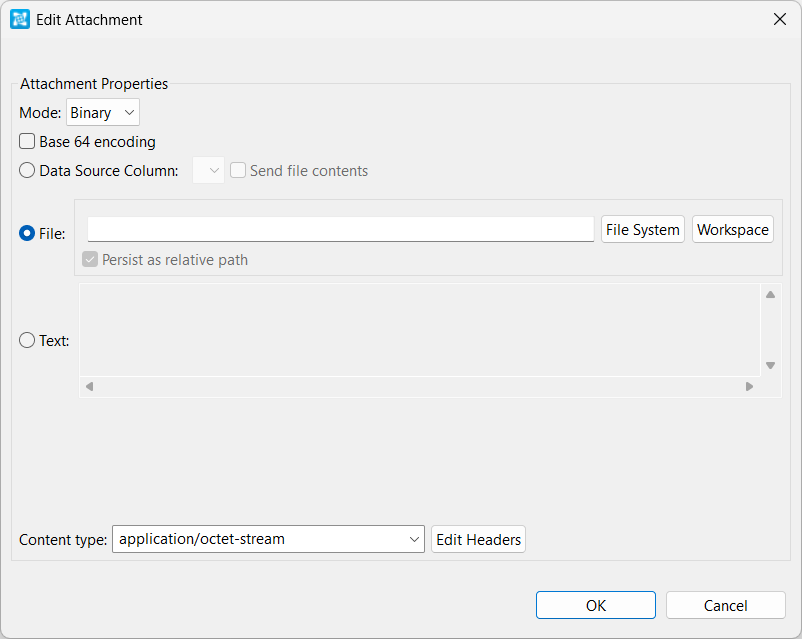
- Choose either Binary or XML from the Mode menu.
- Configure the attachment. The options vary according to the Mode selected:
- The following options are available for Binary Mode:
- Base 64 Encoding: Enables Base64 Encoding to encode the binary value.
- Data Source Column: Select to send values from a data source column.
- File: Select to send values from a file. Choose the desired file by clicking Browse. Enable Persist as Relative Path if you want the path to this file to be saved as a path that is relative to the current configuration file.
- Text: Select to send a text value.
- Content type: Specify the content type. Click Edit Headers if you want to add, modify, or delete attachment headers.
- The following option is available for XML Mode:
- Input mode: Select the desired input mode from this menu and configure accordingly. Options are Literal XML, Form XML, Scripted XML, and Form Input. See Input Modes for more information about using these input modes.
- The following options are available for Binary Mode:
- Click OK.
- If you want to add, modify, or delete root part headers, click the Root Part Headers tab.
