Introduction
The HEX-ASCII Converter Tool is a custom tool extension for Parasoft SOAtest and Virtualize. It can convert hexadecimal strings into ASCII-encoded strings and vice versa. The tool takes its input from the Input tab and converts the data to a HEX string or an ASCII-encoded string (based on the tool settings).
Implementation
This tool is implemented as com.parasoft.soavirt.tool.hexasciiconverter-<version>.jar, which depends upon the com.parasoft.soavirt.util.jar from the Parasoft SOAtest & Virtualize Custom Extension Utility Package (available separately on Marketplace).
Installation
The tool can be installed from the UI or command line.
UI Installation
- Go to Parasoft > Preferences and click System Properties.
- Click Add JARs and choose com.parasoft.soavirt.tool.hexasciiconverter-<version>.jar.
- Click Apply. Once this jar file is added to the SOAtest/Virtualize classpath, all of the required dependencies will be loaded.
- Restart SOAtest/Virtualize.
Command Line Installation
Add the com.parasoft.soavirt.tool.hexasciiconverter-<version>.jar file to the system.properties.classpath property in your settings properties file. For example:
system.properties.classpath=<path to jar>/com.parasoft.soavirt.tool.hexasciiconverter-1.2.0.jar
Once the classpath is modified, all of the required dependencies will be loaded.
Usage
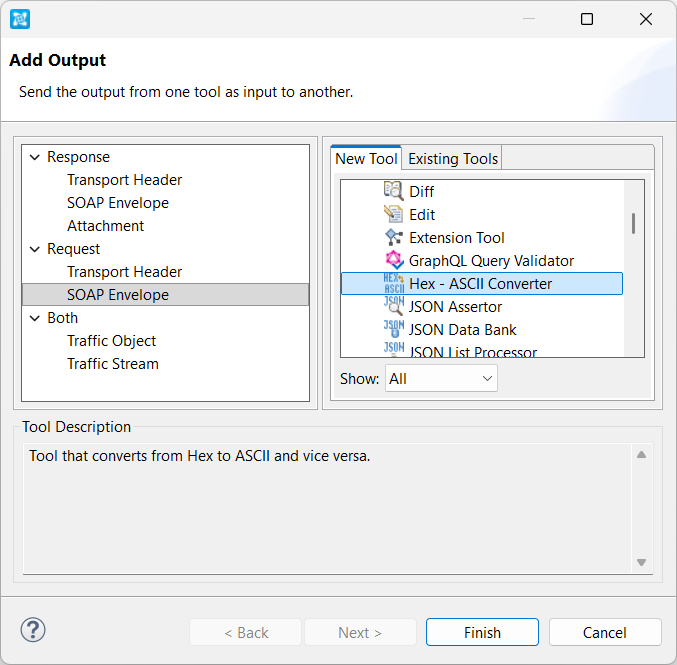
Hex-ASCII Converter tools can be added as standalone tools via the Add Test wizard or chained to the output of other tools via the Add Output wizard.

Configuration
You can configure whether you want to convert to hexadecimal or ASCII under Tool Settings. The tool only converts from hex to ASCII or from ASCII to hex, so when you're configuring it, enter the one that is opposite of the input: If the tool’s input is a string of ASCII characters, specify Hex and if the tool’s input is a string of HEX characters, specify ASCII. If the field is left empty, this tool will be disabled.
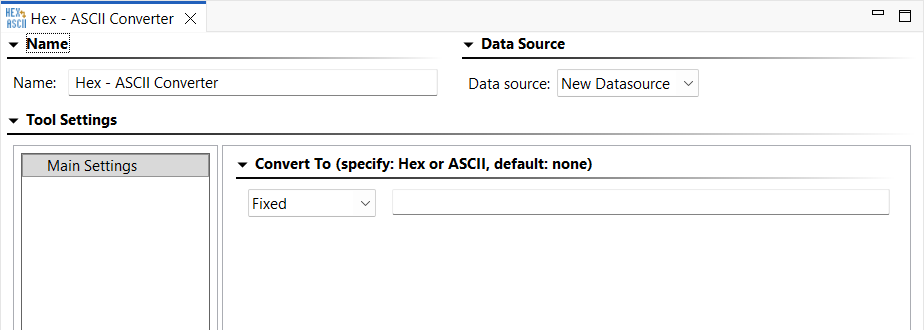
Standalone instances of the tool will also have an Input tab for specifying the source of what you want converted. You can enter it as text directly or choose a file or data source column.

