Introduction
Agent2Agent (A2A) is an open protocol enabling communication and interoperability between opaque agentic applications. Parasoft Virtualize is well-suited for virtualizing A2A agents with its built-in JSON processing tools and extensions for a wide array of underlying transports. Virtualize supports the A2A protocol bindings JSON-RPC and gRPC. Virtualization is helpful in A2A environments where a consistent response is needed from an agent.
A2A Test Scenario Example
The following example illustrates how to create an A2A test scenario in Virtualize:
- Create a virtual asset for A2A testing. See Adding Projects, Virtual Assets, and Responder Suites for more information about creating virtual assets.
- Add a JSON Message Responder to the virtual asset. This will be the Agent Card.
- The Agent Card functions as a public, machine-readable JSON metadata document, serving as an agent’s digital “business card” and advertising its identity and capabilities to potential clients.
- The Agent Card is crucial for enabling agents to find and understand how to interact with one another.
- To configure the JSON Message Responder to be your Agent Card:
- On the Responder Correlation tab under URL Path, set the Path for where your Agent Card is published. This is typically at a well-known URI, often
/.well-known/agent-card.json.
- On the Response tab, add the Response payload for the Agent Card. Be sure to use the right protocol for "url" callback to your Virtualize server based on how users will access it.
 Sample response payload
{ "name": "My AI Agent", "description": "An agent that processes tasks and returns structured results.", "url": "https://${{=sv:header('host')}}/A2A/my-ai-agent", "version": "1.0.0", "provider": { "organization": "Example Corp", "url": "https://example.com" }, "capabilities": { "streaming": false, "pushNotifications": false, "stateTransitionHistory": false }, "authentication": { "schemes": ["Bearer"] }, "defaultInputModes": ["text/plain", "application/json"], "defaultOutputModes": ["text/plain", "application/json"], "skills": [ { "id": "data-analysis", "name": "Data Analysis", "description": "Analyzes structured data and returns insights.", "tags": ["data", "analytics"], "examples": [ "Analyze this CSV and summarize trends", "Find anomalies in this dataset" ], "inputModes": ["application/json", "text/csv"], "outputModes": ["application/json"] }, { "id": "text-summarization", "name": "Text Summarization", "description": "Summarizes long-form text content.", "tags": ["nlp", "summarization"], "examples": [ "Summarize this article in 3 bullet points" ], "inputModes": ["text/plain"], "outputModes": ["text/plain"] } ] }
- On the Responder Correlation tab under URL Path, set the Path for where your Agent Card is published. This is typically at a well-known URI, often
- Add a JSON Files Responder to the virtual asset. This will be the Agent.
- If your A2A server is using gRPC then install the gRPC extensions from the Parasoft Marketplace and configure the virtual asset on your Virtualize Server to use gRPC listener. See gRPC Extensions and Protobuf Extension for more information.
- To configure the JSON Files Responder to be your Agent:
- On the Responder Correlation tab under URL Path, set the Path to be the same as the value from the Agent Card response (for example, in the sample payload above, this is "/my-ai-agent").
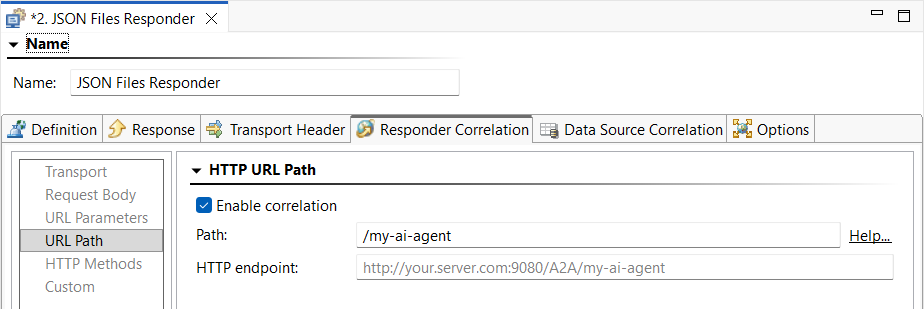
- On the Response tab:
- Set the location of the directory to use for request and response files under Request/Response Files.
- Disable Files start with a message headers section....
- Set exclude patterns for
idandmessageIdas needed under Exclude Patterns for Request Message Correlation.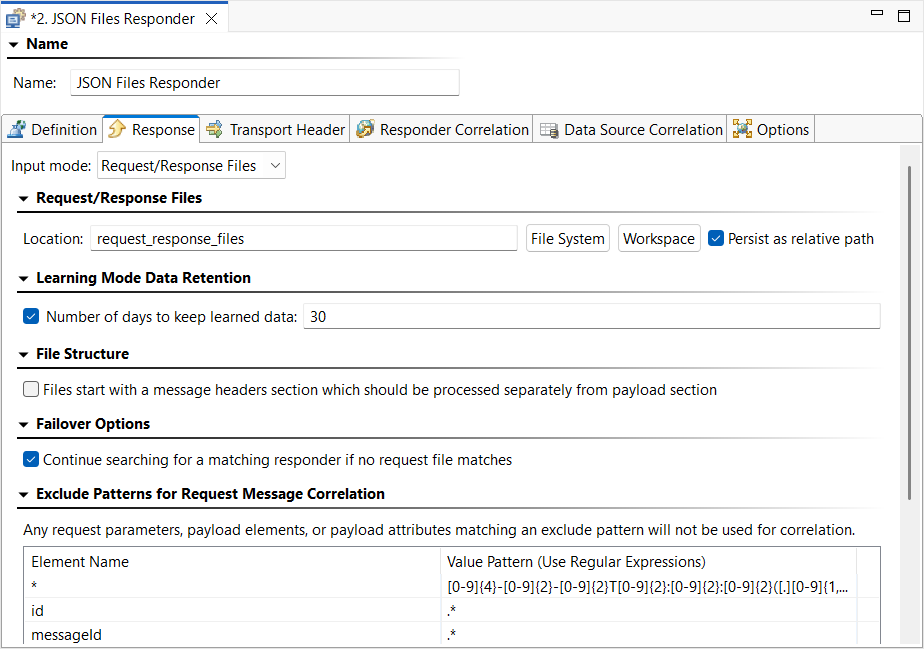
- On the Responder Correlation tab under URL Path, set the Path to be the same as the value from the Agent Card response (for example, in the sample payload above, this is "/my-ai-agent").
- Create a Data Generator Tool chained to the incoming request to generate two random, unique ID Strings for
messageIdandcontextId.- Use Pattern: &&&&&&&&&&&&&&&&&&&&&&&&&&&&&&&& for
messageId. - Use Pattern: &&&&&&&&-&&&&-&&&&-&&&&-&&&&&&&&&&&& for
contextId. - Use Character map:
1234567890abcdeffor both. - Be sure to configure the corresponding Data Source Column for each String.
- Use Pattern: &&&&&&&&&&&&&&&&&&&&&&&&&&&&&&&& for
- Save your changes.
- In the directory you set for Request/Response Files, add the following files:
- agent_example_request.txtSample agent_example_request.txt file
{ "jsonrpc": "2.0", "id": "req-001", "method": "message/send", "params": { "message": { "role": "ROLE_USER", "parts": [{ "text": "Check drug interactions for warfarin and aspirin" }], "messageId": "fec59aef01e660f0e0794740be2c907d" }, "configuration": { "acceptedOutputModes": ["text/plain", "application/json"], "historyLength": 10, "returnImmediately": false } } } - agent_example_response.txtSample agent_example_response.txt file
{ "jsonrpc": "2.0", "id": "${{=/root/id/text()#req-001}}", "result": { "message": { "messageId": "${messageId}", "contextId": "${contextId}", "role": "ROLE_AGENT", "parts": [{ "text": "Combining warfarin and aspirin carries a major risk of severe bleeding and should only be done under strict medical supervision, as both medications thin the blood." }] } } } - agent_default_request.txtSample agent_default_request.txt file
{*} - agent_default_response.txtSample agent_default_response.txt file
{
  "jsonrpc": "2.0",
  "id": "${{=/root/id/text()#req-001}}",
  "result": {
    "message": {
      "messageId": "${messageId}",
      "contextId": "${contextId}",
      "role": "ROLE_AGENT",
      "parts": [{ "text": "I'm sorry, I didn't understand the request or your request couldn't be processed right now." }]
    }
  }
}
- agent_example_request.txt
