A common use case for the JSON List Processor is to process API requests containing lists with a dynamic number of items. For example, if you sent the following request:
{
    "request": {
        "items": [
            { "id": 1, "name": "William" },
            { "id": 2, "name": "Beverly" },
            { "id": 3, "name": "Richard" }
        ]
    }
}
You might want to see the following response:
{
    "response" : {
        "itemResponses" : [
            { "id": 1, "name": "William", "balance" : 72500.13 },
            { "id": 2, "name": "Beverly", "balance" : 33000.99 },
            { "id": 3, "name": "Richard", "balance" : 42010.75 }
        ]
    }
}
You can accomplish this with the JSON List Processor. The following workflow demonstrates how:
Create a new .pva and add a JSON Responder to the suite.
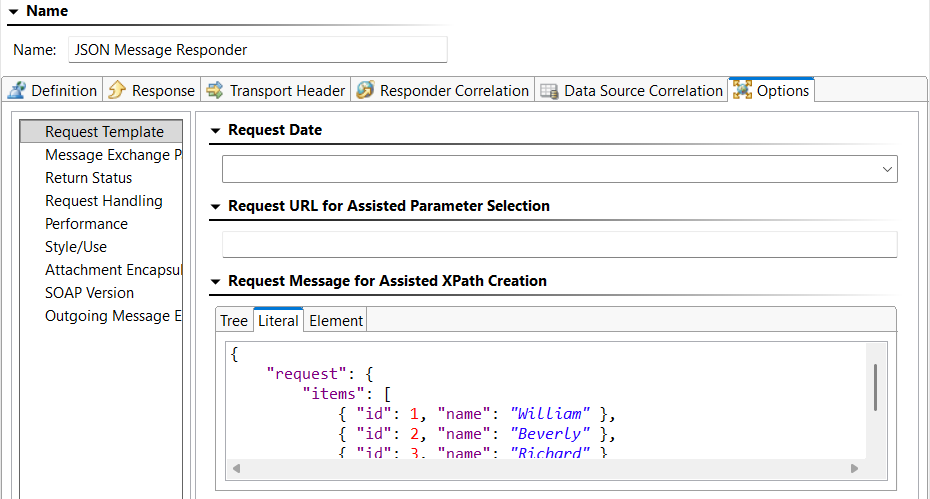
- In the JSON Responder, go to Options > Request Template and add the sample request payload above.
- In the Response tab, add the following literal payload:Note: The
{ "response" : { "itemResponses" : [ ${Outgoing List} ] } }${Outgoing List}variable will be resolved at runtime with the aggregated responses for each item processed by the JSON List Processor.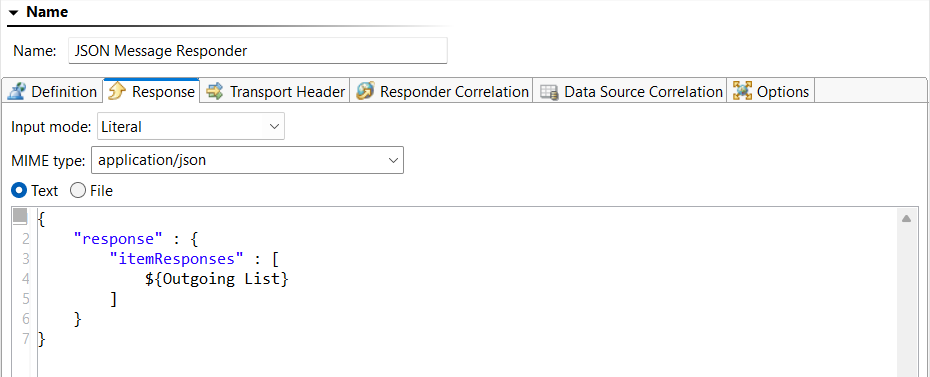
- Save your changes.
- Chain a JSON List Processor to the Incoming Request output of the responder (right-click > Add Output > Payload > JSON List Processor).

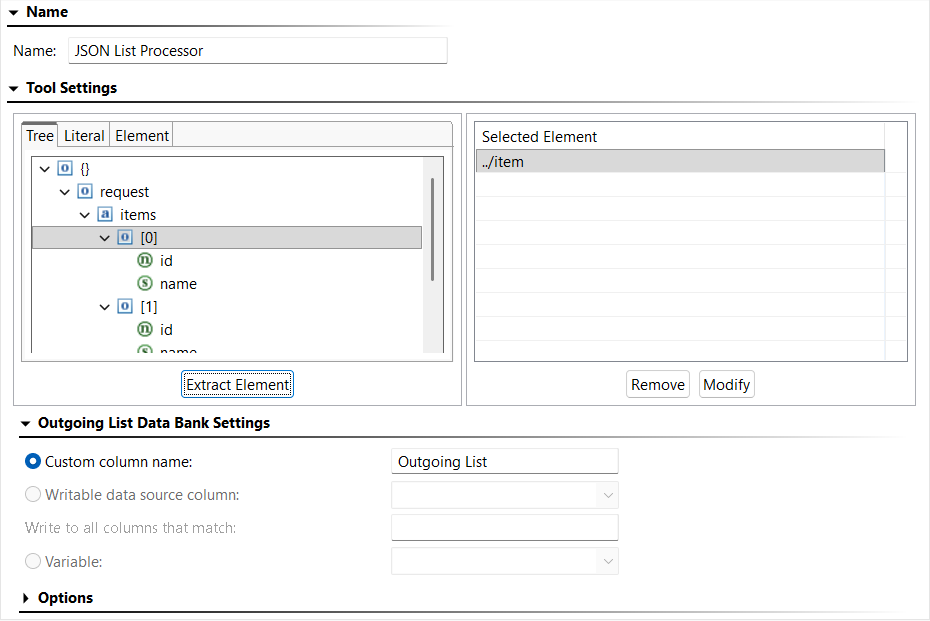
- Configure the JSON List Processor to extract the “item” object node. The generated XPath will automatically select all items under the “items” array.
- Save your changes.
- (Optional) For runtime visibility, you can use an Extension Tool to print each processed item to the console:
- Chain an Extension Tool to the JSON List Processor (right-click > Add Output… > Incoming Item > Extension Tool).
- Add the following Groovy script in the Extension Tool.
import com.parasoft.api.Application def showMessage(input, context) { Application.showMessage("Extension Tool Output - Incoming Item:\n" + input + "\n") - Save your changes.
- Add a Table data source to the suite to perform data source correlation (right-click > Add New > Data Source > Table).
- Enable First row specifies column names.
- Add the following data:
id name balance 1 William 72500.13 2 Beverly 33000.99 3 Richard 42010.75 
- Save your changes.
- Chain a JSON Message Responder to the JSON List Processor (right-click > Add Responder > JSON Message Responder). Name the responder “Success Responder”.
- Go to Options > Request Template and add the following payload:
{
   "id": 1,
   "name": "William"
}
- Go to Data Source Correlation > Request Body and configure correlation for the
idfield and use the data source column “id”.
- Click the Response tab and add the following literal payload:
{
    "id" : ${id},
    "name" : "${name}",
    "balance" : ${balance}
}
- Save your changes.
- Send a POST request to the Virtual Asset using a .tst or .pvn file and confirm the expected response.
Handling Errors
There are a couple ways you can choose to handle errors in your .pva. Add either (or both) of these to the responder suite you built above:
Option 1: Return a Custom Error Message for Invalid Items
If an item’s id does not exist in the data source, you may want to return a custom error message for that item.
- Chain a JSON Message Responder to the JSON List Processor (right-click > Add Responder… > JSON Message Responder).
- Name the responder “Error Responder – Return error for invalid id”.
- Click the Response tab and add the following literal payload:
{
    "id" : “${{=/root/id/text()}}”,
    "error" : {
        "code" : "NOT_FOUND",
        "message" : "No active account found for id '${{=/root/id/text()}}'."
      }
}
This payload uses inline expressions to extract values from the incoming JSON directly. Alternatively, you could use a JSON Data Bank to extract values.
- Send a POST request to the Virtual Asset with the following payload and confirm the error message is included in the response.
{
    "request": {
        "items": [
            { "id": 1, "name": "William" },
            { "id": 13, "name": "George" },
            { "id": 2, "name": "Beverly" },
            { "id": 3, "name": "Richard" }
        ]
}
Option 2: Ignore Invalid Items So They Are Not Aggregated
If you prefer to exclude invalid items from the outgoing list, configure the error responder with an empty response. This instructs the JSON List Processor to omit those items from aggregation.
- Chain a JSON Message Responder to the JSON List Processor (right-click > Add Responder… > JSON Message Responder).
- Name the responder “Error Responder – Ignore invalid id”.
- Click the Response tab and configure an empty literal payload.
- If you configured an error responder like the one described in Option 1 above, disable it.
- Re-send the last POST request to the Virtual Asset and confirm the invalid item is not included in the response.
