Introduction
The JSON List Processor lets you to select items from a payload to be processed individually, enabling you to build a dynamic list for use in a response. It can be used by chaining it to another tool (for example, a responder or REST client) or as a stand-alone tool. By iterating over each item in the payload, the tool enables the aggregation of dynamic, item-specific data, such as data source lookups or calculations, within a single operation.
Use this tool when you need to:
- Handle a dynamic list of items in a single incoming request.
- Process each item independently (for example, fetch additional data, perform validation).
- Aggregate individualized results in a single, structured response payload.
Configuring the JSON List Processor Tool
The JSON List Processor can be used by chaining it to another tool (for example, a responder or REST client) or as a stand-alone tool.
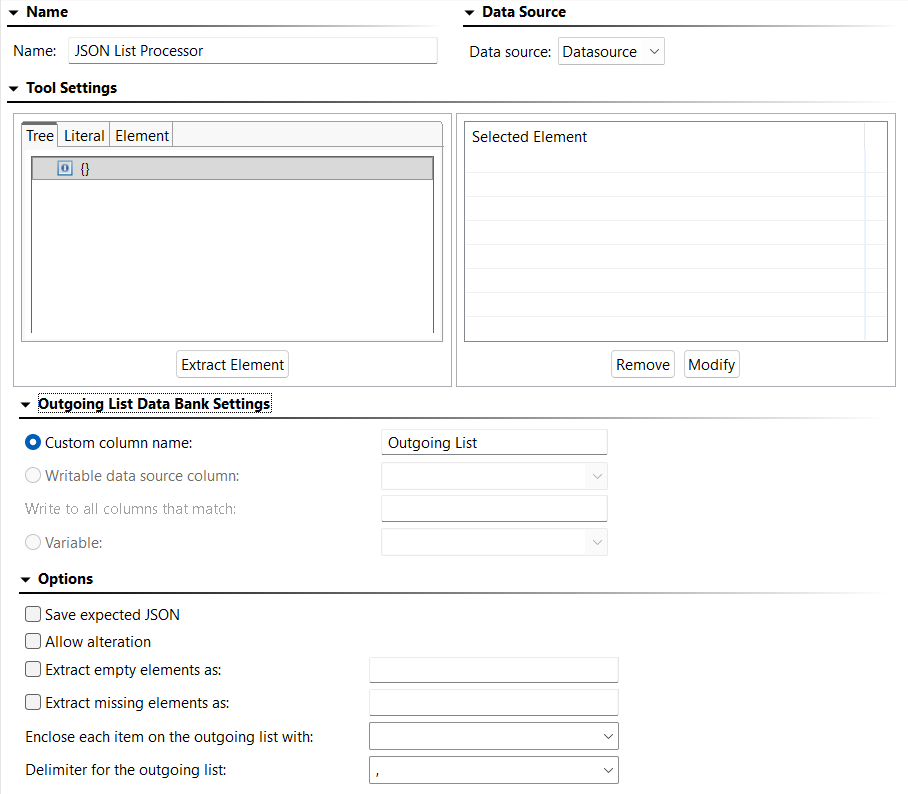
Tool Settings
Add a template of the expected payload on the Literal tab. You can copy/paste a sample payload or enter it manually.
To select an element, click the Tree tab and select the desired element. Click Extract Element and it will appear in the Selected Elements list.
To remove an element from the Selected Elements list, select it and click Remove.
To modify an element in the Selected Elements list, select it and click Modify. The following settings are available:
- XPath: Displays the XPath indicating the value to extract. By default, the tool generates XPaths without list indices (for example,
/root/request/items/item). This format selects all matching nodes at each level, making the XPath adaptable to dynamic structures where the number of elements can vary between requests. - Extract: Allows you to specify exactly what is extracted.
- Entire Element: Choosing Entire Element will output the entire XPath. For example,
XPath/Parentwill output<parent>VALUE</parent>. You can configure Index to extract, which controls which element is extracted if the element occurs more than once. - Content Only: Choosing Content Only will output only the value. For example,
XPath/Parentwill outputVALUE. You can configure Text Content, which extracts the text content of the element selected, or All Child Nodes, which extracts all child nodes of the element selected.
- Entire Element: Choosing Entire Element will output the entire XPath. For example,
- XPath Evaluation: Clicking Evaluate XPath shows the result of applying the XPath expression against the expected JSON.
Outgoing List Data Bank Settings
- Custom column name: Specifies the name of the data source column in which to store the value. Values are stored in an internal data source unless you specify otherwise (for example, if you select Writable data source column or Variable). This is the name you will use to reference the value in other places. For example, if it is stored in a data source column named My Value, you would choose My Value as the parameterized value. You could also reference it as
${My Value}in literal or multiple response views. Writable data source column: Tells Virtualize to store the value in a writable data source column. This allows you to store an array of values. Other tools can then iterate over the stored values.
- Write to all columns that match: Enables you to store values in all columns with names that contain the specified string. When extracting multiple values from a message, each value will be written across all the columns that match. In contrast, if you pick a single writable data source column (the above option), then the values will be written down the column across multiple rows.
Variable: Enables you to save the value in the specified variable so it can be reused across the current Responder or Action suite. The variable must already be added to the current suite. Any values set in this manner will override any local variable values specified in the suite properties panel.
Options
- Save expected JSON: Specifies whether or not to save the expected JSON. When not enabled, the payload template entered under Tool Settings will not be saved when the tool configuration is saved, though the extracted elements will persist.
- Allow alteration: Specifies whether to allow the alteration of an extraction. When this option is selected, an Alter tab is added to the Selected Element list. To alter an extraction, enable Allow alteration, click the Alter tab, add an extraction by clicking Extract Element, and then modify the extraction by clicking Modify. The Modify dialog appears and contains the following options:
XPath: Displays the selected XPath. See JSON Selector Reference for details.
- Alteration Type: Allows you to select how the Value you enter alters the JSON. Selecting Append will add the altered value to the end of the extraction. Selecting Prepend will add the altered value to the beginning of the extraction. Selecting Replace With will replace the entire extraction with the altered value you specify.
- Alteration Value: Allows you to specify either a fixed or parameterized value using a data source.
- Extract empty elements as: Specifies whether or not empty elements will be extracted. When this option is enabled, you can use the adjacent text field to specify a text string that indicates what "placeholder" value should be added for every empty extracted element.
- This option applies when the extracted element is an empty string. For example, JSON { "name" : "" } has an empty string for "name".
- Note that additional configuration is required if you use this option; see Handling Empty/Missing Elements to Maintain the Integrity of the JSON Response
- Extract missing elements as: Specifies whether or not missing elements will be extracted. When this option is enabled, you can use the adjacent text field to specify a text string that indicates what "placeholder" value should be added for every missing extracted element.
- This option applies when the extraction fails to locate any matching nodes.
- Note that additional configuration is required if you use this option; see Handling Empty/Missing Elements to Maintain the Integrity of the JSON Response.
- Enclose each item on the outgoing list with: Choose a character to enclose each item on the outgoing list with, if applicable. Options are single quote (
') and double quotes ("). - Delimiter for the outgoing list: Choose a character to use as the delimiter for the outgoing list. Options are comma (
,) and pipe (|). The default is comma.
Output Types
The JSON List Processor has two available outputs for chaining tools:
- Incoming Item: Processes each iterated item individually
- Outgoing List: Handles the aggregated list of items
Chaining Tools to Outputs
Right-click the JSON List Processor and choose Add Output… to select the desired output type and tool.
Chained Responders
Message responders can be chained to the JSON List Processor to easily build a response for each item and potentially match the incoming selection to an existing data source row for correlation.
Right-click the JSON List Processor and choose Add Responder…. The responder will be added to the Incoming item output by default.
