Open the report.html or report.pdf file saved to the working directory or location specified with the -report switch. Reports may contain different sections depending on the type of analysis, but the following sections are included in all static and flow analysis configurations.
Header

The following information is included:
- Tool used for the analysis
- Build ID
- Test configuration
- Time stamp of the analysis
- Machine name and user name
- Session tag
- Project name
- Number of findings with the highest severity
- Number of failed tests
Static Analysis
The first part of the report covers the static analysis findings and is divided into two main sections. The first section is a summary which shows an overview of findings displayed as a pie chart. The colors indicate different severity types and their corresponding number of findings detected during static analysis:
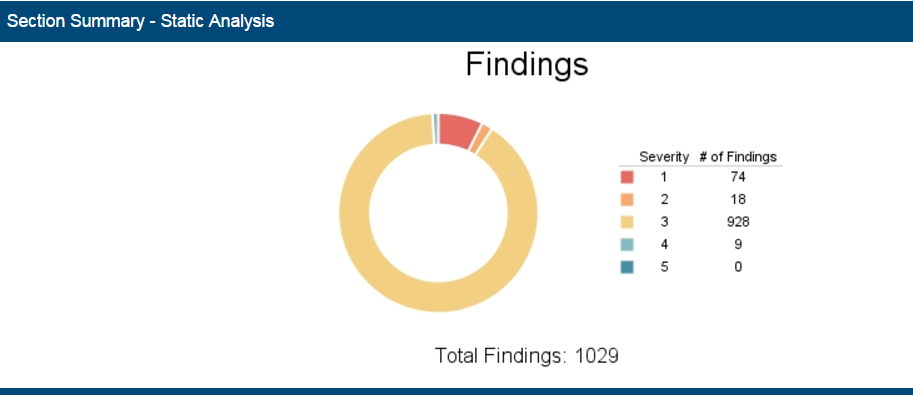
The second section shows the details of static analysis findings. It starts with a table which includes static analysis results:

The following information is included:
- Name of module
- Number of suppressed rules
- Total number of findings
- Average number of findings per 10,000 lines
- Number of findings by severity, with “sev 1” representing the highest severity and “sev 5” the lowest
- Number of analyzed files
- Total number of files in the module
- Number of code lines analyzed
- Total number of code lines in the module
All Findings
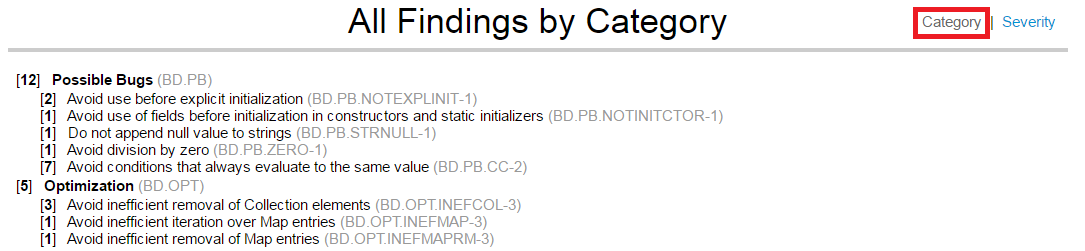
The All Findings section displays the details of findings organized by category or severity. Click the Severity or Category link to toggle between views.
In the Category view, findings are reported by rule and grouped by category. A count of how many times each rule was violated in the scope of analysis is also shown.
In the Severity view, findings are reported and grouped by severity. A count of findings per severity is also included.
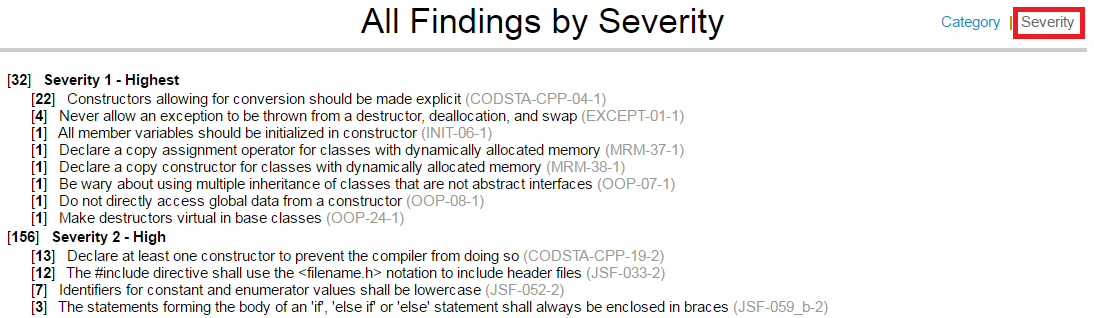
You can't toggle between these sections in the PDF versions of the report and they are published separately.
Findings by Author
This section includes a table of authors associated with the analyzed code and a count of findings per each author. Findings are segmented into findings associated with suppressed rules and findings recommended for remediation. Click on an author link to view their finding details.

The details view includes the following information:
- File containing the finding and its location
- Violation message and rule
- Flow analysis reports also mark the cause of the violation (C), violation points (P), thrown exceptions (E), and important data flows (!)
Findings by File
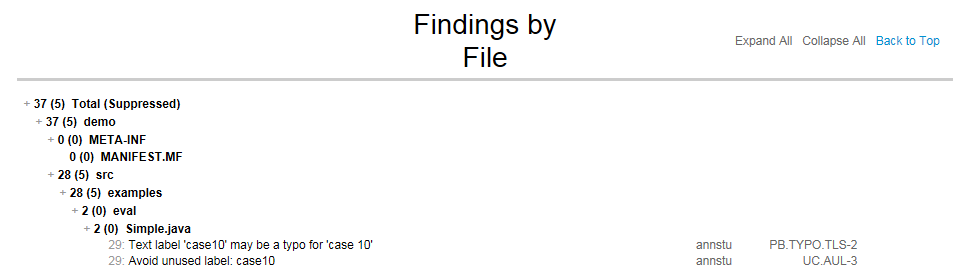
You can navigate the analyzed code to the reported findings in the Findings by File section. Each node begins with a value that indicates the total number of findings in the node. The value in brackets shows the number of suppressed rules in the node. You can click nodes marked with a plus sign (+) to expand them. PDF versions of the reports are already fully expanded.
Metrics Summary
If your test configuration includes metrics analysis, a metrics section will appear in the report. See Metrics Analysis for additional information.

Metrics Details
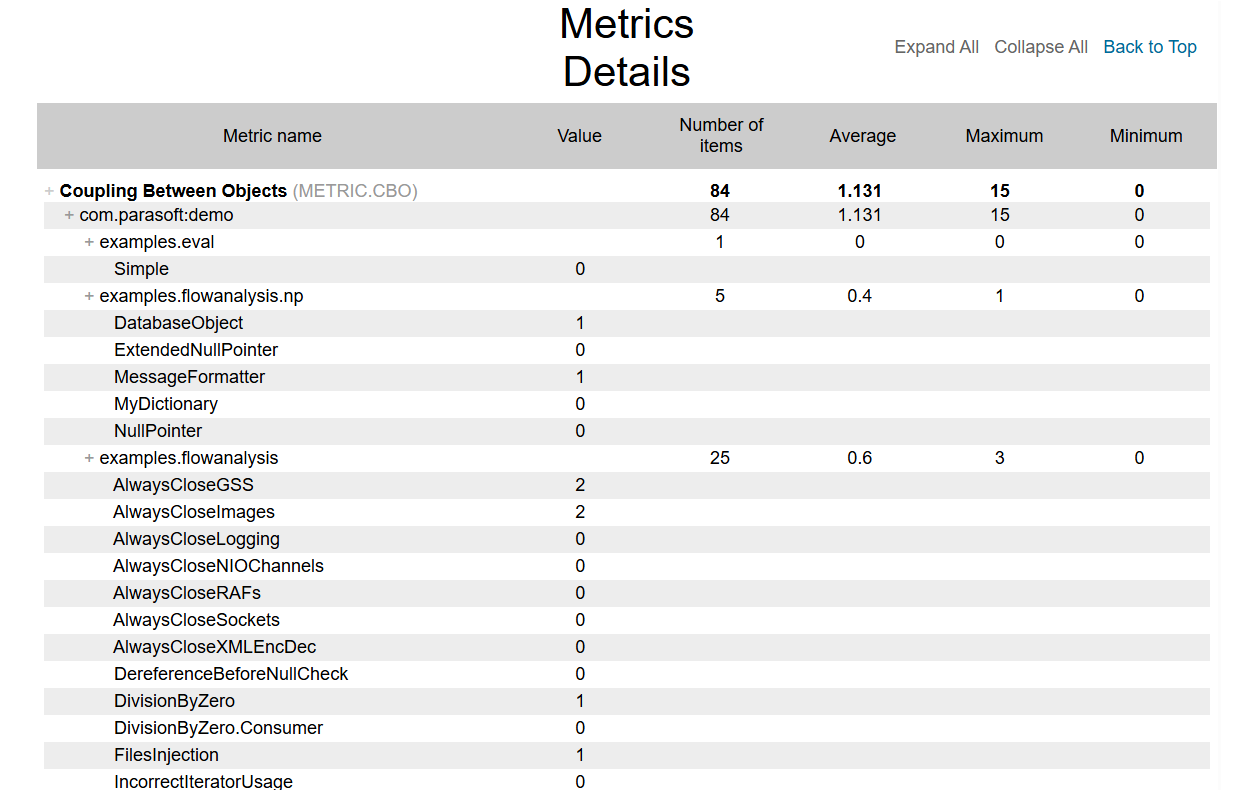
A separate, detailed HTML metrics report can also be generated for the metrics specified in the report.metrics.details configuration option or in the Detailed HTML metrics report field in the IDE (see Generating Reports). When the detailed metrics report is available, a Show Details link appears next to each of those metrics in the Metrics Summary section.
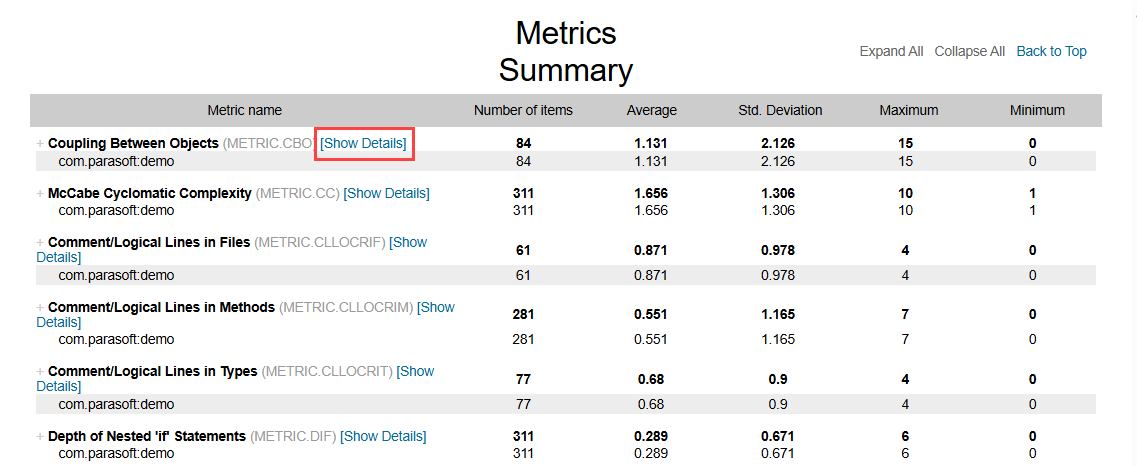
Clicking this link opens the detailed HTML metrics report, which displays information for all specified metrics, with the selected metric expanded by default.
Test Execution
The second part of the report covers the Test Execution results and is divided into two sections. The first section is a summary which shows an overview of test failures and coverage displayed as pie charts: The second section shows the details of test execution. It starts with a table which includes test execution results and coverage information: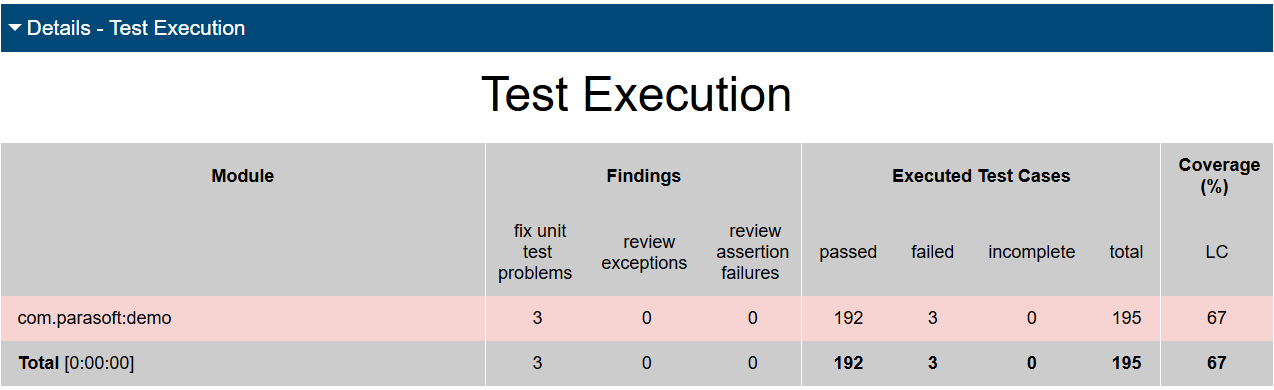
The following information is included:
- Module name
- Number of unit test problems which need to be fixed
- Number of exceptions which need to be reviewed
- Number of assertion failures which need to be reviewed
- Number of unit tests successfully executed
- Number of unit tests failures
- Number of incomplete unit tests
- Total number of unit tests
Line coverage expressed as percentage
All Findings
The All Findings section displays the details of all unit test problems detected during test execution:

Findings by Author
This section includes a table of authors associated with the analyzed code and shows the total number of findings for each author. Click on an author link to view their finding details.

The details view includes the following information:
- Finding location
- Test name
- Failure message
Executed Tests (Details)
You can view the findings in the Executed Tests (Details) section. For each test set, the following information is provided: execution time, the number of tests that passed, failed, or are incomplete, and the total number of tests. you can view the details of incomplete and failed tests by expanding the test node.
Coverage
This section shows the details of coverage collected during the test execution. Each node starts with a set of values. The first value shows coverage expressed as a percentage. The second value is a count of the number of lines in the node which were covered during the test execution. The third value indicates the total number of lines in the node. You can click nodes marked with a plus sign (+) to expand them. 
Test Creation
This section of the report provides a summary of the unit tests created during bulk test creation in the CLI using the Create Unit Tests test configuration. For more information, see Unit Test Creation.
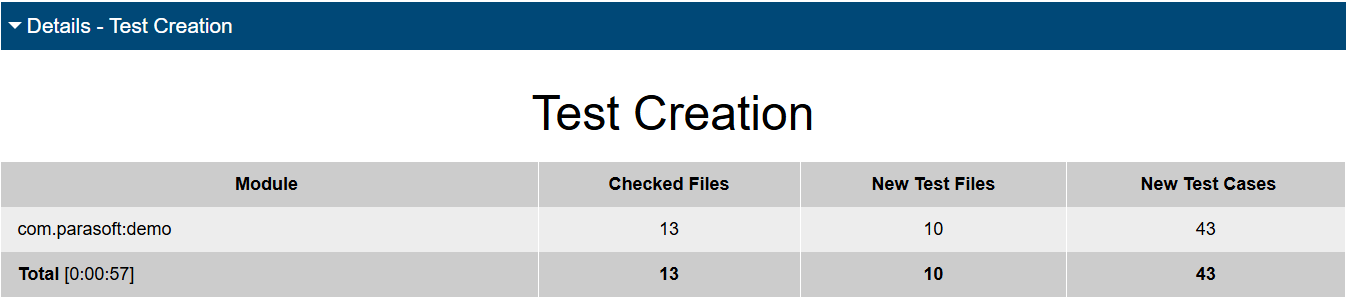
The following information is included:
- Module name
- Number of analyzed files for each module
- Number of new test files for each module
- Number of new test cases for each module
- Total number of analyzed files, new test files, and new test cases across all modules
Test Parameters
The arguments specified during analysis or unit test bulk creation are shown in the Test Parameters section
