To configure bulk creation of unit tests:
- Create a jtestcli.properties file specifying local and UTA settings:
- Specify DTP, license, and other local settings. See DTP Settings and License Settings.
- Specify UTA settings. See Unit Test Creation Settings.
- Alternatively, if you have an IDE available, you can configure or review the settings in the IDE and export them to a .properties file. See Exporting and Importing Settings.
- Specify DTP, license, and other settings. See Connecting to DTP and Setting the Parasoft License.
- Specify UTA settings. See Configuring Preferences.
Local settings example
jtest.uta.test.class.name.pattern=${package_name}.${class_name}${test_kind}Test
jtest.uta.test.source.folder=${project_name}/tests

jtest.uta.mocking.enabled=true
jtest.uta.mocking.helper.methods=false
jtest.uta.mocking.static.enabled=false
jtest.uta.mocking.static.patterns.exclude=foo.example.*
jtest.uta.mocking.static.patterns.include=foo.example.MyClass.*

jtest.uta.testing.framework=JUnit4
jtest.uta.timeout.enabled=true
jtest.uta.timeout.time=5000
jtest.uta.private.methods=false
jtest.uta.fix.failing.tests.with.ai=true

jtest.uta.test.templates=ParasoftCUSTOM
jtest.uta.test.templates.active=ParasoftCUSTOM

jtest.uta.tests.increase.coverage.only=true
- If needed, create a custom test configuration. You can use or duplicate the Create Unit Tests test configuration. Configure or review the test configuration settings in the IDE and, if necessary, save them to a .properties file. See Creating Custom Test Configurations for details on how to customize the test configuration and save it as a .properties file. For instructions on downloading a test configuration from DTP, see the DTP User Documentation.
The Create Unit Tests configuration is available under the Builtin directory in the test configurations list.

To view the test configuration, right-click it, and choose View. Click the Unit Tests tab of the configuration to access controls for unit test execution and coverage data collection.
The following test creation options are available for this test configuration:
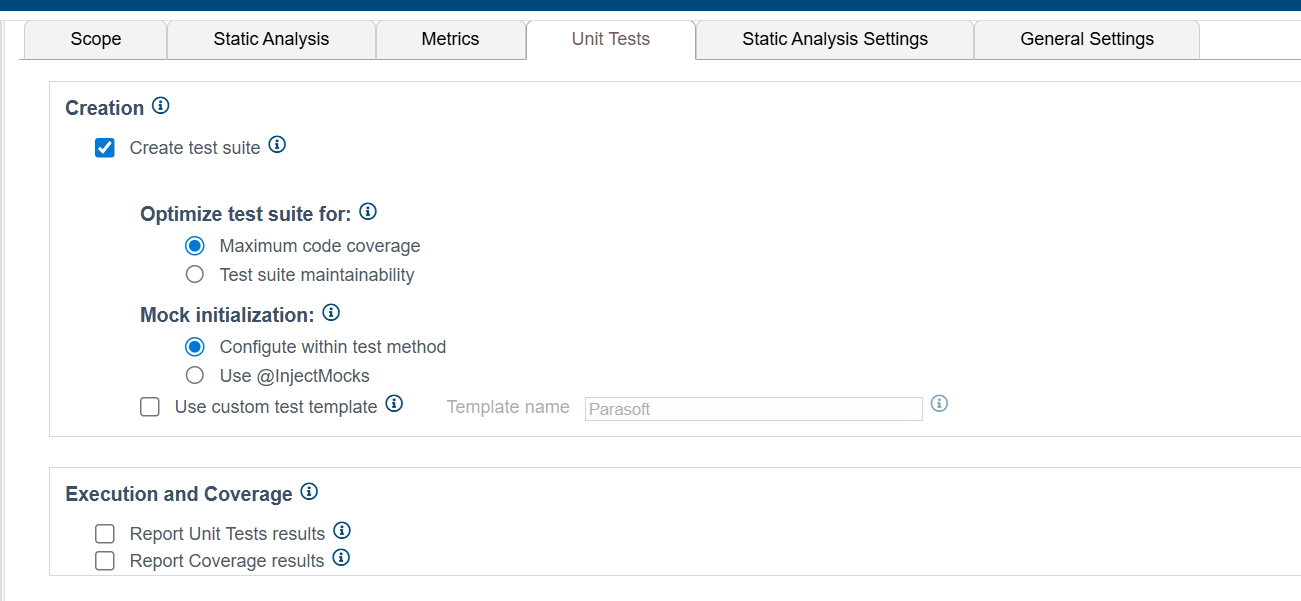
- Create test suite: - Enables test suite creation for the files in scope.
- Optimize test suite for: - Allows you to specify your priorities for creating tests for the selected methods.
- Maximum code coverage - UTA will create as many tests as is required to cover the maximum possible number of method execution paths. Enabling this option will help you achieve the highest coverage rate, but the complexity and potential overlap of test cases may impact their maintenance. Some tests may fail after initial creation and require manual intervention to complete their configuration.
- Test suite maintainability - UTA will create fewer tests that are fully configured and are more likely to pass when run. Enabling this option will help you create less complex and better maintainable tests, but the coverage rate will likely be lower. Mock initialization - Allows you to specify how you want mocks to be initialized.
- Configure within test method - Initializes mocks by declaring and initializing the object under test and its dependencies within the test method.
- Use @InjectMocks - Initializes mocks by using the @InjectMocks annotation to mark fields on which mock injection should be performed and the @Mock annotation for dependencies. See Configuring Mock Initialization for details.- Use custom test template - Allows you to specify the template used for creating new classes. See Configuring Test Templates for details.
See Creating Custom Test Configurations for the detailed description of all settings.
