In this section:
Introduction
The Parasoft Findings Plugin for SonarQube allows you to view static analysis, functional test results, unit test results, and code coverage results within SonarQube. It grants SonarQube the ability to analyze data from Parasoft XML reports and use it to report bugs, vulnerabilities, functional test results, unit test results, code coverage or code smells from within SonarQube. See Uploading Project Results for more details.
The plugin can consume the following report types:
- Static analysis, metrics analysis, code coverage, and unit test reports generated by 2022.2+ versions of C/C++test, Jtest, and dotTEST.
- Functional test reports generated by Parasoft SOAtest 2022.2+.
Requirements
- For version 10.6.1, a Parasoft product must be installed on the same machine as the SonarQube server since the plugin loads rules from a Parasoft product installation.
- For C/C++test, the Standard edition must be installed even if you are sending C/C++test Professional reports to SonarQube.
- This requirement does not apply to version 10.6.2+.
- SonarQube versions 8.9+ are supported.
- SonarQube Developer edition or better is required to process C/C++test reports.
- Language projects versions 2022.2+ are supported.
Installing the Parasoft Findings Plugin
- Either download the plugin or build it yourself (10.6.2+ only):
- To download the plugin, go to https://customerportal.parasoft.com/lightningportal/s/marketplace and download the Parasoft SonarQube plugin jar
parasoft.findings.sonar-<VERSION>.jar.- Be sure to download the version of the plugin that matches the version of your Parasoft product. For example, if you are using Jtest, dotTEST, or C++Test 2023.1, you would download
parasoft.findings.sonar-2023.1.jar.
- Be sure to download the version of the plugin that matches the version of your Parasoft product. For example, if you are using Jtest, dotTEST, or C++Test 2023.1, you would download
- To build the plugin yourself, see Building Your Own Plugin.
- To download the plugin, go to https://customerportal.parasoft.com/lightningportal/s/marketplace and download the Parasoft SonarQube plugin jar
- Copy the plugin jar into the SonarQube
extensions/pluginsdirectory. - Restart the SonarQube server.
- For version 10.6.1: set the root path to the Parasoft product (see Setting the Root Path to the Parasoft Product for Version 10.6.1).
- Starting with version 10.6.2, rule files are packaged in the plugin jar, so it is not necessary to set the root path to load rules with version 10.6.2+.
See https://docs.sonarqube.org/latest/setup/install-plugin/ for more details.
Setting the Root Path to the Parasoft Product for Version 10.6.1
- In the SonarQube web UI go to Administration > Configuration > General Settings > External Analyzers.
- Locate the Root Path setting under the appropriate programming language.
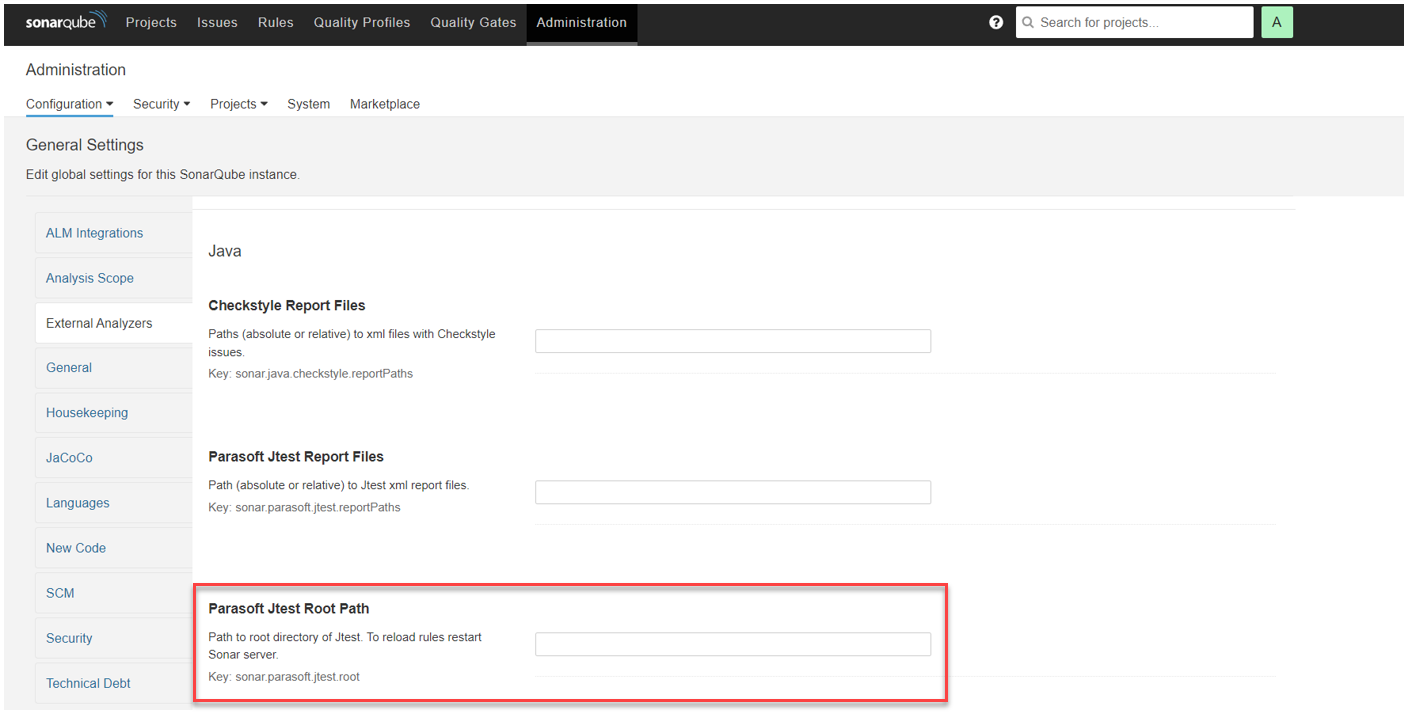
- In the field enter the absolute path to the Parasoft product installation and click Save.
- Restart the SonarQube server so that the rule definitions are loaded.
- After the server has restarted, go to Quality Profiles in the web UI and select the built-in Parasoft profile under the appropriate supported language. Verify that the rule definitions are loaded successfully under the profile.
If zero or only one rule is loaded, then loading of rules failed. In this case:
- Check that the root path is correct.
- Review the SonarQube web server logs for any error messages.
Building Your Own Plugin
You can build your own plugin for your Parasoft products. To do so, you will need JDK 11+, Maven 3.3+, and your Parasoft products installed on the same machine.
- Clone the source code from GitHub found here: https://github.com/parasoft/parasoft-findings-sonar.
Run a Maven package command that is appropriate for the Parasoft products you have installed. The example below includes Jtest, dotTEST, and C++Test; if you don't have one or more of these installed, remove its root path reference:
mvn clean package -DjtestRootPath="<JTEST-INSTALL-ROOT-PATH>" -DdottestRootPath="<DOTTEST-INSTALL-ROOT-PATH>" -DcpptestRootPath="<CPPTEST-INSTALL-ROOT-PATH>"
- For C/C++test, the root path must be set to Standard edition, even if you are sending C/C++test Professional reports to SonarQube.
The plugin jar that is created will be in the
<SOURCE-CODE-ROOT-PATH>/targetfolder and will include the rule files for your Parasoft product.
Activating Parasoft Profiles
There are two ways to enable the Parasoft profile for your projects:
- To set a Parasoft profile as the default for new projects, go to Quality Profiles and select Set as Default from the gear menu to the right of the profile.
- To set a Parasoft profile for a given project, go to Quality Profiles section in the project settings. Select the Change Profile button on the right side of the appropriate language.
Setting the Report Path for Static Analysis and Test Execution Results
For Parasoft results to be uploaded, the path to the report files must be set. There are several ways to configure this.
- To configure the path globally go to Administration > Configuration > General Settings > External Analyzers and find the Report Files setting for your Parasoft product.

Enter the path to the report.xml file of your project. For example:
target/jtest/report.xml
You can add multiple paths, each in a separate field. When the Parasoft scanner runs, results will be loaded from each valid report file path.
- To configure the path for a project, go to the External Analyzers section in the project's settings.
- To configure the path when running the sonar scanner, include the report path’s settings key. For example:
Jtest using Maven:
mvn sonar:sonar -Dsonar.token=<your sonar token> -Dsonar.host.url="http://<your sonar server>:<your sonar server port>/" -Dsonar.parasoft.jtest.reportPaths=target/report.xml...<additional sonar settings>
Jtest using sonar-scanner:
sonar-scanner-<version>-windows/bin/sonar-scanner.bat -Dsonar.token=<your sonar token> -Dsonar.host.url="http://<your sonar server>:<your sonar server port>/" -Dsonar.parasoft.jtest.reportPaths=target/report.xml...<additional sonar settings>
C/C++test using sonar-scanner:
build-wrapper-win-x86-64.exe --out-dir build_wrapper_output_directory...<your build commands i.e.: make clean all "C:/cpptest/examples/FlowAnalysisCpp">
sonar-scanner-<version>-windows/bin/sonar-scanner.bat -Dsonar.token=<your sonar token> -Dsonar.host.url="http://<your sonar server>:<your sonar server port>/" -Dsonar.parasoft.cpptest.reportPaths=target/report.xml...<additional sonar settings>
dotTEST using .NET's sonar-scanner (Note: Sonar-scanner must be installed via the command:
dotnet tool install --global dotnet-sonarscanner):dotnet sonarscanner begin /k:"<your solution>" /d:sonar.token="<your sonar token>" /d:sonar.parasoft.dottest.reportPaths="target/report.xml"...<additional sonar settings>
dotnet build <your solution>
dotnet sonarscanner end /d:sonar.token="<your sonar token>"
dotTEST using Sonar's provided sonar-scanner:
sonar-scanner-<version>-windows/bin/sonar-scanner.bat -Dsonar.token=<your sonar token> -Dsonar.host.url="http://<your sonar server>:<your sonar server port>/" -Dsonar.parasoft.dottest.reportPaths=target/report.xml...<additional sonar settings>
- SOAtest using Sonar's provided sonar-scanner:
sonar-scanner-<version>-windows/bin/sonar-scanner.bat -Dsonar.token=<your sonar token> -Dsonar.host.url="http://<your sonar server>:<your sonar server port>/" -Dsonar.parasoft.soatest.reportPaths=target/report.xml...<additional sonar settings>
- Sonar-scanner can be downloaded from: https://docs.sonarqube.org/latest/analyzing-source-code/scanners/sonarscanner/
- Jtest unit test results will be skipped if Maven Surefire reports exist in target/surefire-reports folder for the project, which will be parsed automatically by the built-in sensor of Sonar.
You can include multiple report files:
mvn sonar:sonar -Dsonar.parasoft.jtest.reportPaths=target/report.xml -Dsonar.parasoft.jtest.reportPaths=target/report_2.xml...<additional sonar settings>
Setting the Report Path for Coverage
For Parasoft results to be uploaded, the path to the report files must be set. There are several ways to configure this.
- To configure the path globally go to Administration > Configuration > General Settings > Code Coverage and find the Parasoft Coverage Report Files setting for your Parasoft product.
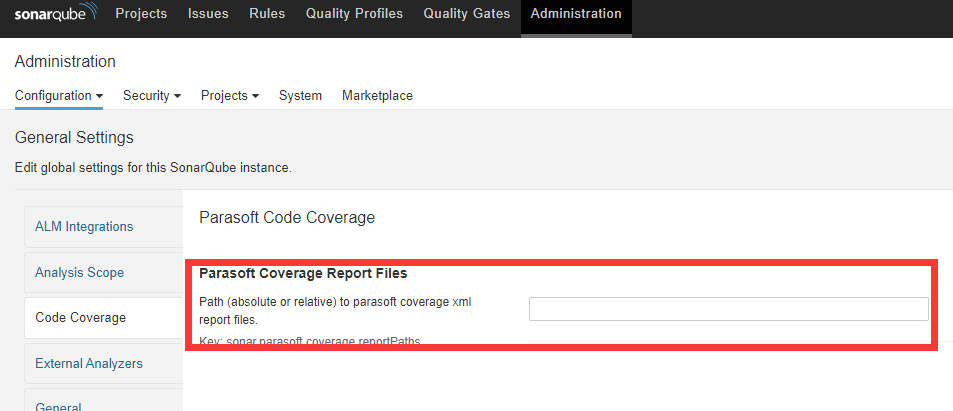
Enter the path to the report.xml file of your project. For example:
report/coverage.xmlor
D:\project\report\coverage.xml
- To configure the path when running the sonar scanner, include the report path’s settings key. For example:
Jtest using Maven:
mvn sonar:sonar -Dsonar.token=<your sonar key> -Dsonar.host.url="http://<your sonar server>:<your sonar server port>/" -Dsonar.parasoft.coverage.reportPaths=target/coverage.xml...<additional sonar settings>
Jtest using sonar-scanner:
sonar-scanner-<version>-windows/bin/sonar-scanner.bat -Dsonar.token=<your sonar key> -Dsonar.host.url="http://<your sonar server>:<your sonar server port>/" -Dsonar.parasoft.coverage.reportPaths=target/coverage.xml...<additional sonar settings>
C/C++test using sonar-scanner:
build-wrapper-win-x86-64.exe --out-dir build_wrapper_output_directory...<your build commands i.e.: make clean all "C:/cpptest/examples/FlowAnalysisCpp">
sonar-scanner-<version>-windows/bin/sonar-scanner.bat -Dsonar.token=<your sonar key> -Dsonar.host.url="http://<your sonar server>:<your sonar server port>/" -Dsonar.parasoft.coverage.reportPaths=target/coverage.xml...<additional sonar settings>
dotTEST using .NET's sonar-scanner (Note: Sonar-scanner must be installed via the command:
dotnet tool install --global dotnet-sonarscanner):dotnet sonarscanner begin /k:"<your solution>" /d:sonar.token="<your sonar key>" /d:sonar.parasoft.coverage.reportPaths="target/coverage.xml"...<additional sonar settings>
dotnet build <your solution>
dotnet sonarscanner end /d:sonar.token="<your sonar key>"
dotTEST using Sonar's provided sonar-scanner:
sonar-scanner-<version>-windows/bin/sonar-scanner.bat -Dsonar.token=<your sonar key> -Dsonar.host.url="http://<your sonar server>:<your sonar server port>/" -Dsonar.parasoft.coverage.reportPaths=target/coverage.xml...<additional sonar settings>
- SOAtest using Sonar's provided sonar-scanner:
sonar-scanner-<version>-windows/bin/sonar-scanner.bat -Dsonar.token=<your sonar key> -Dsonar.host.url="http://<your sonar server>:<your sonar server port>/" -Dsonar.parasoft.soatest.reportPaths=target/report.xml...<additional sonar settings>
- Sonar-scanner can be downloaded from: https://docs.sonarqube.org/latest/analyzing-source-code/scanners/sonarscanner/
Uploading Project Results
To upload Parasoft results for a project, first run the command which generates the report.xml file, and then run the usual Sonar scanner command. For example, with a Maven project setup using Jtest, a single command can be run from the root directory of your project:
mvn jtest:jtest sonar:sonar -Dsonar.projectKey=<project key> -Dsonar.host.url=<server url> -Dsonar.token=<login token>
See the documentation for your Parasoft product for details on how to run test cases and generate a test execution report:
- For Jtest: https://docs.parasoft.com/display/JTEST20232/Running+Unit+Tests
- For dotTEST: https://docs.parasoft.com/display/DOTTEST20232/Running+Unit+Tests
- For C/C++test: https://docs.parasoft.com/display/CPPTEST20232/Integrating+with+CppUnit+and+CppUtest
- For SOAtest: https://docs.parasoft.com/display/SOAVIRT20232/CLI+Usage
See the documentation for your Parasoft product for details on how to run test cases and generate a coverage report:
- For Jtest: https://docs.parasoft.com/display/JTEST20232/Coverage+for+Unit+Test
- For dotTEST: https://docs.parasoft.com/display/DOTTEST20232/Coverage+for+Unit+Test
- For C/C++test: https://docs.parasoft.com/display/CPPTEST20232/Collecting+Application+Coverage+for+CMake+Projects
See https://docs.sonarqube.org/latest/analysis/overview/ for details on how to run the Sonar scanner on projects using different build systems.
Viewing Static Analysis Results
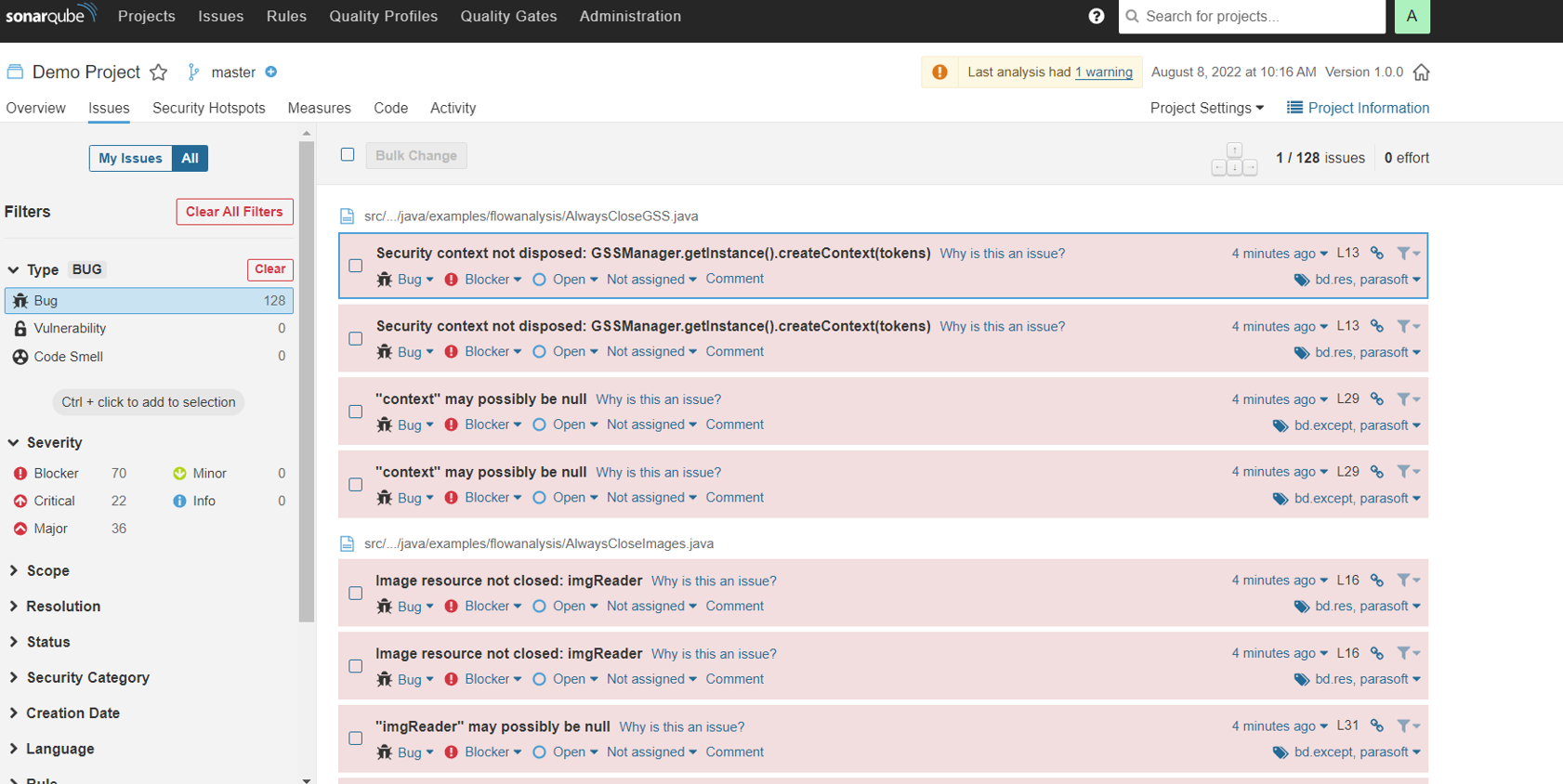
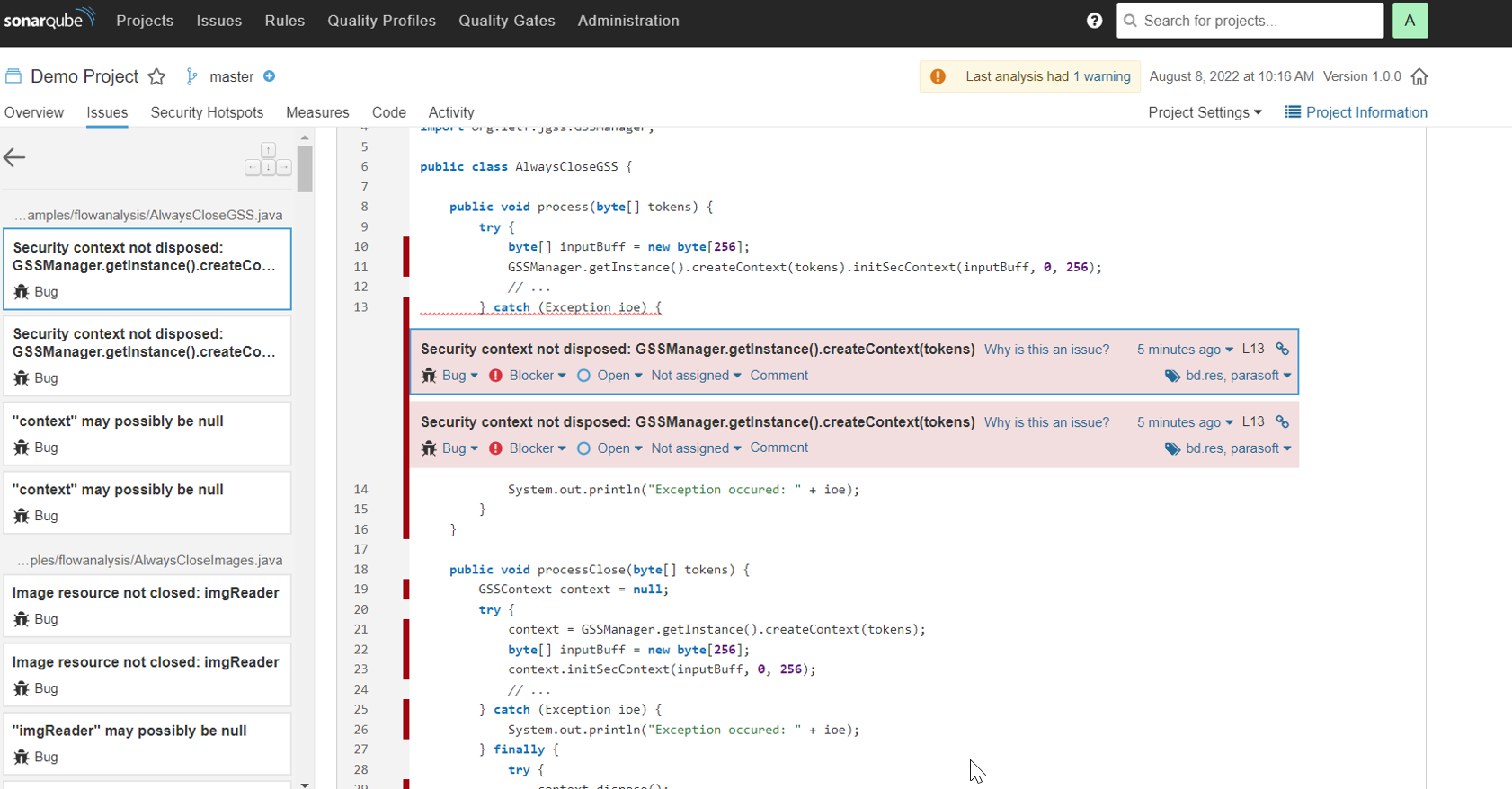
After the results are uploaded, they can be viewed in the project in the Issues tab.
C/C++test Professional Report Settings
If you are generating static analysis reports with C/C++test Professional 2023.1 or earlier, make sure the Add absolute file paths to XML data option is enabled to show the issues if it is stored in the SonarQube project. You can enable this option on the command line by using the option -property report.contexts_details=true or by setting the report.contexts_details=true property in the settings file.
Viewing Test Execution Results
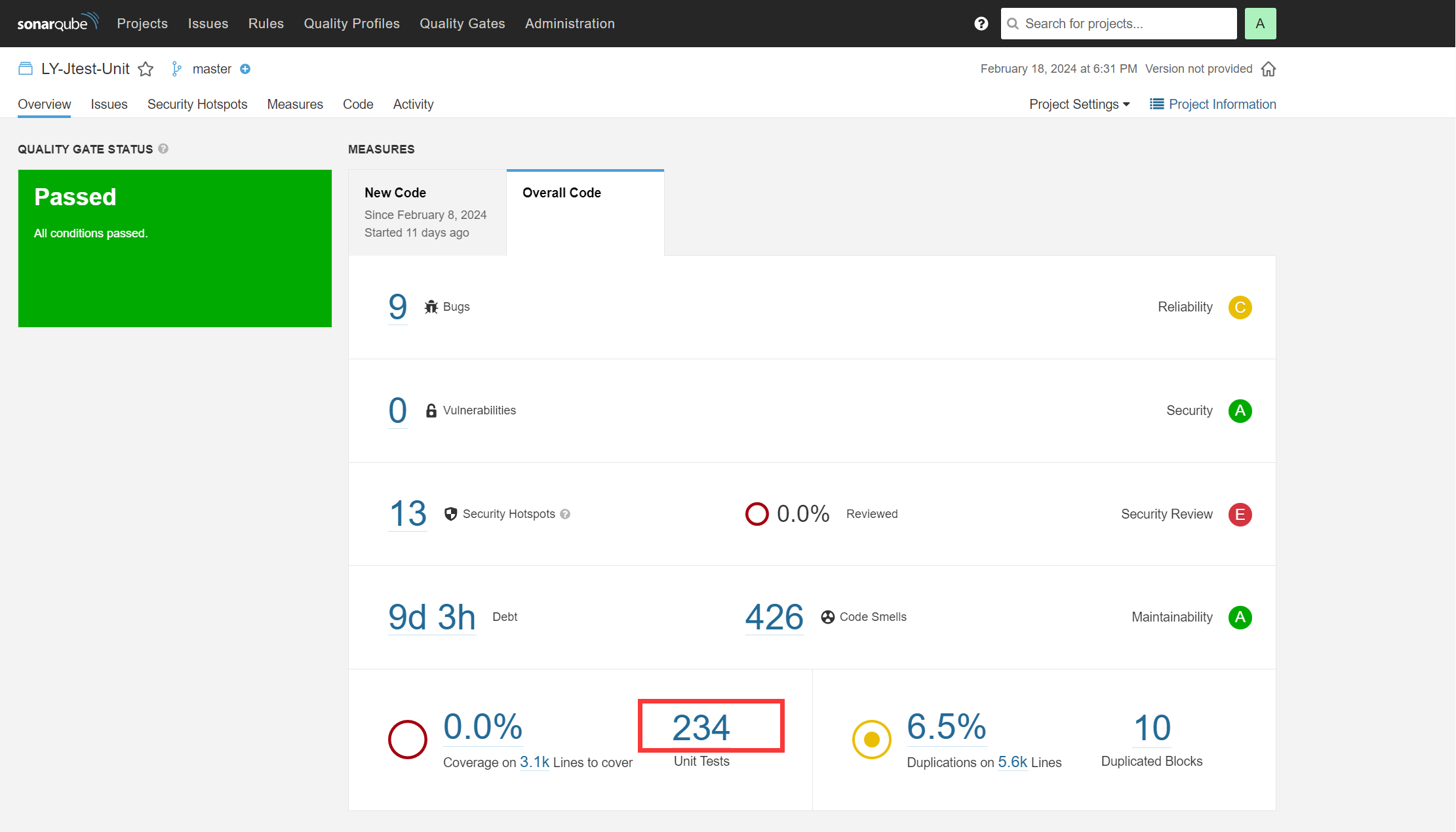
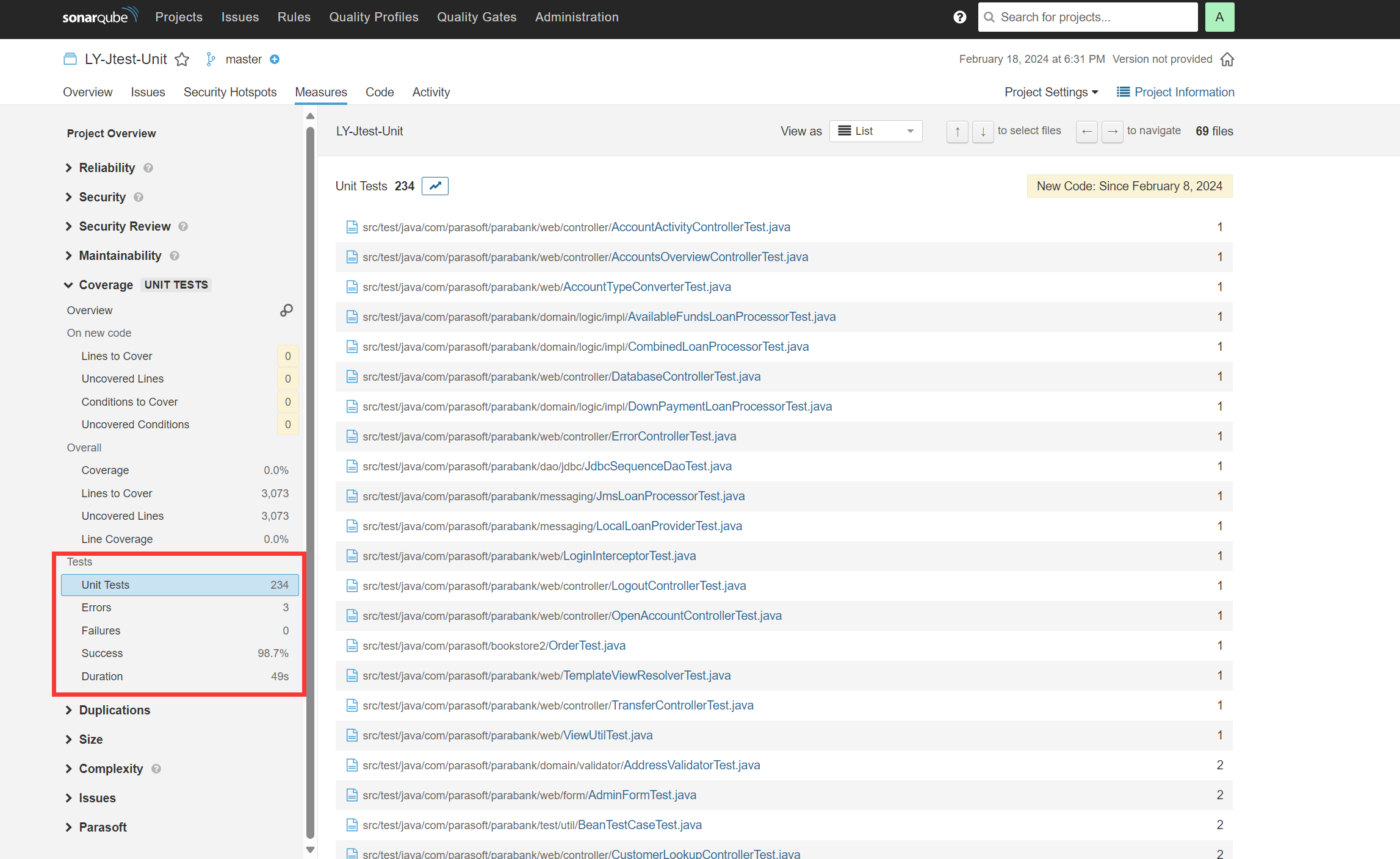
After the results are uploaded, in addition to SOAtest test execution results, they can be viewed in the project in the Overview tab.
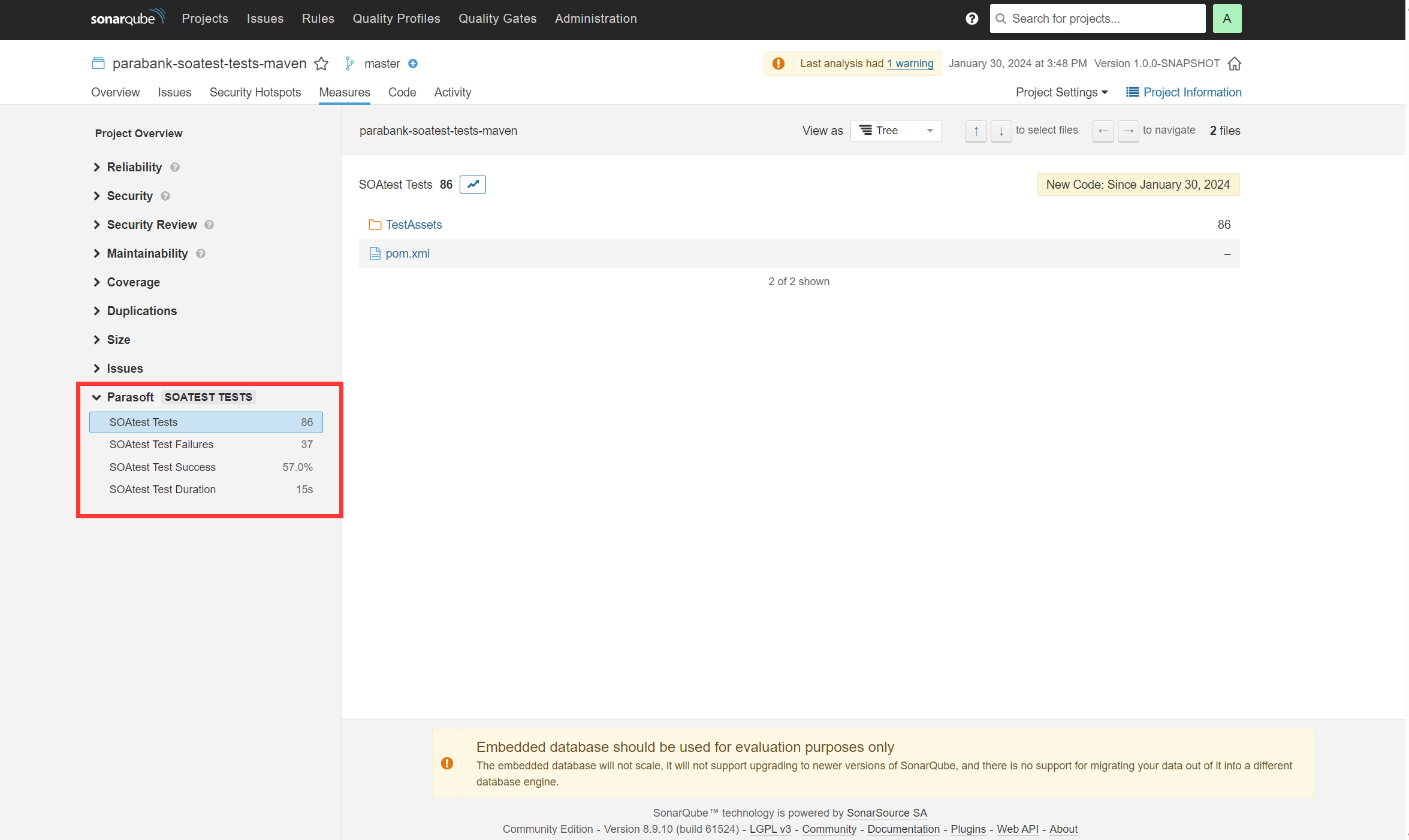
For SOAtest test execution results, it can be viewed in the project in the Measures tab.
C/C++test Professional Unit Test Results
C/C++test reports for unit test results must be generated with the Overview of checked files and executed tests option enabled. You can enable this option on the command line by using the option -property report.contexts_details=true or by setting the report.contexts_details=true property in the settings file.
Starting with version 2024.1, you can also use the command line option -property report.additional.report.dir=<REPORT_DIR> when generating the reports and use reports generated in this directory.
Viewing Code Coverage Results
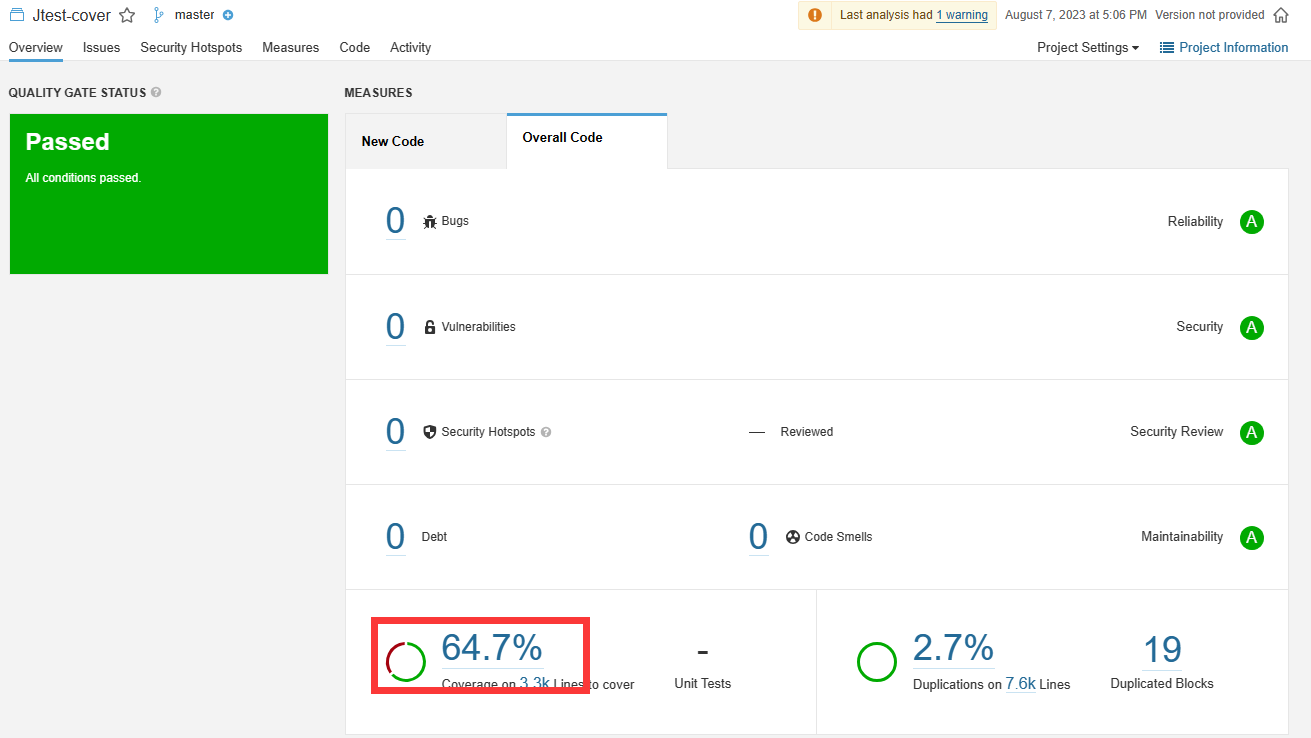
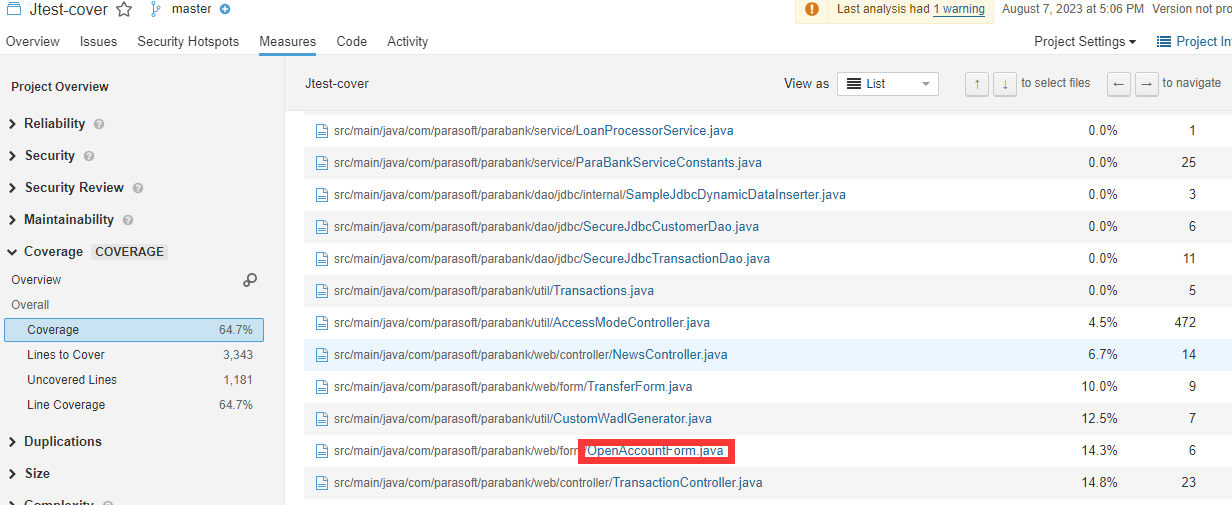
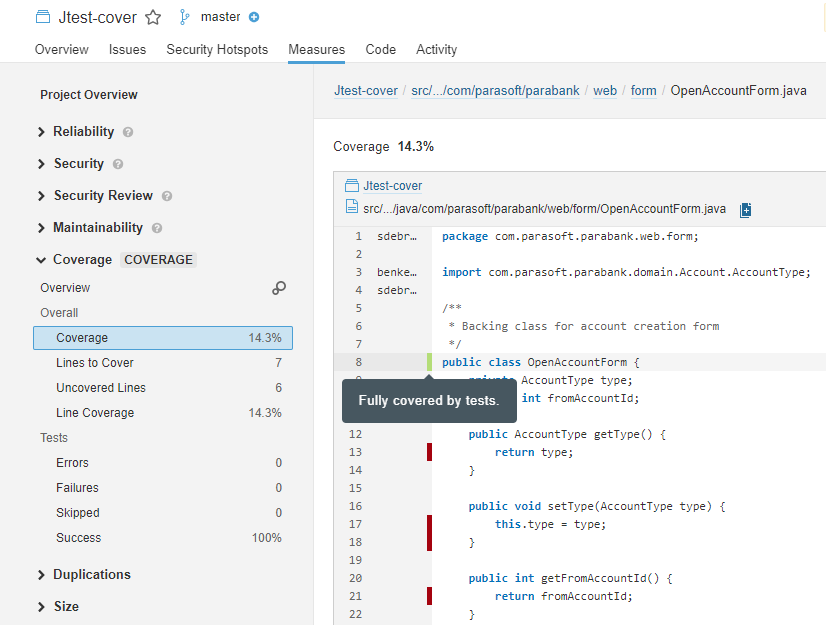
After the results are uploaded, they can be viewed in the project in the Overview tab.
C/C++test Professional Reports
Code coverage reports for C/C++test Professional are not supported for versions prior to 2024.1.
Starting with version 2024.1, you can also use the command line option -property report.additional.report.dir=<REPORT_DIR> when generating the reports and use reports generated in this directory.
Third-party Acknowledgments
The Parasoft Findings Plugin for SonarQube uses the following third-party software:
commons-codec 1.14
This software is used under the Apache-2.0 License with this notice.
commons-collections4 4.4
This software is used under the Apache-2.0 License with this notice.
dom4j 2.1.3
This software is used under the BSD-3-Clause License.
fluent-hc 4.5.13
This software is used under the Apache-2.0 License with this notice.
httpclient 4.5.13
This software is used under the Apache-2.0 License with this notice.
httpclient5 5.1.3
This software is used under the Apache-2.0 License with this notice.
httpcore 4.4.13
This software is used under the Apache-2.0 License with this notice.
httpcore5 5.1.3
This software is used under the Apache-2.0 License with this notice.
httpcore5-h2 5.1.3
This software is used under the Apache-2.0 License with this notice.
httpmime 4.5.13
This software is used under the Apache-2.0 License with this notice.
jackson-annotations 2.15.1
This software is used under the Apache-2.0 License with this notice.
jackson-core 2.15.1
This software is used under the Apache-2.0 License with this notice.
jackson-databind 2.15.1
This software is used under the Apache-2.0 License with this notice.
org.suigeneris.jrcs.diff 0.4.2
This software is used under the LGPL-2.1-only License.
Saxon-HE 12.3
This software is used under the MPL-2.0 License.
slf4j-api 1.7.36
This software is used under the MIT License.
xmlresolver 5.2.0
This software is used under the Apache-2.0 License.
xmlresolver 5.2.0-data
This software is used under the Apache-2.0 License.
zip4j 2.11.5
This software is used under the Apache-2.0 License.
Notices
Notice for commons-codec 1.14
Apache Commons Codec
Copyright 2002-2019 The Apache Software Foundation

This product includes software developed at
The Apache Software Foundation (https://www.apache.org/).

src/test/org/apache/commons/codec/language/DoubleMetaphoneTest.java
contains test data from http://aspell.net/test/orig/batch0.tab.
Copyright (C) 2002 Kevin Atkinson ([email protected])

===============================================================================

The content of package org.apache.commons.codec.language.bm has been translated
from the original php source code available at http://stevemorse.org/phoneticinfo.htm
with permission from the original authors.
Original source copyright:
Copyright (c) 2008 Alexander Beider & Stephen P. Morse.
Notice for commons-collections4 4.4
Apache Commons Collections
Copyright 2001-2019 The Apache Software Foundation

This product includes software developed at
The Apache Software Foundation (http://www.apache.org/).
Notice for fluent-hc 4.5.13
Apache HttpClient Fluent API
Copyright 2011-2020 The Apache Software Foundation

This product includes software developed at
The Apache Software Foundation (http://www.apache.org/).
Notice for httpclient 4.5.13
Apache HttpClient
Copyright 1999-2020 The Apache Software Foundation

This product includes software developed at
The Apache Software Foundation (http://www.apache.org/).
Notice for httpclient5 5.1.3
Apache HttpClient
Copyright 1999-2020 The Apache Software Foundation

This product includes software developed at
The Apache Software Foundation (http://www.apache.org/).
Notice for httpcore 4.4.13
Apache HttpCore
Copyright 2005-2020 The Apache Software Foundation

This product includes software developed at
The Apache Software Foundation (http://www.apache.org/).
Notice for httpcore5 5.1.3
Apache HttpComponents Core HTTP/1.1
Copyright 2005-2020 The Apache Software Foundation

This product includes software developed at
The Apache Software Foundation (http://www.apache.org/).
Notice for httpcore5-h2 5.1.3
Apache HttpComponents Core HTTP/2
Copyright 2005-2020 The Apache Software Foundation

This product includes software developed at
The Apache Software Foundation (http://www.apache.org/).
Notice for httpmime 4.5.13
Apache HttpClient Mime
Copyright 1999-2020 The Apache Software Foundation

This product includes software developed at
The Apache Software Foundation (http://www.apache.org/).
Notice for jackson-annotations 2.15.1
# Jackson JSON processor

Jackson is a high-performance, Free/Open Source JSON processing library.
It was originally written by Tatu Saloranta ([email protected]), and has
been in development since 2007.
It is currently developed by a community of developers.

## Copyright

Copyright 2007-, Tatu Saloranta ([email protected])

## Licensing

Jackson 2.x core and extension components are licensed under Apache License 2.0
To find the details that apply to this artifact see the accompanying LICENSE file.

## Credits

A list of contributors may be found from CREDITS(-2.x) file, which is included
in some artifacts (usually source distributions); but is always available
from the source code management (SCM) system project uses.
Notice for jackson-core 2.15.1
# Jackson JSON processor

Jackson is a high-performance, Free/Open Source JSON processing library.
It was originally written by Tatu Saloranta ([email protected]), and has
been in development since 2007.
It is currently developed by a community of developers.

## Copyright

Copyright 2007-, Tatu Saloranta ([email protected])

## Licensing

Jackson 2.x core and extension components are licensed under Apache License 2.0
To find the details that apply to this artifact see the accompanying LICENSE file.

## Credits

A list of contributors may be found from CREDITS(-2.x) file, which is included
in some artifacts (usually source distributions); but is always available
from the source code management (SCM) system project uses.

## FastDoubleParser

jackson-core bundles a shaded copy of FastDoubleParser <https://github.com/wrandelshofer/FastDoubleParser>.
That code is available under an MIT license <https://github.com/wrandelshofer/FastDoubleParser/blob/main/LICENSE>
under the following copyright.

Copyright © 2023 Werner Randelshofer, Switzerland. MIT License.

See FastDoubleParser-NOTICE for details of other source code included in FastDoubleParser
and the licenses and copyrights that apply to that code.
Notice for jackson-databind 2.15.1
# Jackson JSON processor

Jackson is a high-performance, Free/Open Source JSON processing library.
It was originally written by Tatu Saloranta ([email protected]), and has
been in development since 2007.
It is currently developed by a community of developers.

## Copyright

Copyright 2007-, Tatu Saloranta ([email protected])

## Licensing

Jackson 2.x core and extension components are licensed under Apache License 2.0
To find the details that apply to this artifact see the accompanying LICENSE file.

## Credits

A list of contributors may be found from CREDITS(-2.x) file, which is included
in some artifacts (usually source distributions); but is always available
from the source code management (SCM) system project uses.
