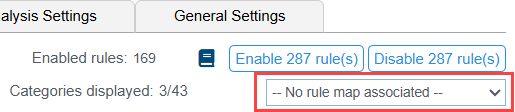
Click the Static Analysis tab to enable/disable the static analysis rules the configuration uses. This page shows all the rules supported by the selected code analysis tool. Click Save to preserve any changes you make on this tab.
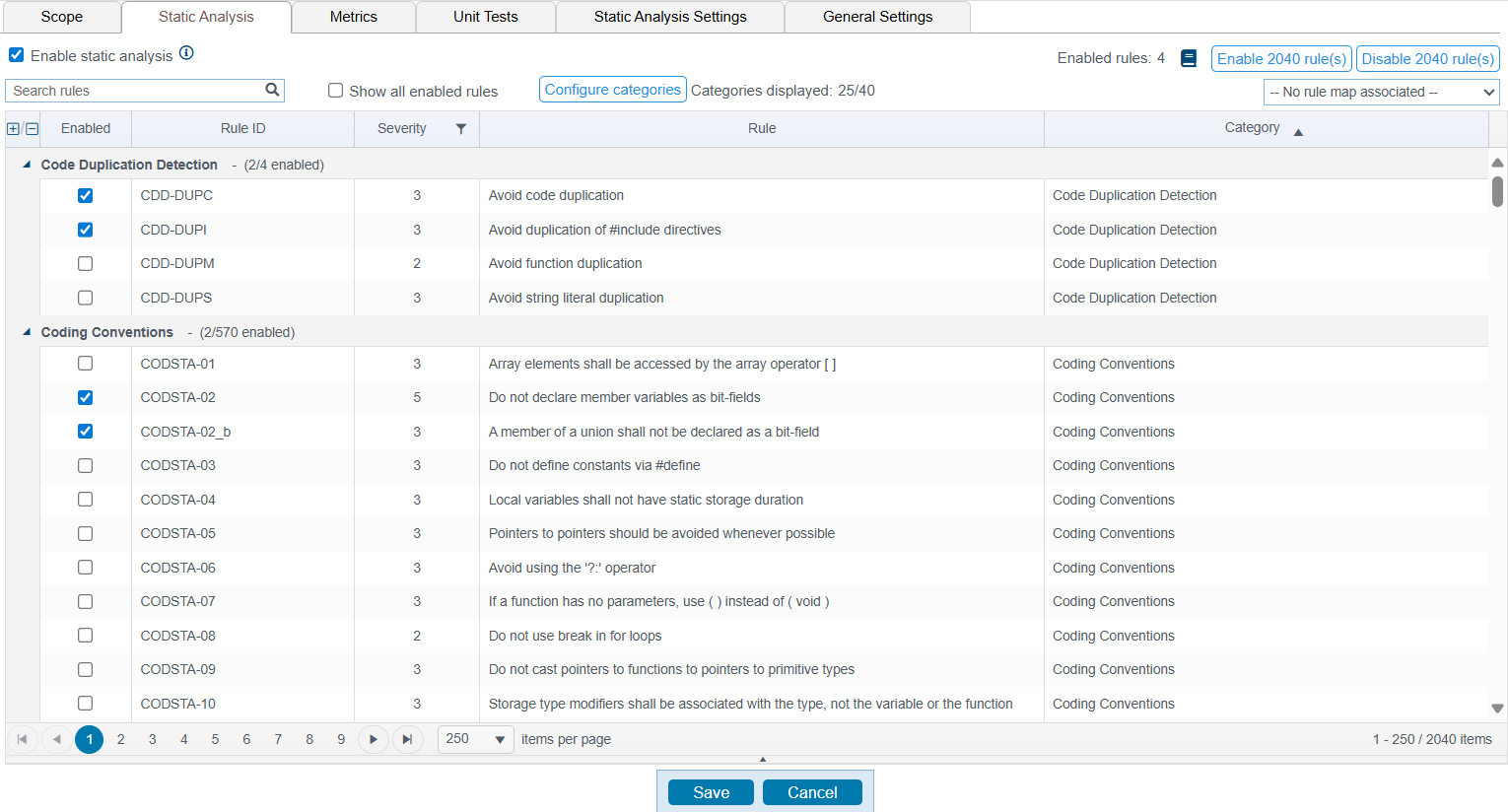
Finding Rules

There are several ways to find specific rules:
- Use the search bar to find a specific rule or rule category.
- Enable Show all enabled to filter for active rules.
- Click Configure categories and choose the categories you want to see in the rules table. Built-in (Parasoft) and industry standard categories are available. You can choose as many as desired.

Enabling and Disabling Rules
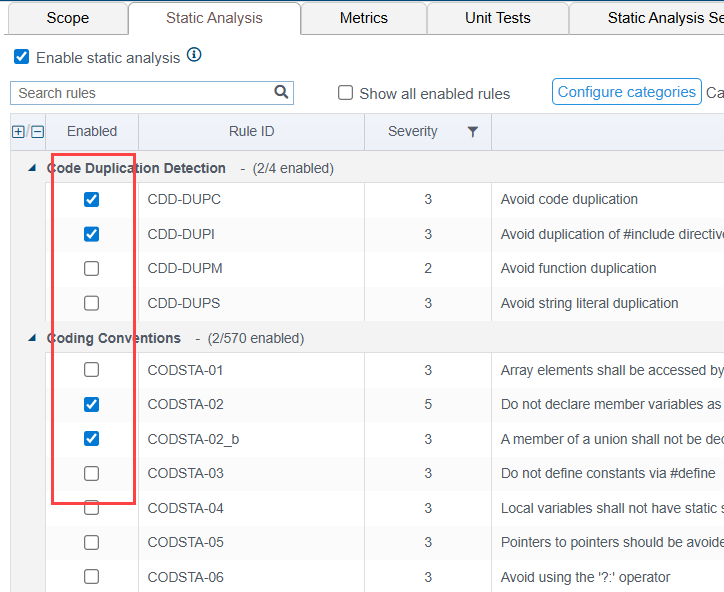
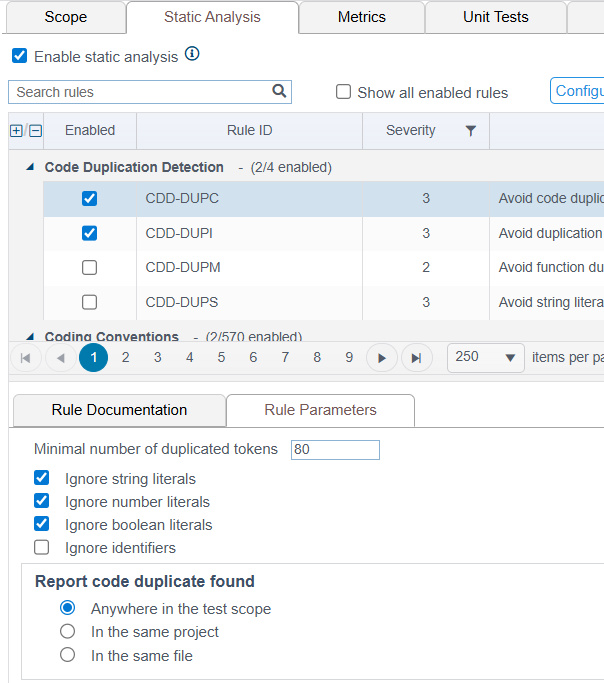
Rules are grouped by category. Expand a category and enable the rule to use it in the test configuration.
Click Enable [number] of rule(s) or Disable [number] of rule(s) to quickly enable or disable all rules in the configuration.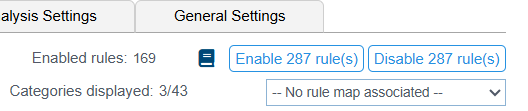
Viewing Rule Documentation
Click on a rule to open the documentation panel.

You can also open the rule documentation in new browser tab.
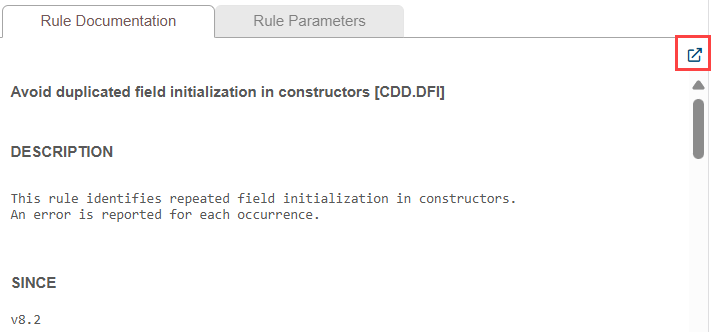
Click on the documentation icon to open all documentation for the enabled rules in a new browser tab.
Parameterizing Rules
If the rule can be configured, parameters can be set in the rule options panel. Click on a rule and click the Rule Parameters tab to configure the rule. The options available are specific to each rule.
Associating Rule Maps
Choose a custom rule map to associate with the test configuration. See Rule Maps.