Configuring the integration of DTP with Azure DevOps is performed by your Parasoft administrator and only needs to be done once.
In this section:
Connecting DTP to Azure DevOps
- Choose Report Center Settings from the settings (gear icon) menu.
- Choose External System, click Edit Settings, and choose Azure DevOps from the System type menu.
- Enable the Enabled option.
- Enter a name for the server in the Name field. The name is required but does not affect the connection settings or render in any other interfaces.
- Enter the URL of your Azure DevOps system in the Application URL field. Must include your Azure DevOps collection name.
- The Display URL field defines the URL which is displayed in Parasoft DTP pages when links to your Azure DevOps system are presented in a web browser. Typically, this should be the same as the above Application URL field, but in some cases it can be different, such as when you work in a reverse proxy environment and links to Azure DevOps from the user's local web browser with Parasoft DTP are different than from the Parasoft DTP server (for example, https://dev.azure.com/<yourorganization>).
- Enter your username and Azure DevOps API token in the appropriate fields (see Generate Azure DevOps Token below). The login must have sufficient privileges to create Azure DevOps issues in the projects specified in the Project Associations section.
- Click Test Connection to verify your settings and click Confirm.
Generate Azure DevOps Token
Sign into your organization in Azure DevOps (
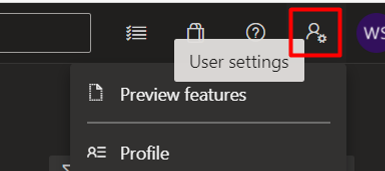
https://dev.azure.com/<yourorganization>).From your home page, open your user settings, and then select Personal access tokens.
- Select + New Token.
- Name your token, select the organization where you want to use the token, and then choose a lifespan for your token.
Select the scopes for this token to authorize for your specific tasks.
- Under Scopes, select Custom defined.
- Click on the Show all scopes.
- Select Test Management and enable Read & write.
- Select Tokens and enable Read & manage.
- Select Work items and enable Read, write, & manage.
- Click Save.
- When done, make sure to copy the token. For your security, it won't be shown again. Use this token as your password.
Once your Personal access token is created, you can use it anywhere your user credentials are required for authentication in Azure DevOps.
Advanced Configuration
You can modify the ExternalSystemSettings.properties configuration file located in the <DTP_DATA_DIR>/conf directory to change the default behavior of the integration. DTP's out-of-the-box integration with Azure DevOps is configured to use default or commonly used fields and work item types. If you customized your Azure DevOps system, however, then you can configure the settings detailed below to align data in DTP with your custom configuration.
Please note that ExternalSystemSettings.properties is expected to use ISO 8859-1 (Latin1) character encoding. Any character not supported by ISO 8859-1 must be represented in keys and elements using Unicode escape sequences, which is to say a backslash (\) and a lowercase u, followed by the four-digit hexadecimal code for the character. For example, the "En Dash" (–) character (not to be confused with the "Hyphen-Minus" character (-)) is not supported by ISO 8859-1, so it must be represented by its Unicode escape sequence \u2013. As a result, something like example.property.value=Foo – Bar would need to be entered as example.property.value=Foo \u2013 Bar.
| azuredevops.workItem.url | Specifies the URL template to the specific item in Azure DevOps. Default:
|
|---|---|
azuredevops.workItemType.requirements | Defines Azure DevOps work item types treated as requirements in Parasoft DTP integration. These are used in: Parasoft DTP Traceability reports, Requirements View in Parasoft C/C++ and SOAtest, and synchronization of test cases between DTP and Azure DevOps. Separate names with a semi-colon ( ; ). Default:
|
| azuredevops.syncTestCases.chunkSize | Sets the maximum number of work items used in the URL of a request when calling the Azure DevOps server during the syncTestCases operation. All results will be synced, but this limits the size of each request to the server to handle API restrictions such as URL length limits. The default value is 200. Default:
|
| azuredevops.syncTestCases.pointsQueryChunkSize | Sets the maximum number of test case IDs used in the URL of a request when querying the Azure DevOps server for test points data during the syncTestCases operation. All results will be synced, but this limits the size of each request to the server to handle API restrictions to the URL length. Default:
|
| azuredevops.workItemType.tests | Defines Azure DevOps work item types treated as tests in Parasoft DTP integration. These are used in: Requirements View in Parasoft C/C++ and SOAtest, and synchronization of test cases between DTP and Azure DevOps. Separate names with a semi-colon ( ; ). Example:
|
| azuredevops.workItemType.test | Defines the Azure DevOps work item type for new tests created by Parasoft DTP and linked to requirements during test case synchronization from DTP to Azure DevOps. Example:
|
| azuredevops.workItemType.task | Specifies the Azure DevOps work item type for new Task created from DTP Violation Explorer or Test Explorer. Example:
|
| azuredevops.workItemType.bug | Specifies the Azure DevOps work item type for new Bug created from DTP Violation Explorer or Test Explorer. Example:
|
| azuredevops.workItemType.epic | Specifies the Azure DevOps work item type that, if present, is used to group requirements in the Requirements View of Parasoft C/C++ and SOAtest. Example:
|
If you upgraded your Parasoft DTP installation from a version prior to 2021.2, these Azure DevOps parameters might be missing in your ExternalSystemSettings.properties file. In this case, they take the default values shown in the table above. To change these parameters, be sure to add them to your ExternalSystemSettings.properties file.
Configuring Non-English Azure DevOps Issue Types in Parasoft DTP
Azure DevOps issue types, like Task, Bug, Epic, User Story, and Test Case, are defined by your project’s process template. In some non-English languages, these might appear in a way that Parasoft DTP cannot parse. For example, in Japanese Azure DevOps these may appear in Japanese, which DTP will be unable to recognize. You can verify whether this applies to you and for which names by checking your Process Definition settings.
In cases like these, you will need to modify the ExternalSystemSettings.properties configuration file located in the <DTP_DATA_DIR>/conf directory in order to tell DTP what types of issues in Azure DevOps it should treat as requirements, tasks, test cases, and so on when integrating with Azure DevOps. ExternalSystemSettings.properties is expected to use ISO 8859-1 (Latin1) character encoding, so you will need to replace non-English words and letters with their Unicode equivalents. See Advanced Configuration for more information about this file and its settings.
This most commonly affects the following settings:
- azuredevops.workItemType.requirements
- azuredevops.workItemType.tests
- azuredevops.workItemType.test
- azuredevops.workItemType.task
- azuredevops.workItemType.bug
- azuredevops.workItemType.epic
An example of these settings in the ExternalSystemSettings.properties file, with Japanese names and their Unicode replacements, is shown below.
# Requirements
# Work item type names for the Japanese version of Azure DevOps: プロダクト バックログ項目, ユーザー ストーリー, 要件
azuredevops.workItemType.requirements=\u30D7\u30ED\u30C0\u30AF\u30C8\u0020\u30D0\u30C3\u30AF\u30ED\u30B0\u9805\u76EE;\u30E6\u30FC\u30B6\u30FC\u0020\u30B9\u30C8\u30FC\u30EA\u30FC;\u8981\u4EF6

# Tests
# Work item type names for the Japanese version of Azure DevOps: テスト ケース
azuredevops.workItemType.tests=\u30C6\u30B9\u30C8\u0020\u30B1\u30FC\u30B9
# Work item type name for the Japanese version of Azure DevOps: テスト ケース
azuredevops.workItemType.test=\u30C6\u30B9\u30C8\u0020\u30B1\u30FC\u30B9

# Task
# Work item type name for the Japanese version of Azure DevOps: タスク
azuredevops.workItemType.task=\u30BF\u30B9\u30AF

# Bug
# Work item type name for the Japanese version of Azure DevOps: バグ
azuredevops.workItemType.bug=\u30D0\u30B0

# Epic
# Work item type name for the Japanese version of Azure DevOps: エピック
azuredevops.workItemType.epic=\u30A8\u30D4\u30C3\u30AF
