This chapter describes how to add a widget to a dashboard. See Widgets for information about types of widgets, widget settings, and the data they display. Depending on your edition of DTP, you may have access to a limited set of widgets. See Installation Overview for details.
- Click the Add Widget icon.

- Choose a category and type of widget. You can also search for a widget using the search bar.
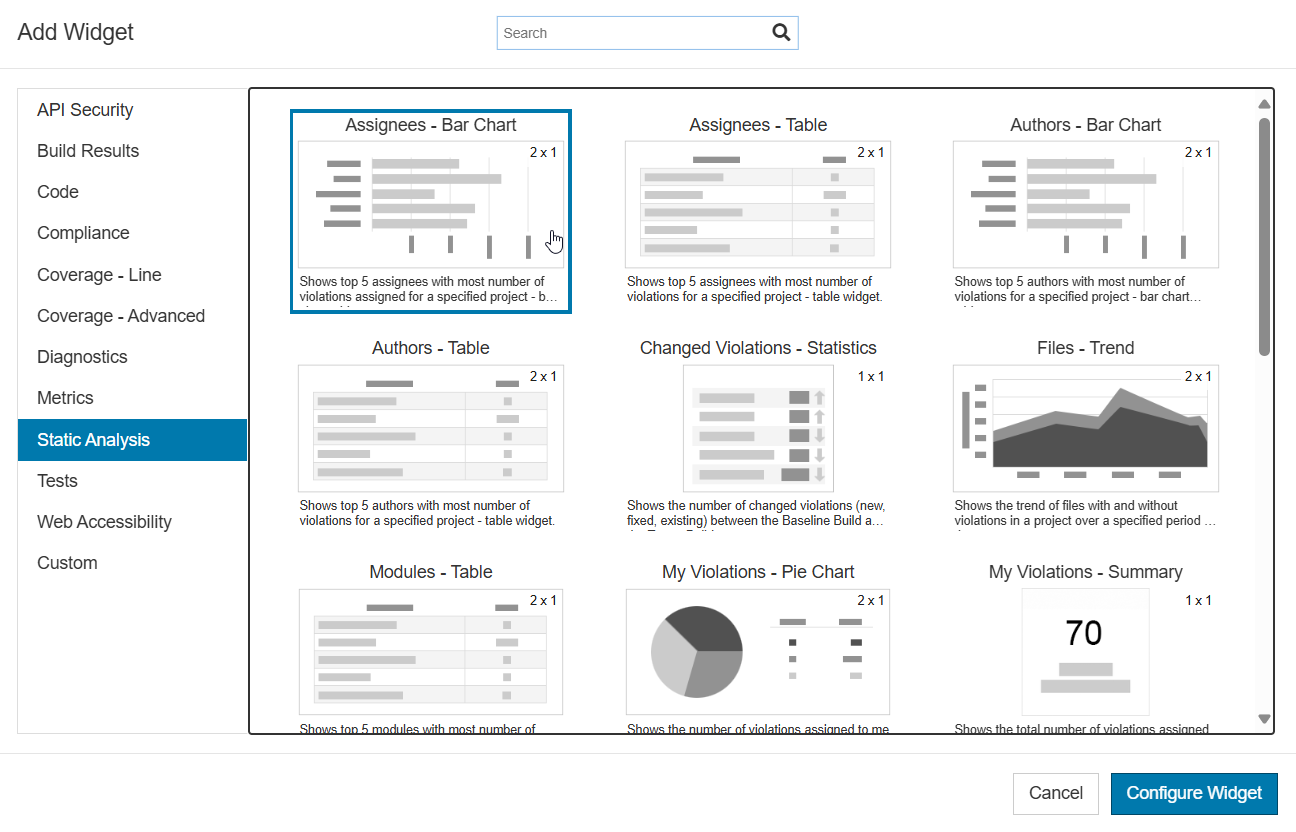
- Click Configure Widget to set default parameters and preview data. The configuration options vary from widget to widget. See Widgets for more information. Note that the widget preview updates, using your data, as you choose your configuration options.
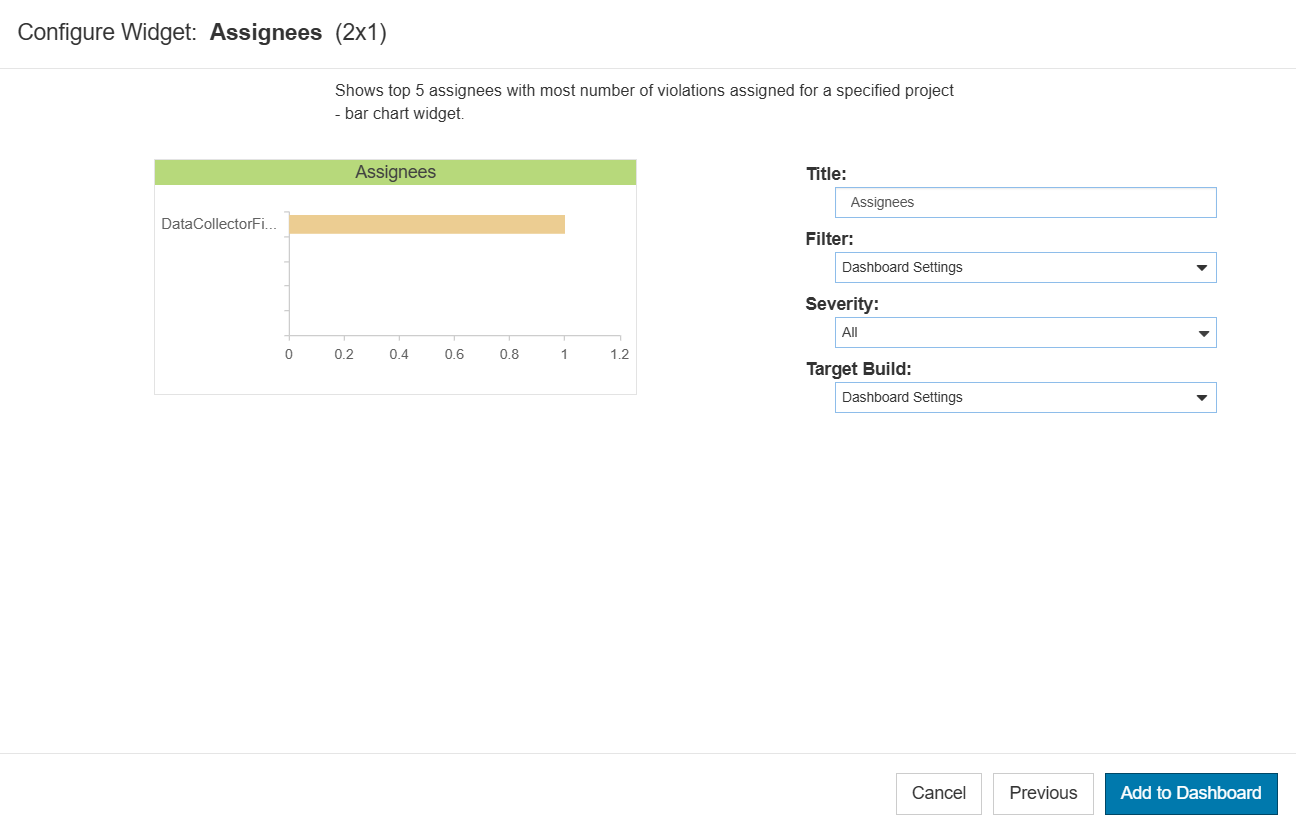
- Click Add to Dashboard to add the widget.
Arranging Widgets
Click and drag widgets to rearrange them on your dashboard. Widgets will automatically snap to the dashboard grid (see About the Dashboard Grid).
