C/C++test Standard can be integrated with JetBrains CLion, enabling users to run static analysis directly from the IDE. The integration is configured by adding C/C++test as an external tool in CLion.
Prerequisites:
- Ensure that you are using CLion 2026.1.2 or newer.
- Extract the contents of the installation package to a desired location (
<INSTALL_DIR>). The cpptest directory, which contains all C/C++test files, will be created. - Open the cpptestcli.properties configuration file in the installation directory and configure a local or network license. For more information, see Setting the License.
- Ensure that your CLion project is configured to build with CMake and generate a compile_commands.json file.
Configuring Static Analysis for the Entire Project
- Start CLion and open the Settings dialog.
- Go to Tools > External Tools.
- Click + to add a new external tool configuration.
- Configure the tool using the following values:
- Name:
C/C++test: Analyze Project - Program:
<INSTALL_DIR>/cpptestcli Arguments:
-compiler <COMPILER_CONFIGURATION> -config <TEST_CONFIGURATION> -report <REPORT_DIR_NAME> -property report.format=sarif -input $CMakeCurrentBuildDir$/compile_commands.json- Working directory:
$ProjectFileDir$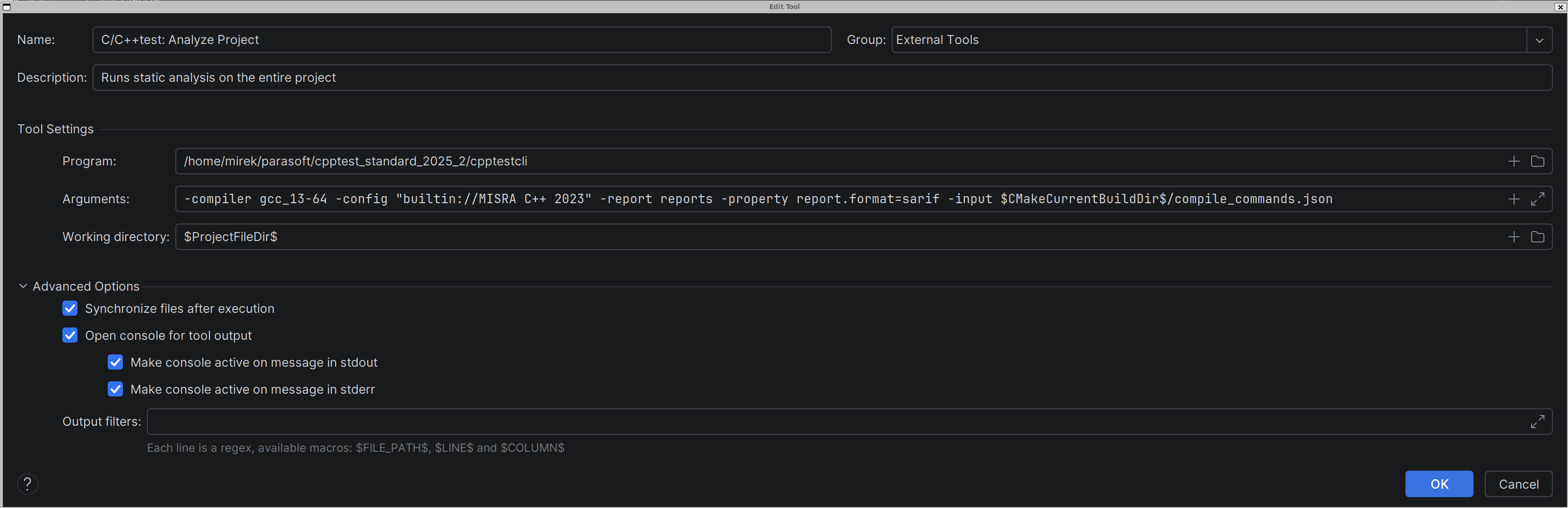
- Name:
- Click OK to save the configuration.
Configuring Static Analysis for a Single File
- In Settings > Tools > External Tools, click + to add another external tool configuration.
- Configure the tool using the following values:
- Name:
C/C++test: Analyze Selected File - Program:
<INSTALL_DIR>/cpptestcli - Arguments:
-compiler <COMPILER_CONFIGURATION> -config <TEST_CONFIGURATION> -report <REPORT_DIR_NAME> -property report.format=sarif -input $CMakeCurrentBuildDir$/compile_commands.json -resource $FilePath$ - Working directory:
$ProjectFileDir$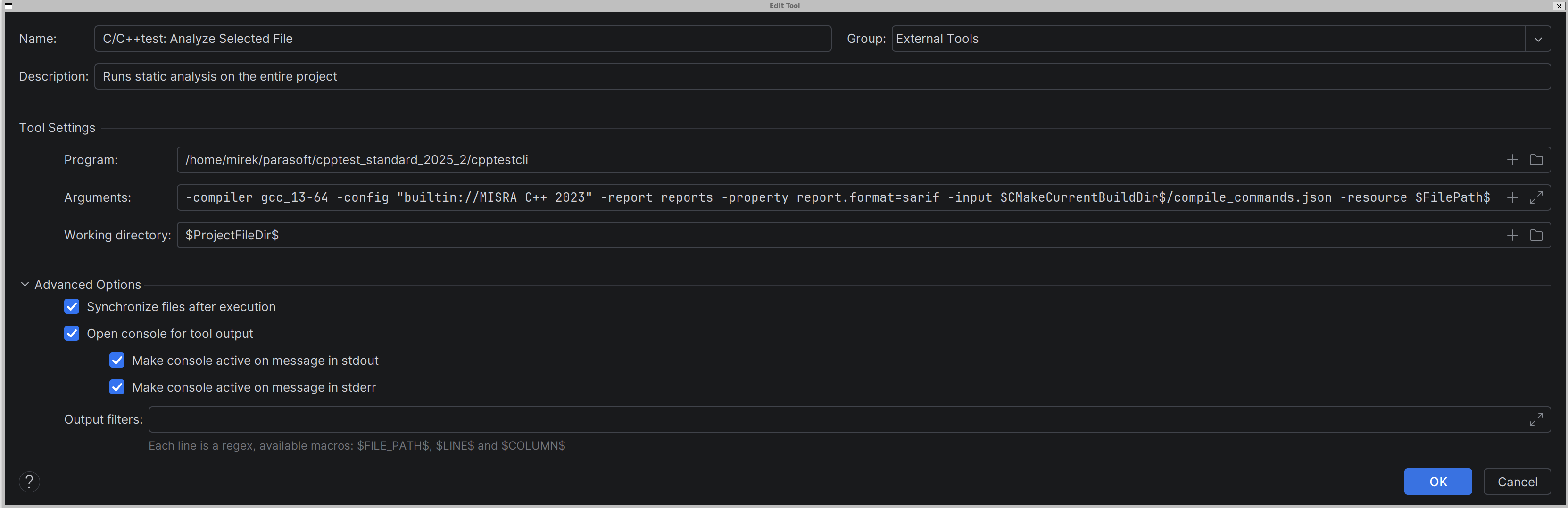
- Name:
- Click OK to save the configuration.
Configuration Notes
The following CLion macros are used in the external tool configurations:
$CMakeCurrentBuildDir$— resolves to the current CMake build directory.$FilePath$— resolves to the path of the file currently selected in CLion.$ProjectFileDir$— resolves to the project directory.
Refer to the CLion documentation for more information about IDE macros and external tool configuration.
The C/C++test-specific parameters are:
<COMPILER_CONFIGURATION> — the C/C++test compiler configuration. For more information, see Running Static Analysis.<TEST_CONFIGURATION>— the C/C++test test configuration. For more information, see Configuring Test Configurations.<REPORT_DIR_NAME>— the directory where analysis reports will be generated.
Viewing Analysis Results
After static analysis is executed, C/C++test generates a SARIF report file in the specified report directory.
To view the results in CLion, double-click the SARIF report file. CLion opens the file in the SARIF Viewer, where you can inspect the reported static analysis findings.
Refer to the CLion documentation for more information about the SARIF Viewer.
