When you use an AI through MCP to create tests and test scenarios in SOAtest, you will likely want to keep your credentials protected. Fortunately, there's an easy way to do it using Smart Test Templates.
About Smart Test Templates
Smart Test Templates (.stt) define rules that can be used to determine test generation behaviors that are used throughout SOAtest to streamline the creation of test scenarios. When SOAtest is used as an MCP server, it will also use any Smart Test Templates, in this case for authentication. For more information about Smart Test Templates, see Creating Smart Test Templates.
Creating a Basic Smart Test Template for Login Credentials
This example will show how to create a basic Smart Test Template with standard username/password credentials sent over HTTP.
- Open the Smart Test Templates view. If it is not open, go to Parasoft > Show View > Smart Test Templates to open it.
- Click Add Template on the tool bar and specify a name and location for the .stt file.

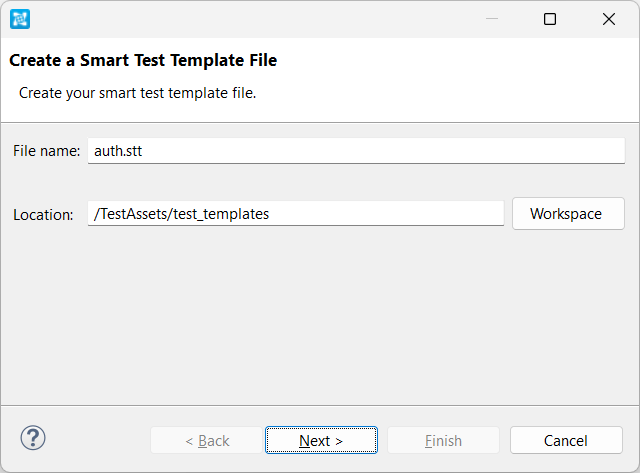
- Click Next then Finish. This will create an empty Smart Test Template (.stt) in your Smart Test Templates view.
- Double-click the resource suite in your .stt to open it. For this example, we are going to match it to a website by entering the URL in the Match field.
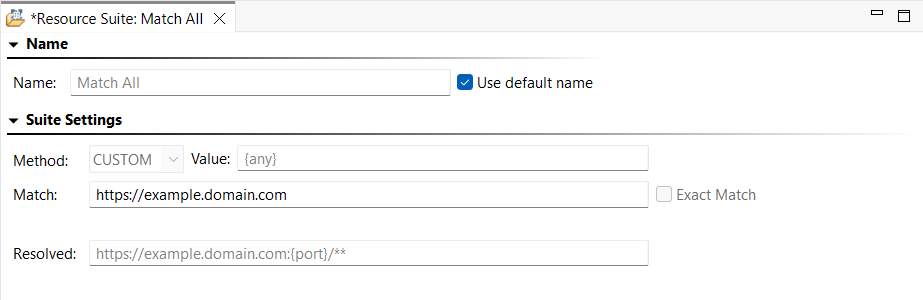
- Save your changes then right-click the resource suite and go to Add New > Resource Template. The new template will open in your workspace. Leave the Match field blank; this will cause it to inherit the match conditions from the parent suite.
- If we wanted to create different authentications for subpaths of the website, we could create multiple templates in the suite and use their Match fields for that, but for this example, we're only creating a single login.
- Right-click the resource template in your Smart Test Templates view and choose Add Output. Go to Request > Transport Header and choose HTTP Authentication.
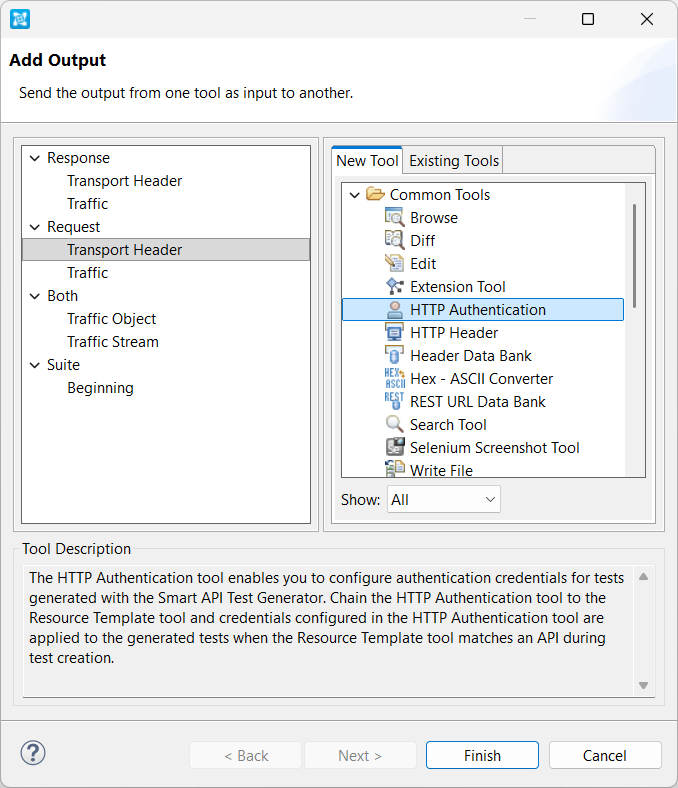
- Click Finish and add your credentials in the Username and Password fields. By default, the authentication type is set to basic, but you can choose a different Type from the menu.
- Save your changes.
When the AI uses SOAtest to create a test scenario or make an HTTP request that requires authentication on https://example.domain.com, SOAtest will automatically match and apply this Smart Test Template injecting the authentication into the request without exposing the credentials to the AI.
