Introduction
The Selenium Screenshot tool captures a screenshot of the browser page during playback with the Selenium WebDriver framework and adds these captures to the SOAtest HTML report. This enables you to create a permanent record of the UI state correlated to various automated test steps, facilitating debugging as well as supporting various compliance initiatives.
This tool requires SOAtest or Virtualize 9.8.1 or later.
Installation
The tool can be installed from the UI or command line.
UI Installation
- Go to Parasoft > Preferences and choose System Properties.
- Click Add JARs and choose seleniumscreenshot.jar.
- Click Apply.
- Restart SOAtest/Virtualize.
Command Line Installation
Add the seleniumscreenshot.jar file to the system.properties.classpath property in your settings properties file. For example:system.properties.classpath=<path to jar>/seleniumscreenshot.jar
Usage
The Selenium Screenshot tool can be added as a standalone tool via the Add Test wizard or chained to the output of Browser Playback tools via the Add Output wizard (choose Screenshot when adding as an output).
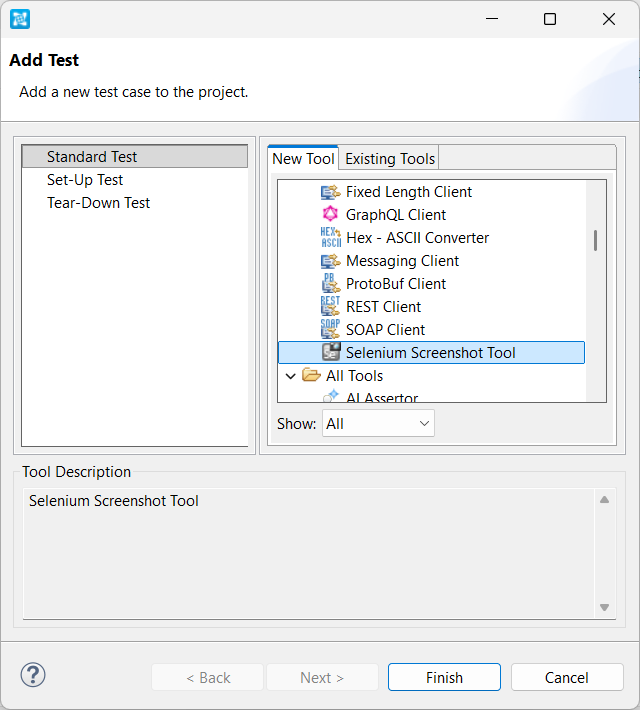
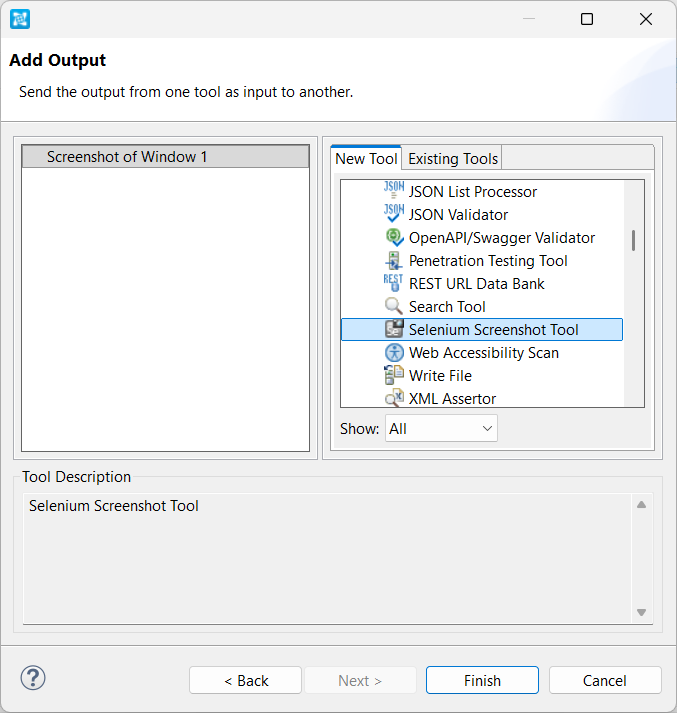
If the tool is an output, SOAtest/Virtualize will associate the screenshot with the parent tool. Otherwise, SOAtest/Virtualize associates the screenshot with the tool itself.
Screenshots are added to HTML reports when web scenarios are played back with Selenium WebDriver.
Before the tool can be executed, you need to indicate how the screen captures should be saved. You must also ensure that the appropriate reporting settings are configured.
Configuration
You can configure the tool to save screenshots as standalone image files or embed them within your HTML reports. If you want them saved as standalone images, specify the destination directory for the screenshot images in the tool's Capture destination field. To embed them, enter embedded in this field instead.

Note: Embedding images makes it easier to transfer the HTML report as a single file, but the total size of the report with images will be greater than it would be if the screenshots were saved as standalone image files. Also, some older browsers might incorrectly render reports with embedded screenshots.
Configuring Reporting Settings
The following report generation settings (under Parasoft > Preferences > Reports) must be configured to ensure that screenshots are added to the reports:
| Setting | Value |
|---|---|
| Overview of checked files and executed tests | Enabled |
| Requirement/defect details | Enabled |
| Only top-level test suites | Disabled |
| Only tests that failed | This can be disabled if the scenario with screenshots did not fail |

Reviewing the Screenshots
The screenshots will be shown within the HTML report for web scenario playback. Be aware, however, that due to Selenium issues the screenshots may render differently across different browsers.
Third-Party Content
This plug-in does not include any items that have been sourced from third parties.
