The Coverage Image Patterns section of the Project configuration page lets you configure include and exclude patterns that help associate the project with the appropriate coverage images. This is useful when you are associating coverage images with filters. When doing so, all coverage images are shown in the selection menus by default, and if you have a lot of coverage images this can make finding the one you want difficult. By configuring include and/or exclude patterns for coverage images in your project, you have the ability to limit the coverage images shown to just those that are appropriate for the project.
To configure coverage image patterns:
- Choose Report Center Settings from the settings (gear icon) menu and choose Projects in the navigation tree on the left.
- Click the project for which you want to configure coverage image include/exclude patterns and scroll down to the Coverage Image Patterns section.
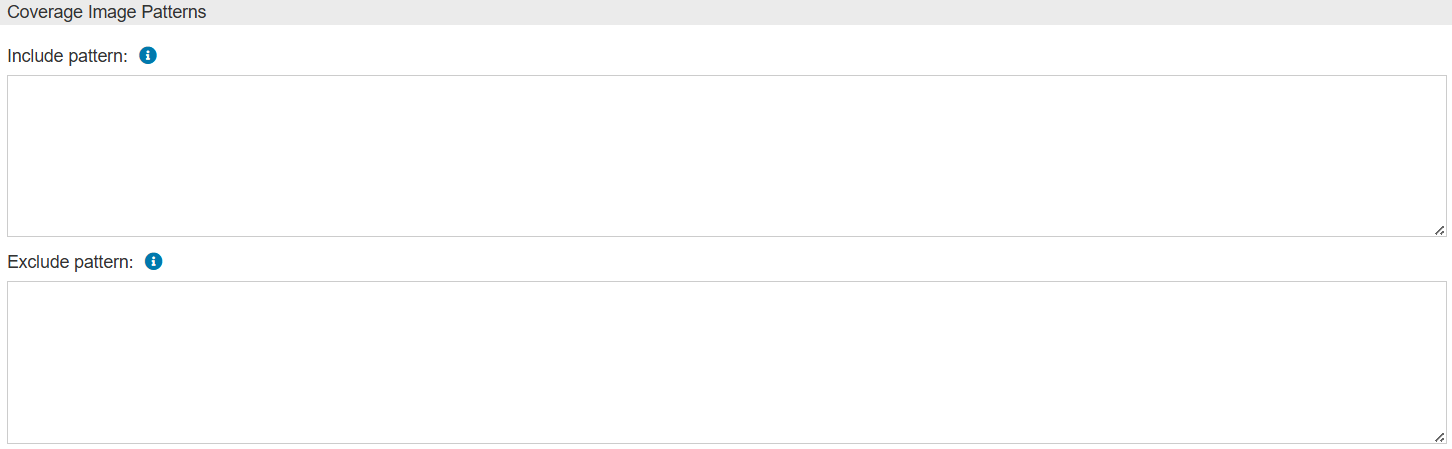
- Enter your patterns in the Include pattern and Exclude pattern fields, as appropriate. Some notes about include/exclude patterns:
- The include and exclude patterns support the use of the following wildcards:
*matches zero or more characters?matches exactly one character
- To use more than one pattern, use multiple lines. Each line is a separate pattern.
- For a coverage image to appear in the Coverage Image menu, it must match at least one of the include patterns (if any are specified), and none of the exclude patterns (if any are specified).
- The include and exclude patterns support the use of the following wildcards:
- The patterns will automatically save when you click away from the page.
Case Sensitivity
Whether the pattern does a case-sensitive or case-insensitive match depends on the database server.
- MySQL: case insensitive
- Oracle: case sensitive
- PostgreSQL: case insensitive if the pattern contains wildcards, case sensitive if the pattern does not contain wildcards
Example Patterns
Suppose you have the following coverage images: API1, API2, API3, DB1, DB2, DB3, and REST API.
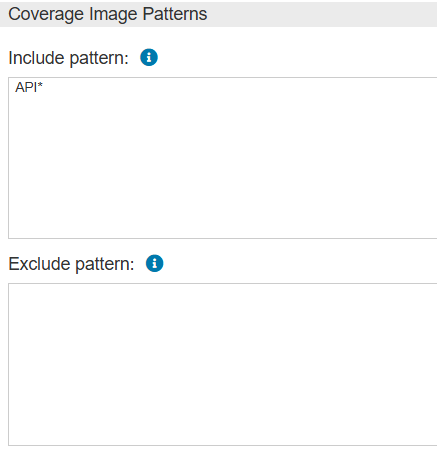
If you wanted to associate only images that started with "API", you could set an include pattern to API* and leave the exclude pattern blank. This would limit associations to API1, API2, and API3.
Similarly, if you wanted to show images that contain "API" anywhere (not just at the beginning), you could set your include pattern to look for *API* and leave the exclude pattern blank. This would limit associations to API1, API2, API3, and REST API. Note that with this set of coverage images, you could also set your exclude pattern to DB* and leave your include pattern blank and get the same results.
There are often multiple ways to achieve the same results. For example, in addition to the first example above, the following configurations would also limit associations to API1, API2, and API3:
- Include pattern =
*API*and an exclude pattern =*REST* - Include pattern =
*API?and exclude pattern is left blank
Use whatever patterns work best for you.
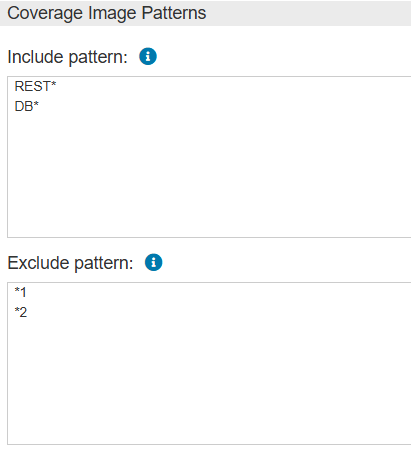
Finally, you can use multiple include and exclude patterns together to get precise associations. Let's say you want to show images that start with "REST" or "DB" and do not end in "1" or "2". You could set include patterns for REST* and DB* then set exclude patterns for *1 and *2. This setup would only show DB3 and REST API. Remember that when using multiple patterns, each pattern should be on its own line.