You can copy and paste repository data across the various repositories available in your Data Repositories view. You can do this with the entire repository or with just a data set. You can also copy an entire data repository server to a new data repository server.
Copying Repository Data
To copy repository data:
- In the Data Repositories view, right-click the repository or the data set whose data you want to copy and choose Copy.
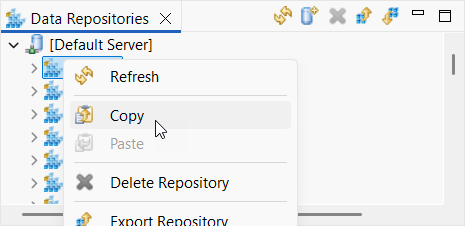
- Right-click the repository where you want the copied data added and choose Paste.
- If you are pasting a repository and it already exists in your server, you will be warned that proceeding will overwrite the existing repository with the new one. You can choose to continue or not.
- If you are pasting a data set and it already exists in the repository, you will be asked how you want to import the data set. Your options are:
Merge: Import new data without modifying existing data.
Update: Update matching records with new data and create new records as needed.
Overwrite: Update matching records (with matching keys) with new data, but do not create any additional records.
- Replace: Erase existing data then add the new data.
See Understanding Data Set Import Options for more information about the import options.
Copying an Entire Data Repository
You can migrate data from one data repository server to another. This is commonly done to upgrade data repository servers, though it can also be used to copy data from one repository server to another.
This process can take several minutes or longer, depending on multiple factors including how much data you need to copy over to the new repository server, network considerations, and so on. It is recommended that external services not interact with the servers until the process is complete, so plan accordingly. |
To migrate data from one data repository server to another:
- Start both servers. Be sure the servers start on different ports.
- Add both servers to the Data Repositories View, if needed.
- Right-click the server from which you wish to move data and select Copy All.
- Right-click the server into which you wish to move the copied data and select Paste.
The remote data repository server hosted on Linux or MacOS can crash with a "Too Many Open Files" error if you are copying a large number of repositories. This usually happens because the ulimit is set too low. The recommended course of action is to temporarily raise the ulimit parameter on your machine. The "hard" ulimit might need to be raised as well. |