The Browser Playback tool plays back a user action in a web browser on the current page (for example, clicking on a link or typing).
The Browser Playback tool is the basis for all Web tests recorded through the browser.
For details on how to configure and customize Browser Playback, see:
The tool’s configuration panel has the following tabs:
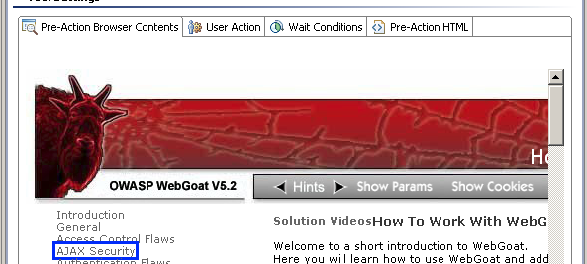
Note that you can chain various tools to the Browser Playback tool using either browser content (rendered as HTML), HTTP traffic, or a screenshot as an input. Not all input types can be used with all tools. The following tools can be attached as outputs:
In the case of browser content input, these tools directly access the final browser contents for the test (that is, what you see in the post-action rendered view). Some of these tools have fairly specific use cases (for example, chaining a screenshot to a Write File tool in order to save a screenshot in the test folder). Only one Browser Validation tool and one Browser Data Bank tool can be added as outputs to each Browser Playback tool.
The following tutorial lesson demonstrates how to use this tool:
The Browser Playback tool plays back a user action in a web browser on the current page (for example, clicking on a link or typing).
Browser Playback tools are typically added from the Action Suite wizard’s Web > Record web scenario option:
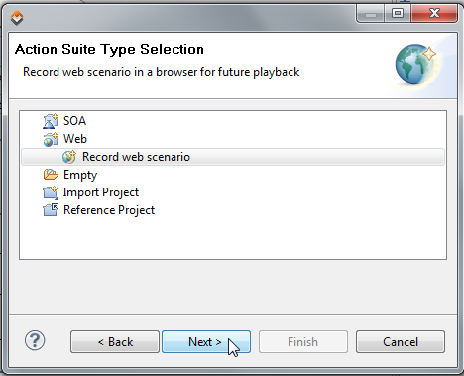
From this wizard, you can click through the actions you want recorded, then Virtualize will create and configure an action suite with the Browser Playback tools necessary to replay the captured actions.
For details, see Defining Provisioning Actions.
The tool’s configuration panel has the following tabs: