Click Parasoft in the menu bar and choose Options. Then select Configuration.
You can also choose Parasoft > Favorites and Run History > Test Configuration.
Right-click the Test Configuration and choose Add to Favorites.
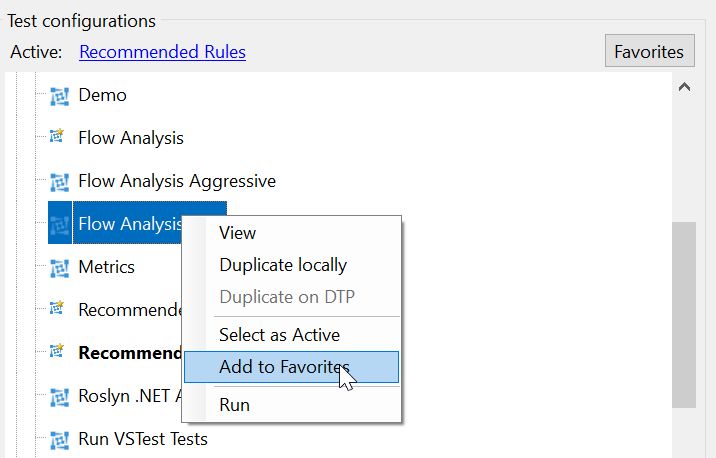
You can add frequently used Test Configurations to the Favorites menu for quick and easy access from the Parasoft tab in the IDE’s main menu.
Click Parasoft in the menu bar and choose Options. Then select Configuration.
You can also choose Parasoft > Favorites and Run History > Test Configuration.
Right-click the Test Configuration and choose Add to Favorites.
Now you can easily run the favorite test configuration by choosing Parasoft > Favorites and Run History > [test configuration] or the favorite configuration icon  in the tool bar.
You can remove Test Configurations from the Favorites menu and reorder the configurations from the Organize Test Favorites overlay.
Open the Configurations settings panel and click Favorites.

Select a Test Configuration and use the Remove, Up, or Down buttons to manage the configurations.
