Browser Playback for SOAtest
The Browser Playback tool plays back a user action in a web browser on the current page (for example, clicking on a link or typing).
Creating Browser Playback Tools
The Browser Playback tool is the basis for all Web tests recorded through the browser.
- For details on how to create these tests, see Web Functional Testing - Overview and Browser Recording and Playback.
Configuring Browser Playback
For details on how to configure and customize Browser Playback, see:
- Modifying User Actions Simulated by a Web Scenario
- Specifying Wait Conditions
- Validating or Storing Values
- Stubbing Test Requests and Responses
- Customizing Recording Options
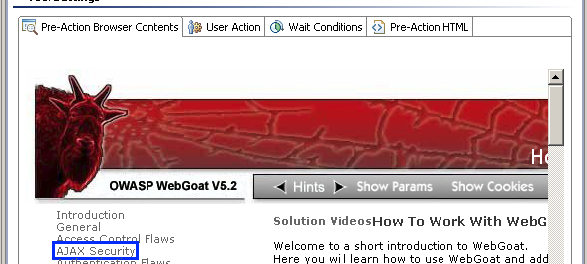
The tool’s configuration panel has the following tabs:
- Pre-Action Browser Contents: A rendered view of what was in the browser before the test executed. For an explanation of the colored borders used to mark notable elements, see Colored Borders.
- User action: Allows you to view/modify the user actions simulated by this test. For details, see Modifying User Actions Simulated by a Web Scenario.
- Wait condition: Allows you to view/modify the wait conditions for this test. For details, see Configuring Wait Conditions.
- Pre-Action HTML: A code-level view of what was in the browser before the test executed. Use the Browser Containers menu to toggle between the available browser windows and frames.
Note that you can chain various tools to the Browser Playback tool using either browser content (rendered as HTML), HTTP traffic, or a screenshot as an input. Not all input types can be used with all tools. The following tools can be attached as outputs:
- AI Assertor
- AI Data Bank
- Browser Contents Viewer
- Browser Data Bank
- Browser Validation
- Diff
- Extension Tool for Custom Scripting
- Penetration Testing
- Web Accessibility Scan
- Write File
In the case of browser content input, these tools directly access the final browser contents for the test (that is, what you see in the post-action rendered view). Some of these tools have fairly specific use cases (for example, chaining a screenshot to a Write File tool in order to save a screenshot in the test folder). Only one Browser Validation tool and one Browser Data Bank tool can be added as outputs to each Browser Playback tool.
Related Tutorials
The following tutorial lesson demonstrates how to use this tool:
