...
- Open the Manual Testing module. Your systems, versions (if applicable), and their environments, as defined in the Environment Manager, are listed here alphabetically. Choose the environment for which you want to start a session.
- In the Manual Tests table, you will see a list of all the tests for this environment with the status for each based on when it was tested or, for tests that are in progress, when it was started. The Tested By column will tell you when it was last tested and by whom; hover over this information with your mouse for more details, including the testing session in which it was last tested.
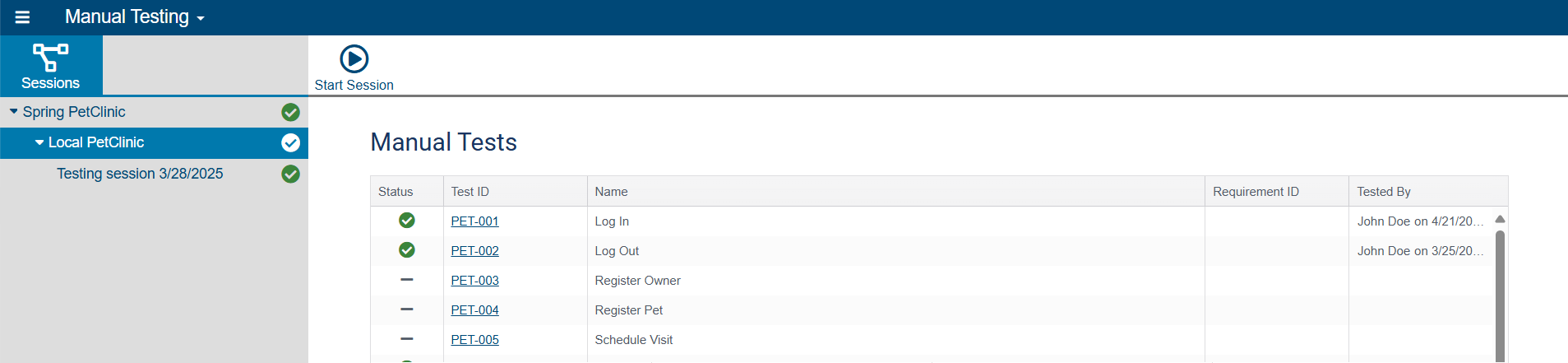
- Click Start Session and enter a name for the session in the dialog that opens. Note that the session name must be unique within the environment.
- If CTP has been configured to connect to DTP, you will have the option to capture code coverage data to send there for display.
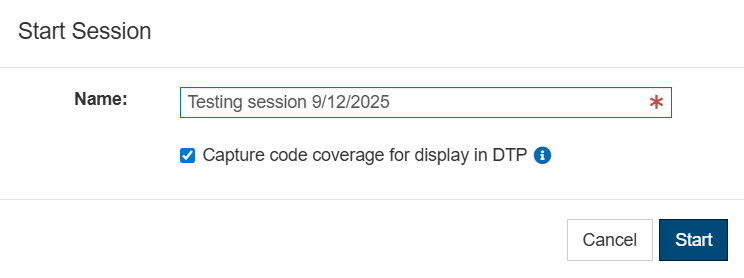
- When enabled, you will have the opportunity to publish the test data that is collected to DTP when you're done testing. Be aware, however, that if any of the components in a system under test change to a newer build, you will not be able to start a new manual test in this manual test session. In that instance, you should publish the manual testing results that you have so far and start a new manual testing session for the updated build IDs.
- When this option is disabled, you won't be able to publish test data to DTP, but you will not need to start a new session when a build ID changes.
- Click Start. A new session will start with your tests.
...
- Open the Manual Testing module. Your systems, versions (if applicable), and their environments, as defined in the Environment Manager, are listed here alphabetically. Choose the environment that contains the session you want to delete.
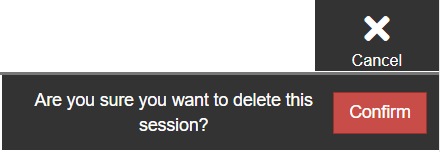
- Click Delete Session. A confirmation message appears.
- Click Confirm to delete the session or Cancel to cancel the deletion.
...
The Manual Test Results table uses a series of icons to identify the status of manual tests. A description of what these icons signify is shown in the table below.
...

...

...

...

...

...

...
| Info | ||
|---|---|---|
| ||
Note that the manual test status icons are also used in the system tree on the left of the Manual Testing screen. Generally speaking, when a manual testing session is stopped it adopts the status of the test within it that requires the most attention (if any). For example, when a manual testing session is stopped and most manual tests have passed but one is in a failed state, the manual testing session will be flagged as "failed". Be aware that manual testing sessions that are in progress will always show as "in progress" regardless of the status of any of its tests. These statuses "roll up", so environments take the status of the manual testing session that requires the most attention, versions take the status of the environment that needs the most attention, and so on. In this way, it's easy for you to tell from the system tree, at a glance, when there is something that needs your attention and drill down to find what it is. |