...
To validate all incoming requests prior to finding a matching responder in a suite, you can take advantage of the pre-correlation output. The pre-correlation output allows executing a validation tool and storing the results in a data bank variable to use as part of request body correlation or custom correlation. This configuration allows invalid requests to be filtered out and responded to with customizable error messages, making it easy to enforce consistent validation rules across all requests without duplicating logic in each responder.
Workflow
This example uses a JSON Validator, but the process is the same for other validators and tools.
- Add a Responder at the beginning of the suite to serve as the entry point for all incoming requests.
- Chain a validation tool (such as a JSON Validator or a GraphQL Query Validator) to the Pre-correlation Incoming Request output of the responder.

- Chain a Text Data Bank to the validation tool. When you're done, you should have a setup similar to the one below.
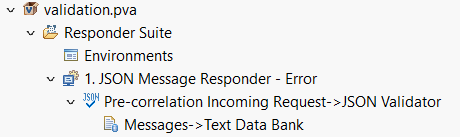
- Configure the Text Data Bank to extract the validation result into a variable. In the example below, it is being extracted into a variable called
validation_error. Configure
 - Open the Message Responder and go to Responder Correlation > HTTP Methods. Enable Enable correlation and select POST and PUT.

- Still on the Responder Correlation tab, Responder Correlation of the Message Responder to reference the extracted validation result using one of the methods described below.
- Method 1 - Custom Scripting (preferred):
To use a script to evaluate the validation results, add a script like the following under Responder Correlation > Custom (Groovy):Code Block def correlateOnValidationError(context) { value = context.getValue("Generated Data Source", "validation_error") return value != null && value.length() > 0 }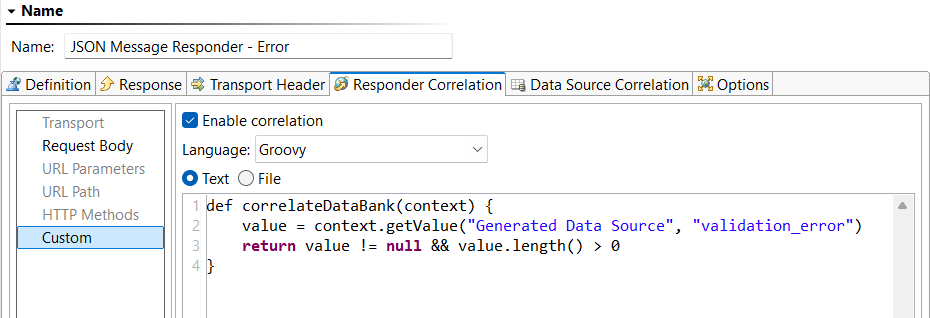
- Method 2 - XPath:
To use XPath to evaluate the validation results, add an XPath like the following under Responder Correlation > Request Body > XPath:string-length("${validation_error}") > 0
- Method 1 - Custom Scripting (preferred):
- Configure On the Response tab, configure the responder payload of the Message Responder to return a custom error message when a request fails validation like the following:
Code Block { "status": 400, "error" : "${validation_error}" }
- Switch the Input Mode to Form JSON and click Yes when prompted to override the values.

- Update the return status code under Options > Return Status.
