...
- Enter a name for the repository in the Name field.
- You can configure which rows of the repository will be used for the suite or suites in the project. Enable the All option to allow access to all rows in the repository or enable the Range option and specify which rows should be accessible.
- Choose one of the following modes from the Connection Mode menu and configure the connection details accordingly:
- Host/Port:
- Enter the Data Repository Server's Host and Port. You can also choose the embedded server or an existing remote server from the menu.
- If you select the embedded server, the Port, Username, and Password fields will be grayed out. If you select a remote server, the Port, Username, and Password fields will be automatically populated, but these can be adjusted if necessary.
- Under Repository name, select or enter the name of the repository you want to use.
- Specify your credentials to access the data repository server (if required). To use SSL to connect to the server, enable Use SSL. Click Validate to verify the connection settings.
- Enter the Data Repository Server's Host and Port. You can also choose the embedded server or an existing remote server from the menu.
- Connection String:
Enter the MongoDB connection string. An example of a connection string that connects to a local server with SSL is shown below. See https://www.mongodb.com/docs/manual/reference/connection-string/ for more information about MongoDB connection strings.
Code Block title MongoDB Connection String Example mongodb://localhost:2424/?tls=true&tlsAllowInvalidHostnames=true
Info If an authentication database is specified in the connection string, you should use the
/defaultauthdbcomponent; only use the?authsource=defaultauthdboption if credentials are specified in the connection string.- Under Repository name, select or enter the name of the repository you want to use.
- Specify your credentials to access the data repository server (if required). You can specify credentials in either the connection string or in the Username and Password fields. If credentials are specified in both, those in the Username and Password fields will take precedence.
- Host/Port:
- Click Validate to verify the connection settings.
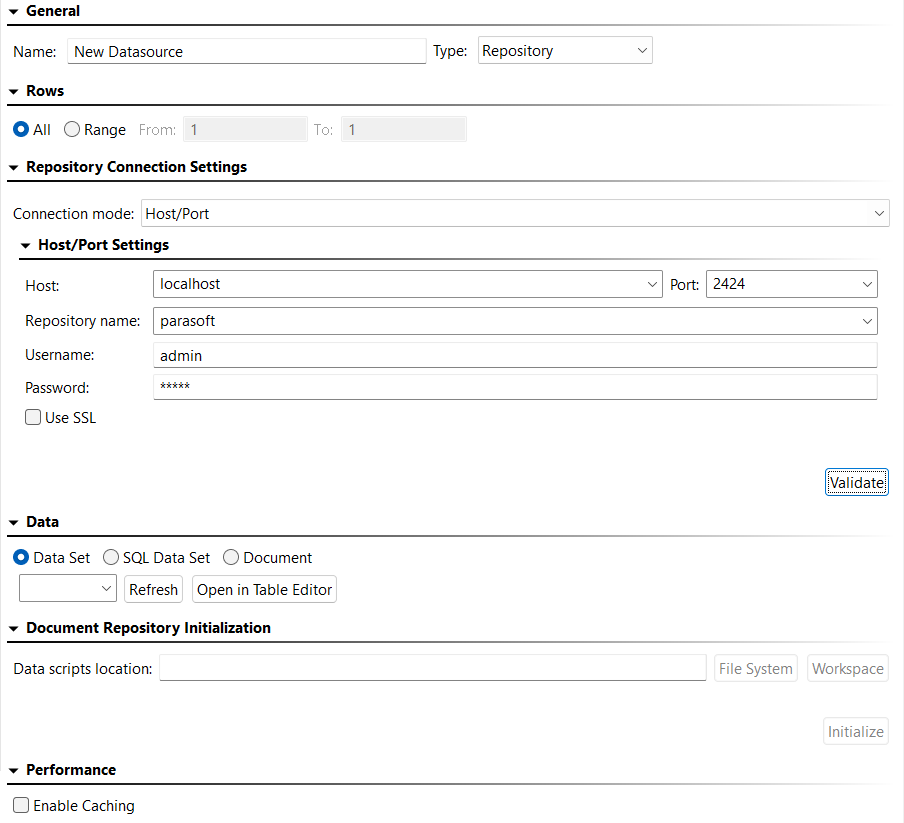
- Specify the data set to which this data source will connect. The data set specified does not need to exist at this point, but it will need to exist and contain data by the time you start applying tools to use this data source.
- If you are creating a data source for use in Virtualize’s SQL Responder tool, enable SQL Data Set.
- If you are creating the repository you specified in Repository Name is a document-based data sourcerepository, enable Document.
- Document will be automatically enabled and the location of the
- Document-based data sources are initialized according to the provided script(s) when the virtual asset is deployed, provided the repository is empty or does not exist (it will automatically create it in the latter case). When data is present, the repository is not automatically updated, but you can manually update it any time by returning to this screen and clicking Initialize, which will rerun the script(s)initialization scripts folder will be displayed.
- If the data source’s Enable caching option is disabled (the default), updates to the repository data will be immediately reflected in any deployed virtual assets which use that data. If you enable caching, virtual assets will need to be redeployed in order for the repository data changes to take effect at runtime. Enabling caching for load testing is recommended for performance optimization.
- Save your changes.
...