...
The columns in in the Message Grouping Review screen are based on the grouping strategy applied. Each table row represents the criteria for defining a group. One group will be generated for each table row. One responder will be generated for each group. Complete information for using this screen is in the Customizing Grouping Criteria section.

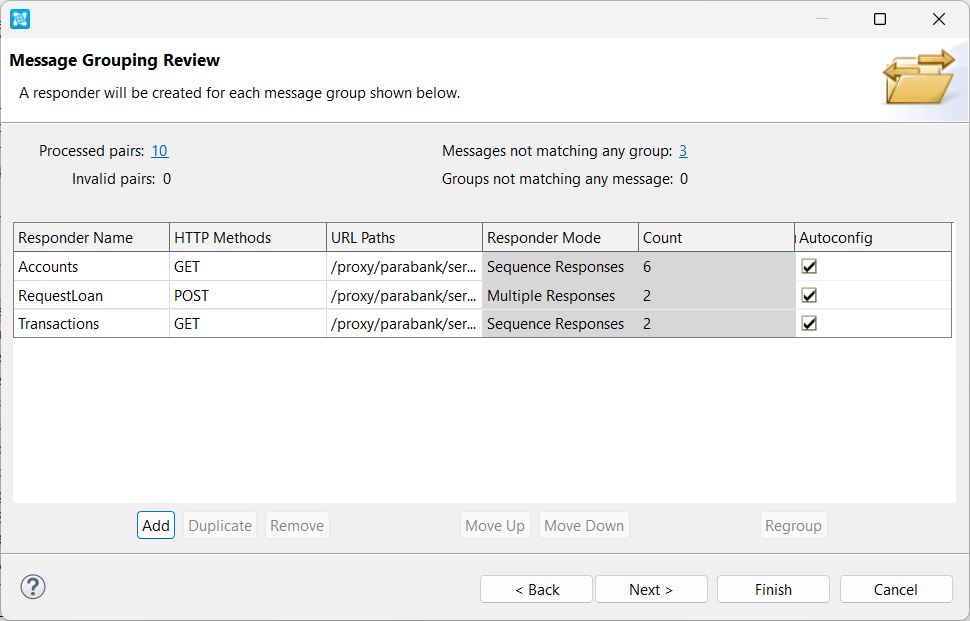
The correlation criteria will be processed in the order in which they appear in the table (from top to bottom). For details on how these groupings were created, see Understanding Heuristics for Grouping by Operation Type.
...
For more details on any of the items listed at the top of the panel (processed pairs, unprocessed pairs, messages that don’t match groups, and so on), click the associated hyperlinks.

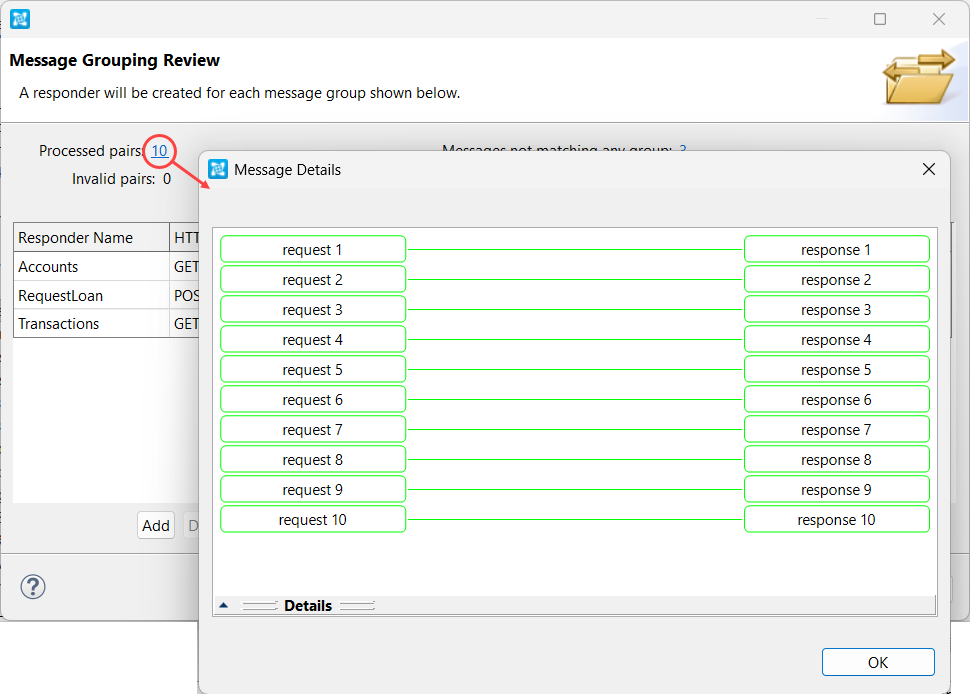
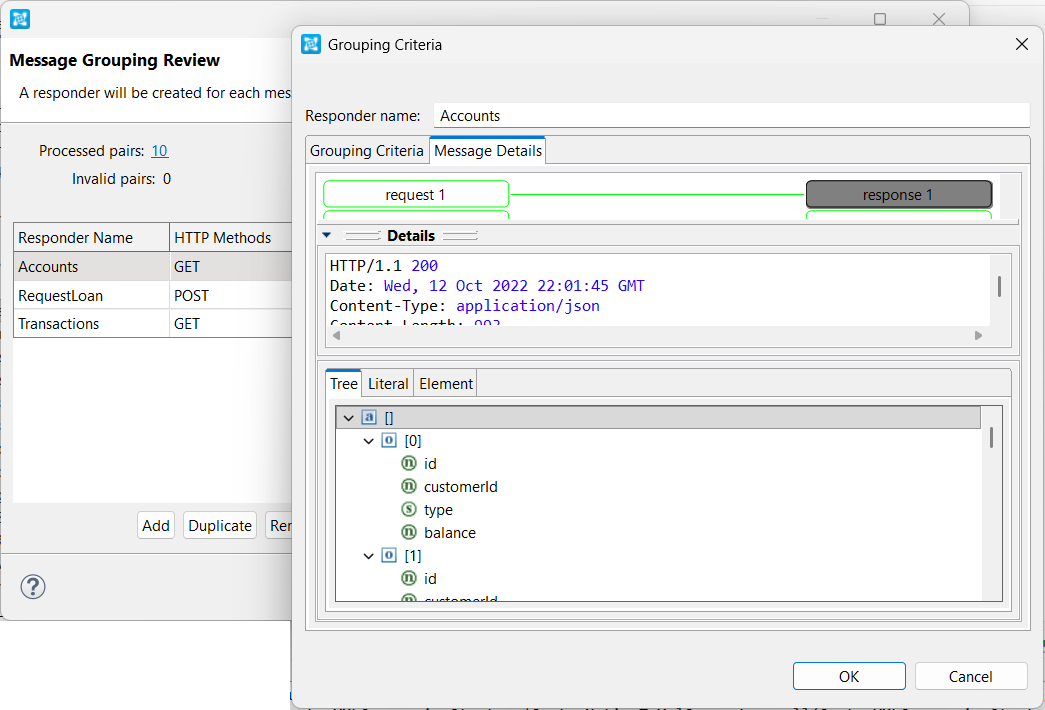
To review the messages associated with a particular responder—andresponder, and/or to change the responder and data set name—click name, click the related row in the Count column. column. You can click on any of the Request or Response bubbles in the Message Details tab to view details about those specific items, including header information that can help you determine whether the request correlation is what you want.

Configuring Request Mapping Options
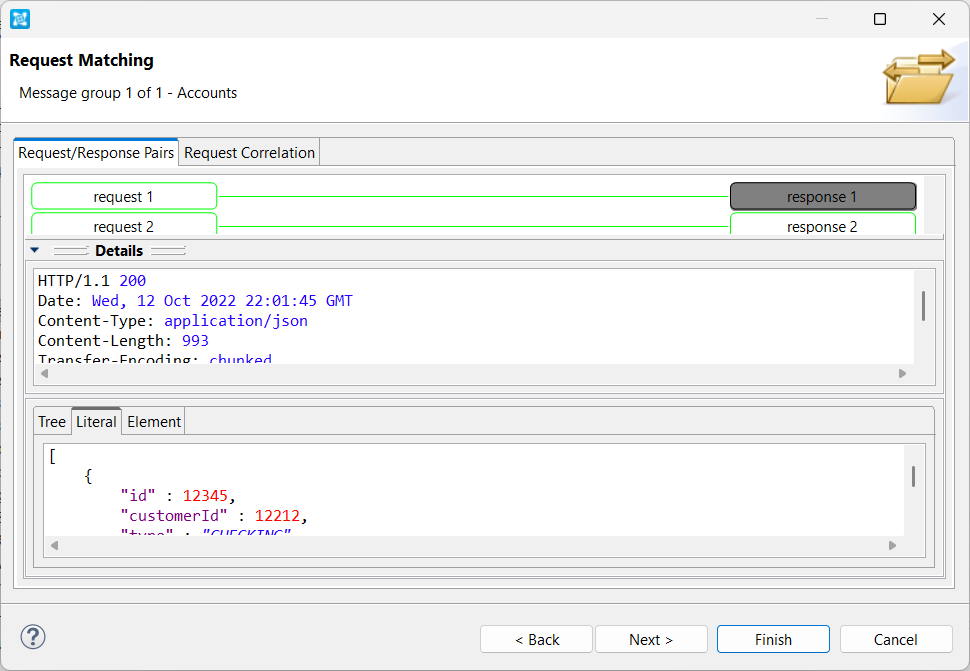
The Request Matching screen enables you to remap the request/response pairs and customize which parameter values are used to determine the response messages of the virtual asset. Complete details about configuring the options in the Request Matching screen are in the Customizing Request Matching and Correlations chapter.

| Anchor | ||||
|---|---|---|---|---|
|
...