Adding SNMP Agent MonitorsLoad Test can retrieve data based on the provided OID(s) from the SNMP agents of versions 1 and 2c. To add an SNMP agent monitor: - Right-click the Monitors node in the Load Test tab and choose New Monitors. A New Monitors dialog opens.
- Select SNMP from the New Monitors dialog, then click Finish. A configuration panel for the new monitor will open in the right panel.
- Type the SNMP agent’s host name in the Host field.
- Type the SNMP agent’s community in the Community field.
- Enter a parameter by clicking New. The New Parameter dialog opens.
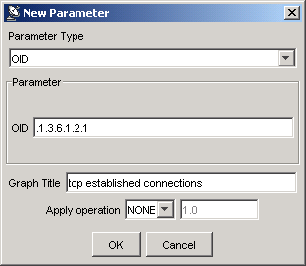 - Complete the New Parameter dialog as follows:
- Parameter Type: Choose OID or Composite.
- Parameter: Depending on the Parameter Type selected, the Parameter options will vary according to the following:
- OID: Enter the Object ID that identifies a specific parameter within the SNMP agent community. (Only available if OID is selected as the Parameter Type.)
- Composite: Choose Processor, Memory, Network, or TCP to collect corresponding data.
- Counters: Depending on the selected Composite parameter, displays CPU Utilization (%), Memory Utilization (%), and Network Utilization (%); these counters are calculated by querying a set of OIDs.
If TCP is selected as the Composite parameter, you must select a counter from the Counters box. - Parameter Explanation: Displays an explanation for the Composite parameter selected.
- Graph Title: Enter a title for the graph that will correspond to the Monitor you are adding. This title will display in Load Test Progress graphs, and in Detailed Report graphs.
- Apply operation: Select to apply simple operations to values returned by an SNMP agent. Use "*" for "multiply", "/" for "divide", and "%" for "percentage of". For example, if the agent returns the value of the allocated memory in bytes but you want to see it in KB, you would apply a "/ 1024" operation by selecting "/" from the menu and entering "1024" in the adjacent text field. You could then add "Memory in kilobytes" into the Graph Title field.
- Repeat the above step until the Parameters table shows all parameters you want this SNMP agent to monitor.
- Verify the new monitor by right-clicking the related node in the Load Tests tree’s Monitors > SNMP branch.
To add a Windows performance monitor (functionality which is only available if you have a Windows installation of Load Test): - Right-click the Load Test tab’s Monitors node, then choose New Monitors. A New Monitors dialog opens.
- Select Windows from the New Monitors dialog, then click Finish.
- Type the perfmon’s host name in the Host field.
- Enter a parameter by clicking New. The Add performance counter dialog opens.
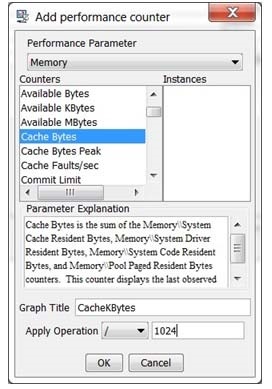 - Complete the New Parameter dialog as follows:
- Select the performance counter and instance of the parameter you want to monitor. An explanation of the parameter you select displays in the Parameter Explanation box.
- In the Graph Title field, enter a title for the graph that will correspond to the Monitor you are adding. This title will display in Load Test Progress graphs, and in Detailed Report graphs.
- In the Apply Operation sub-panel, select an operation and a value to be applied to the monitor data if needed. For example, by selecting the / (divide) operation and entering
1024 in the operation value field, you could convert the original monitor value from Bytes to KBytes.
- Repeat the above step until the Parameters table shows all parameters you want this perfmon to monitor.
- Verify the new monitor by right-clicking the related node in the Load Tests tree’s Monitors > Windows branch.
Adding WebSphere MonitorsBefore adding a WebSphere monitor, go to the Security > Global security section of the WebSphere Administrative console and ensure that Enable administrative security is not enabled. To add a WebSphere monitor: - Right-click the Load Test tab’s Monitors node, then choose New Monitors. A New Monitors dialog opens.
- Select WebSphere from the New Monitors dialog, then click Finish.
- In the Project Configuration panel, click Configure. A Configure WebSphere Agent dialog opens.
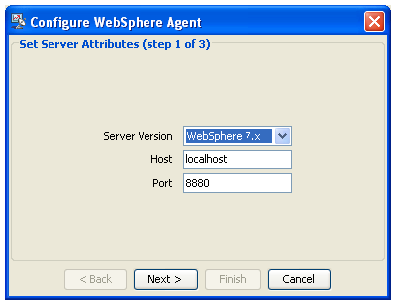 - Enter the Host name, change the Port number if necessary, then click Next.
- In the Configure WebSphere Agent panel, enter or browse to the appropriate Path of the WebSphere installation. For example:
C:\IBM\WebSphere. - Click Next. The Configure WebSphere Agent dialog displays a table of the required Jar files for the server and indicates whether or not the appropriate Jar files were found.
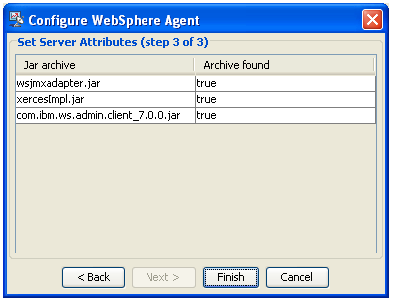 - In the Configure WebSphere Agent dialog, click Finish. The Add Parameter dialog opens.
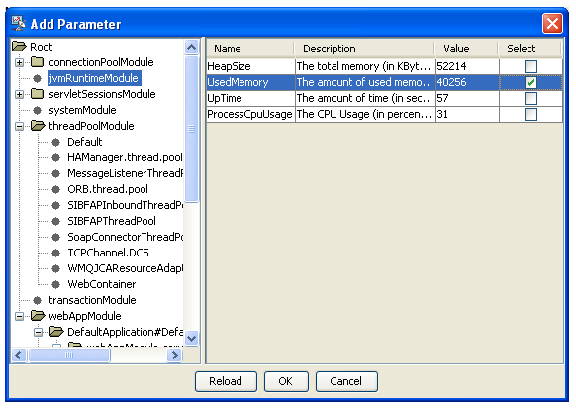 - Select a Parameter from the left GUI panel of the Add Parameter dialog. The Name, Description, and Value for each instance of the parameter you want to monitor displays in the right GUI panel of the Add Parameter dialog.
- In Select column from the right GUI panel, check the parameter instances that you want to monitor, then click OK. The parameters you choose will display in Load Test Progress graphs, and in Detailed Report graphs.
Adding WildFly MonitorsLoad Test WildFly monitor supports WildFly application server version 27 and higher. To add a WildFly monitor: - Right-click the Load Test tab’s Monitors node, then choose New Monitors. A New Monitors dialog opens.
- Select WildFly from the New Monitors dialog, then click Finish.
- In the Project Configuration panel, click Configure. A Configure WildFly Agent wizard dialog opens.
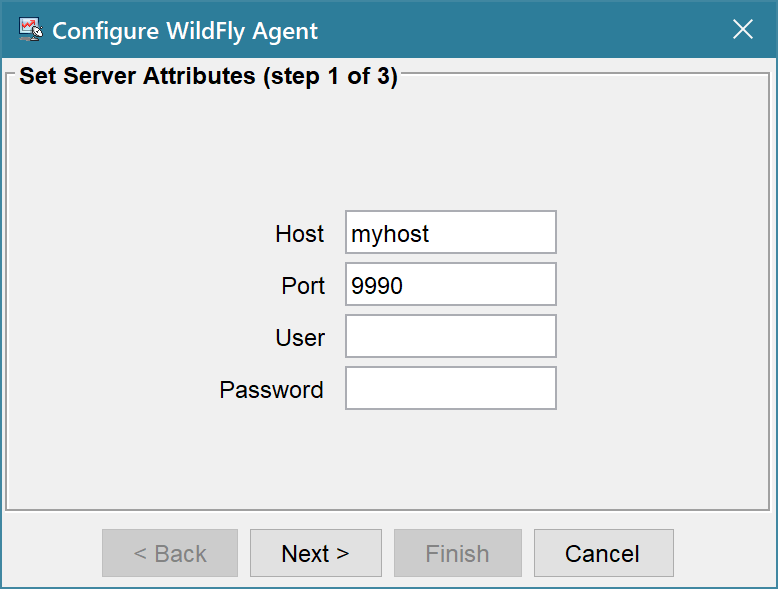
- Enter the Host and Port for your WildFly server.
- If your WildFly server is configured to accept anonymous connections, you can leave the User and Password fields blank. If a login is required, enter the credentials in the User and Password fields.
- Click Next.
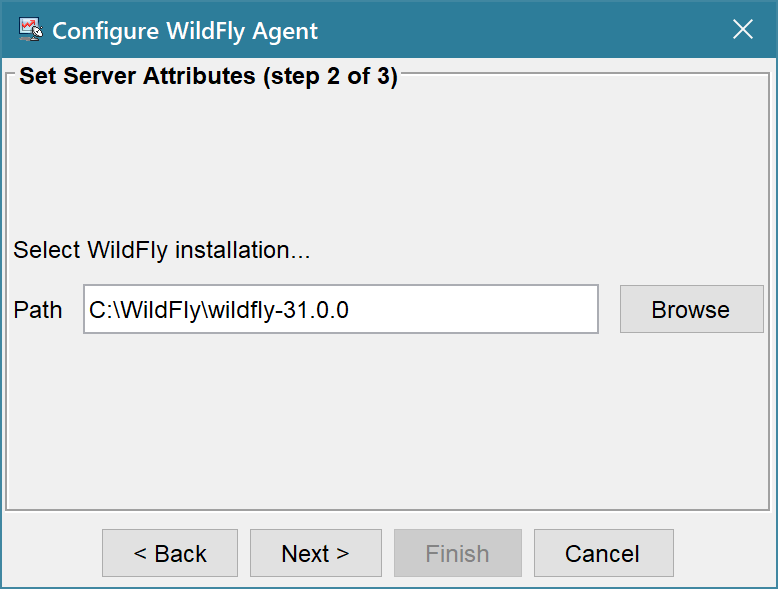
- Enter the path to your WildFly application server installation directory. Click Next.
| Note |
|---|
In order to connect to the WildFly application server, the Load Test WildFly monitor needs to load the jboss-cli-client.jar file from the WildFly installation directory. If your Load Test and WildFly installations are on different hosts, copy the jboss-cli-client.jar from the WildFly server installation to your Load Test machine and enter that directory. The wizard will look for the jboss-cli-client.jar directly under the path you specified (in case you copied the jboss-cli-client.jar from a remote installation) or under the bin\client directory if the path you specified is the actual WildFly installation. |
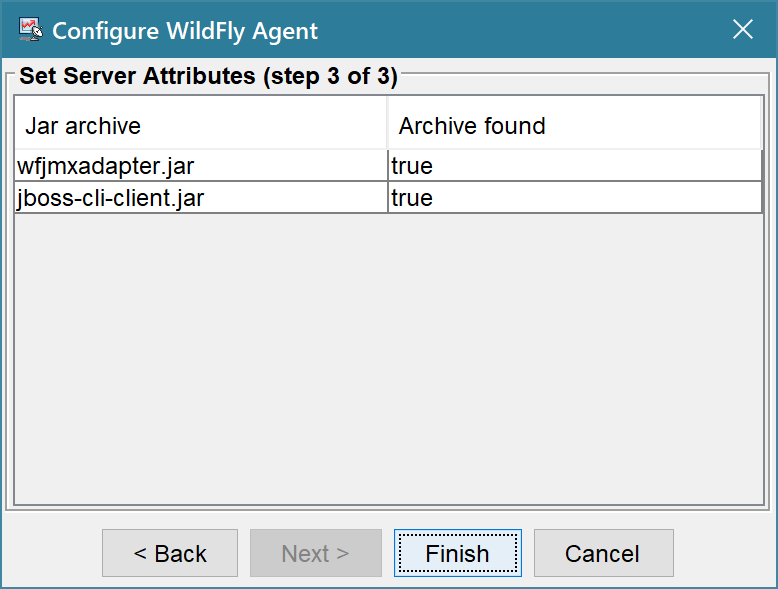 - Verify the required jar archives were found and click Finish. A progress dialog opens followed by the Add Parameter dialog.
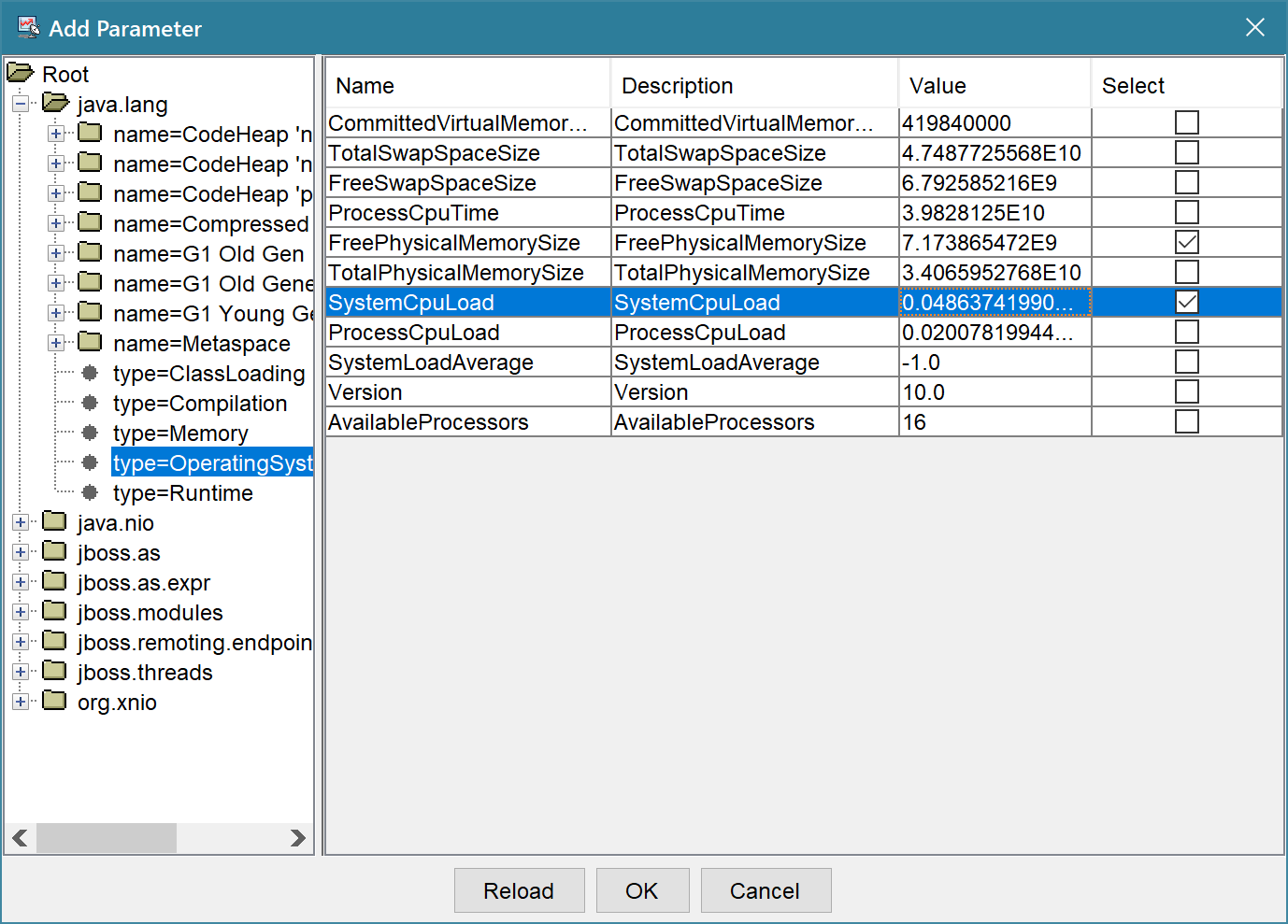
- Choose a parameter from the left panel. The Name, Description, and Value for each instance of the parameter you want to monitor will appear in the right panel.
- In the right panel, enable the parameter instances that you want to monitor, then click OK.
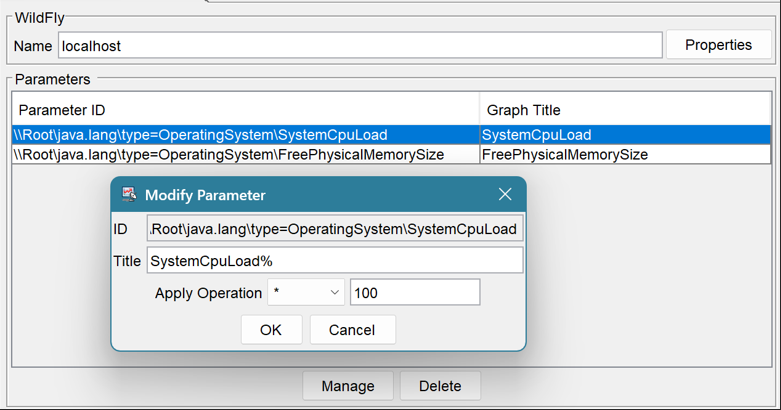
- The parameters you selected will be added to the Parameters table of the WildFly monitor configuration view. Double-click on a parameter to modify its Title. The Title is the name under which the parameter graph will appear in the Load Test progress view and the report. You can apply an operation to each parameter, if needed. For instance, you can multiply the
SystemCpuLoad parameter by 100 to convert this value to percent.
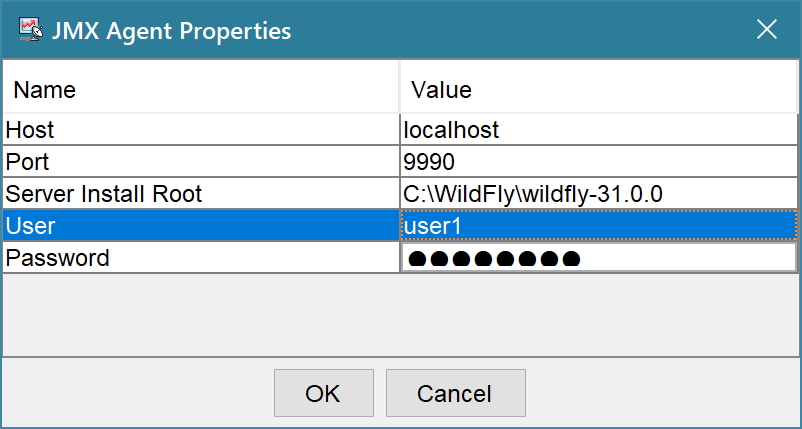
- Click the Properties icon in the upper-right corner of the monitor panel to see monitor properties. The User and Password values are editable (press ENTER after editing to apply your changes).
Adding Tomcat Monitors| Info |
|---|
| Load Test monitors support Tomcat 9, 10, and 1011. In order to use this monitor, Tomcat should be started with the following Java system properties: - -Dcom.sun.management.jmxremote
- -Dcom.sun.management.jmxremote.port=7744
- -Dcom.sun.management.jmxremote.ssl=false
- -Dcom.sun.management.jmxremote.authenticate=false
Use the port of your choice with the com.sun.management.jmxremote.port system property. For example, you can add the following Java system properties to the catalina.bat Tomcat launch script if you are on Windows: | No Format |
|---|
set "JAVA_OPTS=%JAVA_OPTS% -Dcom.sun.management.jmxremote -Dcom.sun.management.jmxremote.port=7744 -Dcom.sun.management.jmxremote.ssl=false -Dcom.sun.management.jmxremote.authenticate=false" |
If your Tomcat is installed as a Windows service: - Launch Tomcat9w.exe.
- Click the Java tab in the Apache Tomcat Properties window.
- Add the Java system properties to the "Java Options" section. Each Java system property must be on a new line.
|
To add a Tomcat monitor: - Right-click the Load Test tab’s Monitors node, then choose New Monitors. A New Monitors dialog opens.
- Select Tomcat from the New Monitors dialog, then click Finish.
- In the Project Configuration panel, click Configure. A Configure Tomcat Agent dialog opens.
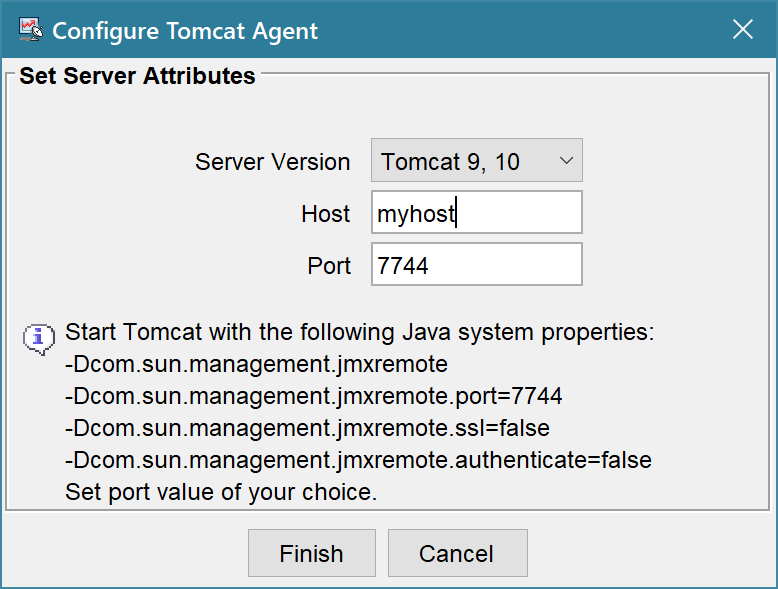 Image Removed Image Removed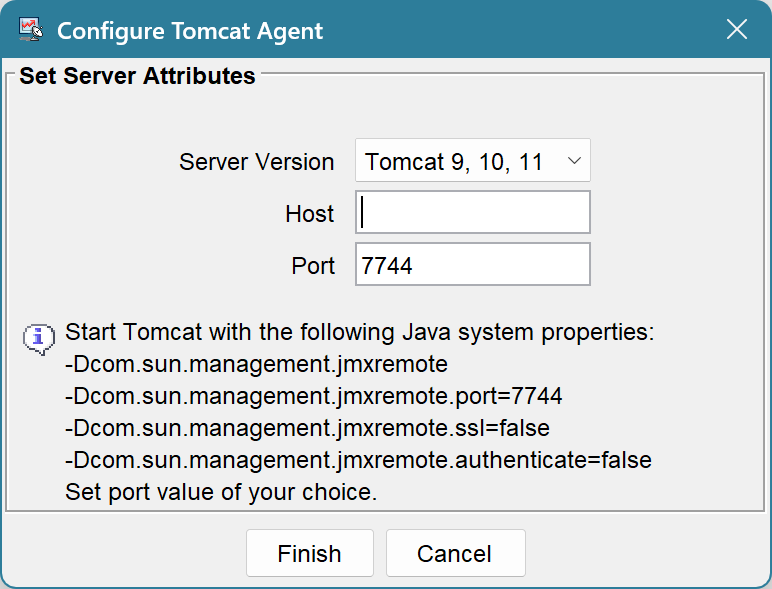 Image Added Image Added - In the Configure Tomcat Agent dialog, enter the host name and change the port number, if necessary, then click Finish. The Add Parameter dialog opens.
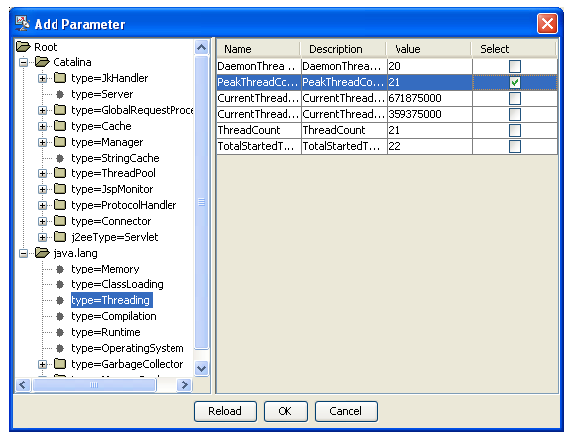 - Select a Parameter from the left GUI panel of the Add Parameter dialog. The Name, Description, and Value for each instance of the parameter you want to monitor displays in the right GUI panel of the Add Parameter dialog.
- In Select column from the right GUI panel, check the parameter instances that you want to monitor, then click OK. The parameters you choose will display in Load Test Progress graphs, and in Detailed Report graphs.
Adding rstat MonitorsTo add an rstat monitor: - Right-click the Load Test tab’s Monitors node, then choose New Monitors. A New Monitors dialog opens.
- Select rstat from the New Monitors dialog, then click Finish.
| Note |
|---|
| For rstat monitors to be enabled, copy the djrpc.jar and rstatcl.jar files to the <INSTALL>/plugins/com.parasoft.ptest.libs.web_<VERSION>/root directory and add them to the classpath. Add the rstatcl.jar file to <INSTALL>/plugins/com.parasoft.ptest.libs.web_<VERSION>/root directory upon installation. The djrpc.jar file must be purchased and copied to the <INSTALL>/plugins/com.parasoft.ptest.libs.web_<VERSION>/root directory. |
Adding Remote JVM Monitors| Note |
|---|
| To use this monitor, the JVM should be started with the following Java system properties: -Dcom.sun.management.jmxremote
-Dcom.sun.management.jmxremote.port=7744
-Dcom.sun.management.jmxremote.ssl=false
-Dcom.sun.management.jmxremote.authenticate=false
Use the port of your choice with the com.sun.management.jmxremote.port system property. |
To add a remote JVM Monitor: - Right-click the Load Tests tab and choose Monitors node, then choose New Monitors. A New Monitors dialog opens.
- Select Remote JVM from the New Monitors dialog, then click Finish.
- In the Project Configuration panel, click Configure. A Configure Remote JVM Agent dialog opens.
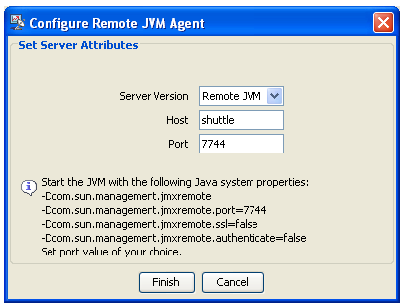 - In the Configure Remote JVM Agent dialog, enter host name and change port number, if necessary, then click the Finish. The Add Parameter dialog opens.
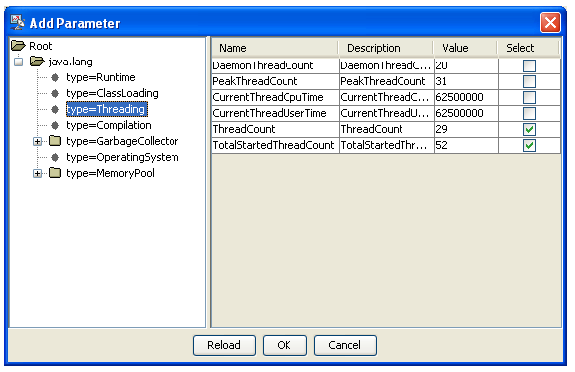 - Select a Parameter from the left GUI panel of the Add Parameter dialog. The Name, Description, and Value for each instance of the parameter you want to monitor displays in the right GUI panel of the Add Parameter dialog.
- In Select column from the right GUI panel, check the parameter instances that you want to monitor, then click OK. The parameters you choose will display in Load Test Progress graphs and in Detailed Report graphs.
Adding Custom MonitorsCustom monitors can be implemented by JavaScript or Jython scripts, or by Java class methods. This is especially useful if you would like to collect data from sources that are not listed above. | Note |
|---|
| A channel method must return a java.lang.Number type in order to be plotted in Load Test Progress and Detailed Report graphs. |
To add a custom monitor: - Right-click the Load Test tab’s Monitors node, then choose New Monitors. A New Monitors dialog opens.
- Select Custom from the New Monitors dialog, then click Finish.
- Enter a name for the Custom monitor in the Name field.
- Click New. An Add Channel dialog opens.
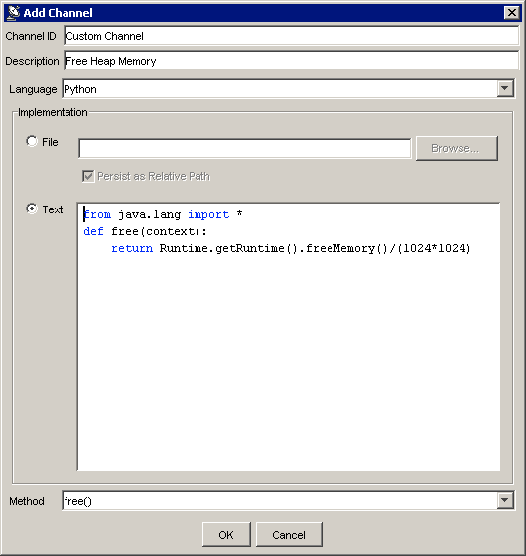 - Enter a name for the channel in the Channel ID field. The name you entered for the Custom Monitor, together with the Channel ID, will comprise the title of the monitor. This title will display in Load Test Progress graphs, and in Detailed Report graphs.
- (Optional) Enter a short description of the channel in the Description field.
- Select a language from the Language menu.
- Specify the script by doing one of the following:
- Enable File and click Browse to select the appropriate file.
- Enable Text and enter the script in the text field.
- Specify the method you want invoked from the Method menu.
- Click OK. The new custom channel is added to the Channels table in the right GUI panel.
|