...
SOAtest can automatically create API tests for web applications from API traffic captured with SOAtest Smart API Test Generator. Tests created in this way are referred to as "smart" API tests and are created using Smart Test Templates (.stt). The out-of-the-box implementation is designed to help you quickly start testing your APIs, but you can also "teach" SOAtest how you want smart API tests to be generated.
...
You can create Smart Test Template (.stt) files Templates to define rules that determine test generation behaviors. These files contain one or more Resource Suites, which identify paths through the application to which your test generation rules will be applied.
...
See the following sections for additional information on configuring authentication settings:
SOAtest
Adding Headers
SOAtest uses the HTTP Header tool to add header fields to your tests. The HTTP Header tool is a special tool that you can only use in .stt files. When SOAtest matches the settings in the Resource Template tool, any headers configured in the HTTP Header tool will automatically be added to the generated tests. You also can use this tool to override header values captured during test creation.
- Right-click a Resource Template tool and choose Add Output...
- Expand the Request menu and choose Transport Header.
- Choose HTTP Header from the tools panel and click Finish.
- Click Add in the Tool Settings section to define values.
- Save your changes.
Adding JSON Assertions
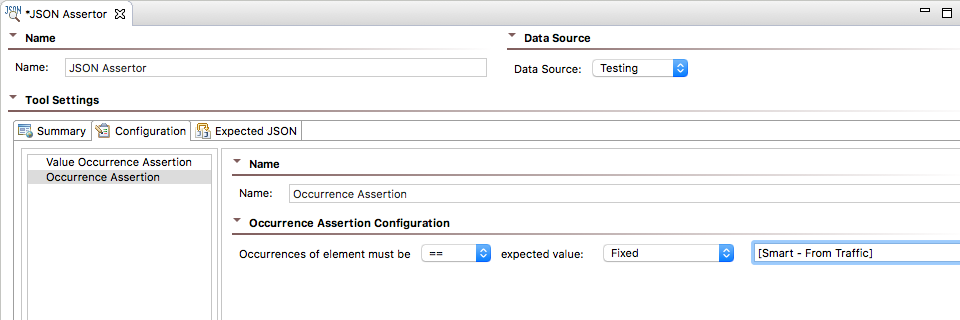
You can configure JSON Assertions chained to Resource Template tools to use values from traffic. Use == or equals as the operator and set the value field [Smart - From Traffic].
JSON Assertor Behaviors by Type
There are several types of assertions you can use in your tests (see JSON Assertor for additional information). The following sections describes how SOAtest applies settings for each type of assertion.
Value Assertions
- The Expected Value field for Value Assertions will be set from the recorded traffic if the field is set to
[Smart - From Traffic]. - The Element value field and the expected value field for Value Occurrence Assertions, Numeric Assertions, and String Comparison Assertions will be set based on the recorded traffic if the field is set to
[Smart - From Traffic]and the operation is set to==orequal. - The Expected value field for Value Occurrence Assertions will be set to
1or0if the field is set to[Smart - From Traffic]and the operation is set to==. - Fields for Regular Expression Assertions, Expression Assertions, and Custom Assertions will not be set from traffic.
Structure Assertions
- The expected value field for Occurrence Assertions will be set to
1or0if the field is set to[Smart - From Traffic]and the operation is set to==. - Fields for Has Contents Assertions, Has Children Assertions, and Type assertions will not be set from traffic.
Difference Assertions
- The Base Value field will be set based on the recorded traffic if the field is set to
[Smart - From Traffic]and if the traffic value validates successfully. - The Difference Value field for Numeric Assertions will be set to
0if the field is set to[Smart - From Traffic]. - Difference configuration fields for Date Difference Assertions and DateTime Difference Assertions will not be set from traffic.
Range Assertions
- The Lower Bound and Upper Bound fields will be set based on the recorded traffic if the field is set to
[Smart - From Traffic]and the value validates successfully. In this case, the same traffic value will be applied to all fields in the assertion.
Additional JSON Assertor Behaviors
By default, SOAtest ignores timestamps, but it can be configured to ignore other parameters to fit your needs. See Test Creation Parameters for additional information.
Training Templates on Assertions from a .tst File
You can apply assertion logic from an existing .tst file to train Smart API Test Generator. See Training Based on .tst Files.
Adding Test Suite References
You can reference other test suites in your .stt file, which enables you to include additional set-up steps that may be necessary for your tests to execute properly. Only one referenced test suite will be added per Resource Template tool. Tests included by reference are added as the first test in the generated suite.
Relative paths are relative to the TestAssets project. To reference tests in another project, use the ${project_loc} variable. See Reusing and Modularizing Test Suites for End to End Testing for additional information about references.
- Right-click a Resource Template tool and choose Add Output....
- Expand the Suite category and choose Beginning.
- Choose Test Suite Reference in the Smart category and click Finish.
- Specify the location of the test suite you want to reference in the Test Suite Reference editor.
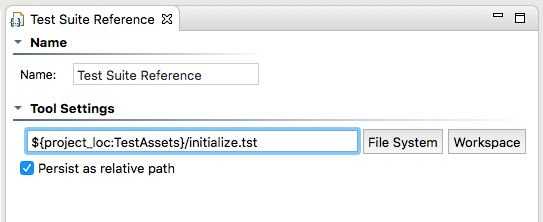
You can click File System or Workspace to browse for the .tst file you want to reference. - Save your changes.
Training Based on .tst Files
You can teach SOAtest to generate tests that include authentication settings and JSON assertion logic from existing REST Clients. SOAtest will create an HTTP Authentication or a JSON Assertor rule under the resource template that most closely matches the path specified in the REST Client. If no match is identified, new .stt files will be created that contain resource templates for each REST Client URL. The .stt file(s) will contain Resource Suites and Resource Templates with their Match settings configured to match the REST Client's endpoint.
The match pattern for new .stt files is based on the type of rule you are teaching SOAtest. For authentication, the parent suite match is set using the REST client's scheme, host, and port. The resource template contained in the parent suite will be configured to match to the REST client's basePath and all subpaths and method types.
The parent suite match is set using the REST client's basePath when teaching SOAtest assertion rules and the structure of the test suites. Sub-paths are configured in a nested suite match and/or a resource template match. The resource template will be configured to match the "Exact" field at the specific method type.
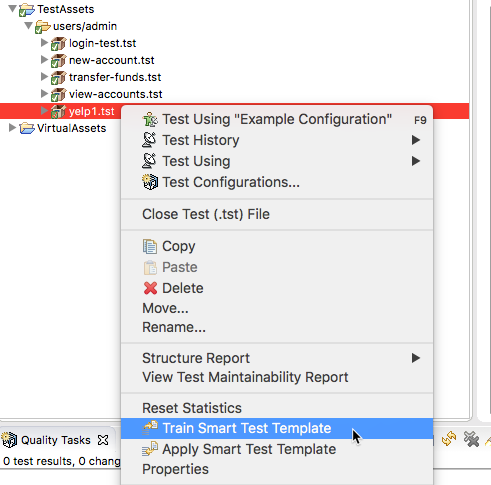
- Right-click the .tst file, Test Suite, or REST Client node in the Test Explorer and choose Train Smart Test Template.
Review the summary when prompted. SOAtest will attempt to match resources in existing .stt files and add new rules accordingly. If a matching .stt is not found, a new file will be created.
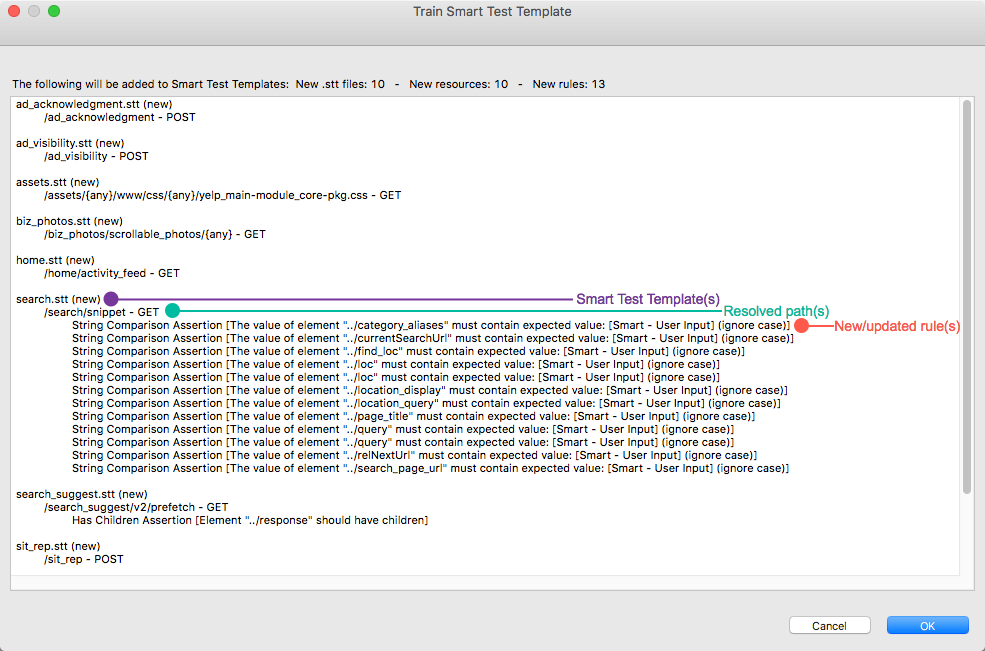
Info title Training Smart API Test Generator with JSON Assertors Equality assertions (assertions configured with the
==orequalsoperator) with fixed values will be created based on traffic. If the value is parameterized with non-equality assertions, the assertor chained to the resource will be a converted to a fixed value set to[Smart - User Input]. For parameterized equality assertions the value will be[Smart - From Traffic].New assertions will be added to existing assertors in the .stt file.
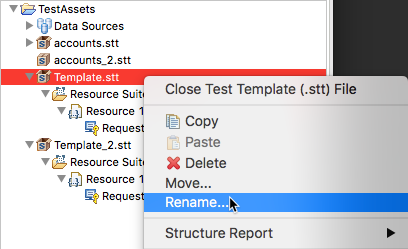
- Click OK to update or add a new .stt file to the Smart Test Templates view that contains the settings configured in the REST Client. If new .stt files are created, the files will be named according to the original client's URL. Template resources will be grouped by base path segment. You can right-click the file in the Smart Test Templates view and rename it.
- Double-click the Resource Suite and the Resource Template and configure their Match settings to define the test generation scope. See Defining Smart API Test Generation Scope.
- You can manually add additional resources to finish configuring the .stt file. See Manually Creating and Configuring Test Templates.
Applying Smart Test Templates to Existing .tst Files
You can update existing tests to use the rules defined in a .stt file. This functionality is helpful if you already have REST Clients and want to quickly apply a standard set of assertions, authentication settings, and headers from a template.
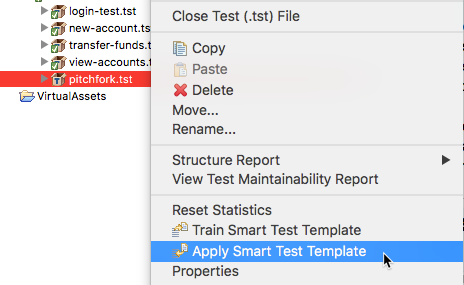
- Right-click on the .tst file you want to apply rules to and choose Apply Smart Test Template.
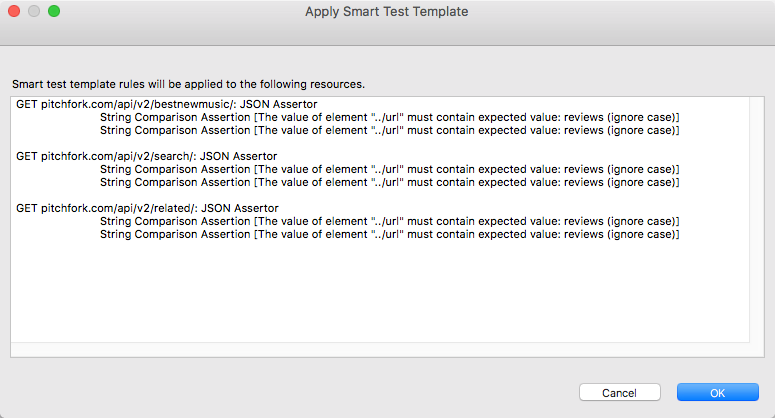
- SOAtest will match resource paths to REST Client URLs and apply rules defined in the .stt to clients with matching URLs (see Defining Smart API Test Generation Scope for details about matching criteria). Review the updates when prompted and click OK.
Example Smart Test Template
The structure of your test templates will depend on how you want to test your application. The following example .stt represents one way that an application under test (CTP).
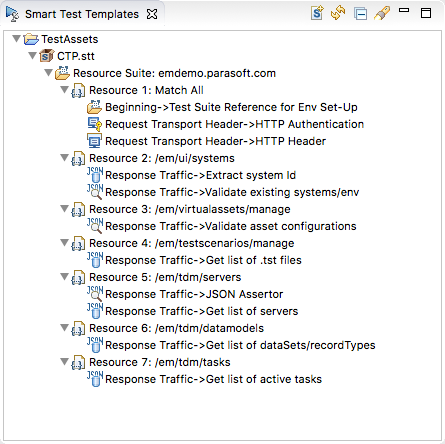
The resource suite is configured to match any scheme, port, and path at host "emdemo." As a result, any tests generated for emdemo will include tools references in the Test Reference Suite. Additionally, tests will be configured with authentication and header settings configured in the HTTP Authentication and HTTP Header tools, respectively.
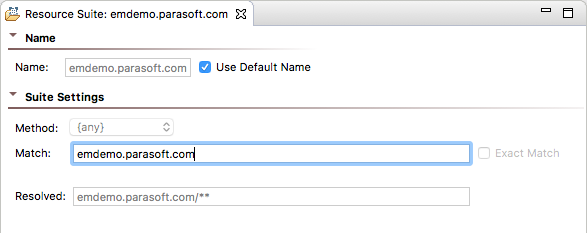
Each Resource Template points to a specific path under emdemo. Any tests generated for the paths specified in each Resource Template will include configurations from the chained tools. For example, "Resource 3" is configured to match the "/em/virtualassets/manage" path. As a result, tests that contain this path will include a JSON Assertor configured to validate asset configurations that are returned in the response.
Test Creation Properties
You can define additional test creation properties in the tst_creation.properties configuration file. The tst_creation.properties file is located in the SOAtest workspace under the TestAssets/test_templates folder. By default, all web proxies that connect to the SOAtest server will use the settings configured in this file.
You can create multiple instances of the file and customize the configurations so that SOAtest can generate smart tests that help you achieve your testing goals. If you create different instances of the tst_creation.properties file, you can specify unique names with the applicationType property so that SOAtest interfaces can distinguish between different instances of the configurations (see Creating Smart API Tests from Traffic).
| Scroll Table Layout | ||
|---|---|---|
|
...
Enables/disables diff creation. See Diff for additional information. Default is false.
...
Enables/disables data bank creation. See Data Exchange Tools for additional information. Default is false.
...
Defines a regex matching element names that should be ignored when creating diffs. Default is (?i)^(time|date|url|href).*
You can specify additional name patterns by adding properties and appending them with .<number>.
For example:
diffToolIgnoreNames.1=<name_pattern_1>
diffToolIgnoreNames.2=<name_pattern_3>
diffToolIgnoreNames.3=<name_pattern_3>
...
Defines a regex matching values that should be ignored when creating diffs. Default is to ignore timestamps:
[0-9]{4}-[0-9]{2}-[0-9]{2}T[0-9]{2}:[0-9]{2}:[0-9]{2}([.][0-9]{1,3})?(([+-][0-9]{2}:[0-9]{2})|Z)?
You can specify additional value patterns by adding properties and appending them with .<number>.
For example:
diffToolIgnoreValues.1=<value_pattern_1>
diffToolIgnoreValues.2=<value_pattern_3>
diffToolIgnoreValues.3=<value_pattern_3>
...
Defines a regex-matching query parameter name that should be ignored when creating JSON Assertor tools.
Default is to ignore query names starting with "maxResultsSize":
(?i)^(maxResultSize).*
The property is not case sensitive.
You can specify additional patterns by adding properties and appending them with .<number>.
...
Defines a regex matching query parameters values that should be ignored when creating JSON Assertor tools.
Ignore query parameters when creating assertions based on parameter value pattern
Default is to ignore timestamps:
[0-9]{4}-[0-9]{2}-[0-9]{2}T[0-9]{2}:[0-9]{2}:[0-9]{2}([.][0-9]{1,3})?(([+-][0-9]{2}:[0-9]{2})|Z)?
You can specify additional patterns by adding properties and appending them with .<number>.
...
Defines a regex matching values in the response payload that should be ignored when creating JSON Assertor tools. Default value is to ignore values in response payload that starts with time, date, url, href, SessionId, or transactionId.
Default is to ignore timestamps:
(?i)^(time|date|url|href|SessionId|transactionId).*
The property is not case sensitive.
You can specify additional patterns by adding properties and appending them with .<number>.
...
Defines a regex matching values that should be ignored when creating JSON Assertor tools. Default is to ignore timestamps:
[0-9]{4}-[0-9]{2}-[0-9]{2}T[0-9]{2}:[0-9]{2}:[0-9]{2}([.][0-9]{1,3})?(([+-][0-9]{2}:[0-9]{2})|Z)?
You can specify additional value patterns by adding properties and appending them with .<number>.
For example:
assertorToolIgnoreFieldValues.1=<value_pattern_1>
assertorToolIgnoreFieldValues.2=<value_pattern_3>
assertorToolIgnoreFieldValues.3=<value_pattern_3>
...
Defines a comma-separated list of resource URL patterns to include for test generation. You can define case-sensitive patterns using Ant-style syntax. Default is to include all URLs.
The following examples describe common scenarios:
# include any URL for the host 'www.example.com'
includeURLPatterns=www.example.com
# include URLs in the 'example' domain
includeURLPatterns=*.example.com
# include URLs that have a 'path' segment
includeURLPatterns=**/path/**
# include URLs that end with a 'path' segment and does not have a query string
includeURLPatterns=**/path
# include URLs that end with a 'path' segment and have a query string
includeURLPatterns=**/path?**
...
Defines a comma-separated list of resource URL patterns to exclude from test generation. You can define case-sensitive patterns using Ant-style syntax. Default is to include all URLs.
The following examples describe common scenarios:
# exclude any URL for the host 'www.example.com'
excludeURLPatterns=www.example.com
# exclude URLs in the 'example' domain
excludeURLPatterns=*.example.com
# exclude URLs that have a 'path' segment
excludeURLPatterns=**/path/**
# exclude URLs that end with a 'path' segment and does not have a query string
excludeURLPatterns=**/path
# exclude URLs that end with a 'path' segment and have a query string
excludeURLPatterns=**/path?**
...
includeTextResponseValues.<number>
...
Defines a regular expression matching values that the test generator will consider for potential extraction to a data bank. If a match is found, the substring that matches the pattern enclosed in the parentheses will be considered. At least one set of parentheses is required to define the desired value and its boundaries.
Two parameters are configured with the following regex patterns by default:
includeTextResponseValues.1="([-A-Za-z0-9%_=+./]{10,})"
includeTextResponseValues.2='([-A-Za-z0-9%_=+./]{10,})'
...
Defines a regex that matches field names in a request payload that should be excluded from parameterization.
The following example excludes date and time field names from parameterization:
requestPayloadParameterizationExcludeNames.1=(?i)^(time|date).*
...
Defines a regex that matches field names in request queries that should be excluded from parameterization.
The following example excludes date and time field names from parameterization:
requestPayloadParameterizationExcludeNames.1=(?i)^(time|date).*
Key Stores
You can add a Key Store as a resource to a Smart Test Template. Key Stores contain the certificates and private keys necessary to perform secure server/client authentication, XML encryption, and XML digital signatures through Web services. The values you specify in a Key Store will be available to use with the SOAP Client, XML Encryption, and XML Signer tools.
The SOAP Client Tool can use a Key Store certificate to complete the handshake with a server. The XML Encryption Tool can use a Key Store certificate to encrypt XML documents, and the XML Signer tool can use a Key Store certificate and private key to sign and verify your identity in an XML document.
Adding a Key Store
To add a key store to a Smart Test Template:
- Right-click the desired resource suite in the Smart Test Templates view and go to Add New > Global Property.
- Choose Global Key Store from the list and click Finish. A Key Stores node with a Key Stores child will be added to the resource suite.
- If you want to change the default name, enter the new name in the Name field.
- To import a key store configuration, choose the File option and browse for the key store configuration .properties file. Skip to step 10.
- To configure a local key store, choose the Local option and specify the following settings in the Key Store panel’s Certificate tab:
- Enable the Use same key store for private key option if the Key Store contains private keys for the certificate.
- Specify the key store file in the Key store file field. Enable the Persist as relative path to save the location as a relative path (for example, to facilitate project sharing).
- Enter the key store password in the Key store password field.
- Choose the type of key store being used from the Key store type menu (for example, JKS, PKCS12, BKS, UBER, PEM).
- Click Load to populate the aliases with the available certificates/keys. The certificate/keys will not be loaded if the path, type, and key store password are not valid.
- Choose the certificate alias in the Certificate Alias menu.
- Click the Private Key tab.
- If the Use same key store for private key is disabled in the Certificate tab (see steps 5.a-5.d), specify the key store file, key store password, and key store type in the appropriate fields.
- Click Load to populate the aliases with the available certificates/keys. The certificate/keys will not be loaded if the path, type, and key store password are not valid.
- Specify the private key password in the Private key password field and save your changes.
- Save your changes.
Enabling a Key Store in a Resource
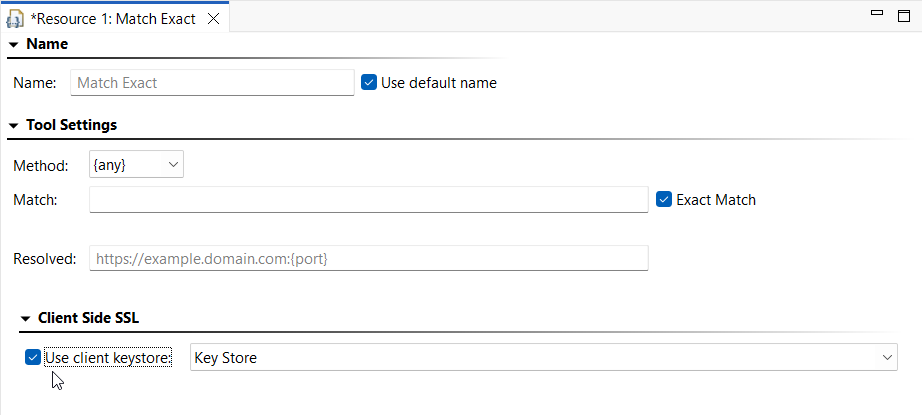
Smart Test Templates will not use key stores by default; you will need to instruct them to. Open the desired Smart Test Template resource and enable Use client keystore. Choose the appropriate key store from the menu (if you have added more than one) and save your changes.
Adding Headers
SOAtest uses the HTTP Header tool to add header fields to your tests. The HTTP Header tool is a special tool that you can only use in .stt files. When SOAtest matches the settings in the Resource Template tool, any headers configured in the HTTP Header tool will automatically be added to the generated tests. You also can use this tool to override header values captured during test creation.
- Right-click a Resource Template tool and choose Add Output...
- Expand the Request menu and choose Transport Header.
- Choose HTTP Header from the tools panel and click Finish.
- Click Add in the Tool Settings section to define values.
- Save your changes.
Adding JSON Assertions
You can configure JSON Assertions chained to Resource Template tools to use values from traffic. Use == or equals as the operator and set the value field [Smart - From Traffic].
JSON Assertor Behaviors by Type
There are several types of assertions you can use in your tests (see JSON Assertor for additional information). The following sections describes how SOAtest applies settings for each type of assertion.
Value Assertions
- The Expected Value field for Value Assertions will be set from the recorded traffic if the field is set to
[Smart - From Traffic]. - The Element value field and the expected value field for Value Occurrence Assertions, Numeric Assertions, and String Comparison Assertions will be set based on the recorded traffic if the field is set to
[Smart - From Traffic]and the operation is set to==orequal. - The Expected value field for Value Occurrence Assertions will be set to
1or0if the field is set to[Smart - From Traffic]and the operation is set to==. - Fields for Regular Expression Assertions, Expression Assertions, and Custom Assertions will not be set from traffic.
Structure Assertions
- The expected value field for Occurrence Assertions will be set to
1or0if the field is set to[Smart - From Traffic]and the operation is set to==. - Fields for Has Contents Assertions, Has Children Assertions, and Type assertions will not be set from traffic.
Difference Assertions
- The Base Value field will be set based on the recorded traffic if the field is set to
[Smart - From Traffic]and if the traffic value validates successfully. - The Difference Value field for Numeric Assertions will be set to
0if the field is set to[Smart - From Traffic]. - Difference configuration fields for Date Difference Assertions and DateTime Difference Assertions will not be set from traffic.
Range Assertions
- The Lower Bound and Upper Bound fields will be set based on the recorded traffic if the field is set to
[Smart - From Traffic]and the value validates successfully. In this case, the same traffic value will be applied to all fields in the assertion.
Additional JSON Assertor Behaviors
By default, SOAtest ignores timestamps, but it can be configured to ignore other parameters to fit your needs. See Test Creation Parameters for additional information.
Training Templates on Assertions from a .tst File
You can apply assertion logic from an existing .tst file to train Smart API Test Generator. See Training Based on .tst Files.
Adding Test Suite References
You can reference other test suites in your .stt file, which enables you to include additional set-up steps that may be necessary for your tests to execute properly. Only one referenced test suite will be added per Resource Template tool. Tests included by reference are added as the first test in the generated suite.
Relative paths are relative to the TestAssets project. To reference tests in another project, use the ${project_loc} variable. See Reusing and Modularizing Test Suites for End to End Testing for additional information about references.
- Right-click a Resource Template tool and choose Add Output....
- Expand the Suite category and choose Beginning.
- Choose Test Suite Reference in the Smart category and click Finish.
- Specify the location of the test suite you want to reference in the Test Suite Reference editor.
You can click File System or Workspace to browse for the .tst file you want to reference. - Save your changes.
Training Based on .tst Files
You can teach SOAtest to generate tests that include authentication settings and JSON assertion logic from existing REST Clients. SOAtest will create an HTTP Authentication or a JSON Assertor rule under the resource template that most closely matches the path specified in the REST Client. If no match is identified, new .stt files will be created that contain resource templates for each REST Client URL. The .stt file(s) will contain Resource Suites and Resource Templates with their Match settings configured to match the REST Client's endpoint.
The match pattern for new .stt files is based on the type of rule you are teaching SOAtest. For authentication, the parent suite match is set using the REST client's scheme, host, and port. The resource template contained in the parent suite will be configured to match to the REST client's basePath and all subpaths and method types.
The parent suite match is set using the REST client's basePath when teaching SOAtest assertion rules and the structure of the test suites. Sub-paths are configured in a nested suite match and/or a resource template match. The resource template will be configured to match the "Exact" field at the specific method type.
- Right-click the .tst file, Test Suite, or REST Client node in the Test Explorer and choose Train Smart Test Template.
Review the summary when prompted. SOAtest will attempt to match resources in existing .stt files and add new rules accordingly. If a matching .stt is not found, a new file will be created.
Info title Training Smart API Test Generator with JSON Assertors Equality assertions (assertions configured with the
==orequalsoperator) with fixed values will be created based on traffic. If the value is parameterized with non-equality assertions, the assertor chained to the resource will be a converted to a fixed value set to[Smart - User Input]. For parameterized equality assertions the value will be[Smart - From Traffic].New assertions will be added to existing assertors in the .stt file.
- Click OK to update or add a new .stt file to the Smart Test Templates view that contains the settings configured in the REST Client. If new .stt files are created, the files will be named according to the original client's URL. Template resources will be grouped by base path segment. You can right-click the file in the Smart Test Templates view and rename it.
- Double-click the Resource Suite and the Resource Template and configure their Match settings to define the test generation scope. See Defining Smart API Test Generation Scope.
- You can manually add additional resources to finish configuring the .stt file. See Manually Creating and Configuring Test Templates.
Applying Smart Test Templates to Existing .tst Files
You can update existing tests to use the rules defined in a .stt file. This functionality is helpful if you already have REST Clients and want to quickly apply a standard set of assertions, authentication settings, and headers from a template.
- Right-click on the .tst file you want to apply rules to and choose Apply Smart Test Template.
- SOAtest will match resource paths to REST Client URLs and apply rules defined in the .stt to clients with matching URLs (see Defining Smart API Test Generation Scope for details about matching criteria). Review the updates when prompted and click OK.
Example Smart Test Template
The structure of your test templates will depend on how you want to test your application. The following example .stt represents one way that an application under test (CTP).
The resource suite is configured to match any scheme, port, and path at host "emdemo." As a result, any tests generated for emdemo will include tools references in the Test Reference Suite. Additionally, tests will be configured with authentication and header settings configured in the HTTP Authentication and HTTP Header tools, respectively.
Each Resource Template points to a specific path under emdemo. Any tests generated for the paths specified in each Resource Template will include configurations from the chained tools. For example, "Resource 3" is configured to match the "/em/virtualassets/manage" path. As a result, tests that contain this path will include a JSON Assertor configured to validate asset configurations that are returned in the response
...
| Code Block | ||||
|---|---|---|---|---|
| ||||
includeContentTypes=application/json, application/x-www-form-urlencoded
excludeContentTypes=image/png,font/ttf,text/css,application/javascript
disableDiffCreation=false
disableDiffParameterization=false
disableEnvironmentCreation=false
disableDataBankCreation=false
disableAssertionCreation=true
# Ignore values that start with "time", "date", "url" or "href" in diff tool, case insensitive
diffToolIgnoreNames.1=(?i)^(time|date|url|href).*
# Ignore values that end with "time", "date", "url" or "href" in diff tool, case insensitive
diffToolIgnoreNames.2=(?i).*(time|date|url|href)$
# Ignore values like a timestamp in diff tool, e.g. 2018-03-21T07:00:00.000Z
diffToolIgnoreValues.1=[0-9]{4}-[0-9]{2}-[0-9]{2}T[0-9]{2}:[0-9]{2}:[0-9]{2}([.][0-9]{1,3})?(([+-][0-9]{2}:[0-9]{2})|Z)?
# Ignore query parameters when creating assertions based on parameter name pattern
assertorToolIgnoreQueryParameterNames.1=(?i)^(maxResultSize).*
# Ignore query parameters when creating assertions based on parameter value pattern
assertorToolIgnoreQueryParameterValues.1=[0-9]{4}-[0-9]{2}-[0-9]{2}T[0-9]{2}:[0-9]{2}:[0-9]{2}([.][0-9]{1,3})?(([+-][0-9]{2}:[0-9]{2})|Z)?
# Ignore fields in payload when creating assertions based on field name pattern
assertorToolIgnoreFieldNames.1=(?i)^(time|date|url|href|SessionId|transactionId).*
# Ignore fields in payload when creating assertions based on field value pattern
assertorToolIgnoreFieldValues.1=[0-9]\{4}-[0-9]\{2}-[0-9]\{2}T[0-9]\{2}:[0-9]\{2}:[0-9]\{2}([.][0-9]\{1,3})?(([+-][0-9]\{2}:[0-9]\{2})|Z)?
# Comma separated list of URL patterns where pattern matching is the same as Apache Ant. URLs can be case sensitive.
includeURLPatterns=http://{host}:8080/path/**/resources/*
excludeURLPatterns=https://{host}:8443/path/**/resources/*

# Exclude from being parameterized field names in request payload
requestPayloadParameterizationExcludeNames.1=(?i)^(time|date).* |
Upgrading SOAtest
When SOAtest is upgraded to a newer version, the existing tst_creation.properties file will be prepended with any new parameters included with the release and flagged with a version number. For example:
| Code Block | ||
|---|---|---|
| ||
version=2

# ====== SOAtest 2020.2 RELEASE UPDATES ======
# Consider values in text responses as candidates to be databanked based on matching pattern.
# If a match is found, extract the substring that matches the pattern enclosed by the parentheses as the candidate.
# At least one pair of parentheses is required; otherwise, no value will be extracted.
includeTextResponseValues.1="([-A-Za-z0-9%_=+./]{10,})"
includeTextResponseValues.2='([-A-Za-z0-9%_=+./]{10,})'

# Consider only these text response types for extracting response values
includeTextResponseContentTypes=text/html


# ====== PREVIOUSLY CONFIGURED SETTINGS ======
includeContentTypes=application/json, application/x-www-form-urlencoded
#excludeContentTypes=
#disableDiffCreation=false
#disableDiffParameterization=false
#disableEnvironmentCreation=false
#disableDataBankCreation=false
#disableAssertorCreation=false
# Ignore values that start with "time", "date", "url" or "href" in diff tool, case insensitive
... |
If the existing file is moved or deleted, all default settings, as well as new settings added from the latest update, will be applied. A back up of the original file will be applied with a .bak extension.