...
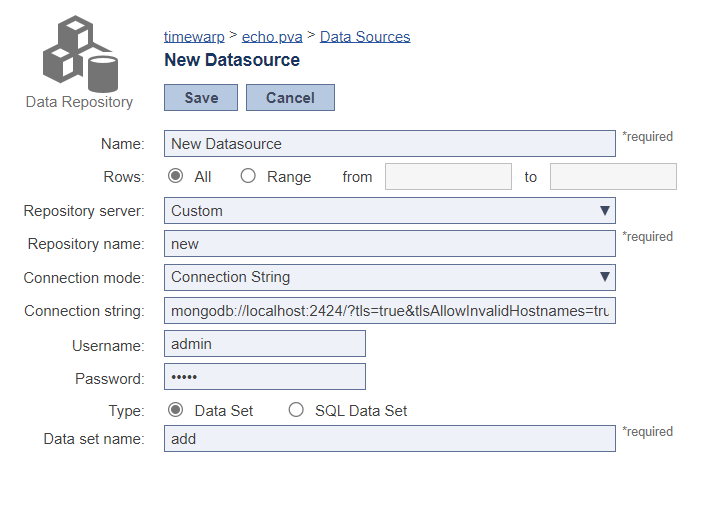
Use the Rows controls to indicate the range of rows you want to use. If you only want to use selected rows, click the Range button, then enter the desired range (assuming a one-based index) by typing values into the From and To fields. For example, to use only the first 10 rows, enter 1 in the From field and 10 in the To field. To use only the fifth row, enter 5 in the From field and 5 in the To field.
- Select a Repository server and enter the Repository name of the repository you want to use. You can specify the name of one of the repositories connected through TDA or you can specify a new repository. If the named repository does not yet exist, it will be created.
- Select a Connection mode and configure it accordingly:
- Host/Port: Enter the Data Repository Server's host and port. To use SSL to connect to the server, enable Use SSL.
Connection String: Enter the MongoDB connection string. An example of a connection string that connects to a local server with SSL is shown below. See https://www.mongodb.com/docs/manual/reference/connection-string/ for more information about MongoDB connection strings.
Code Block title MongoDB Connection String Example mongodb://localhost:2424/?tls=true&tlsAllowInvalidHostnames=true
Info If an authentication database is specified in the connection string, you should use the
/defaultauthdbcomponent; only use the?authsource=defaultauthdboption if credentials are specified in the connection string.
- Enter the username and password for connecting to this Data Repository server.
- If you chose Connection String as your connection mode, you have the option to specify credentials in either the connection string or in the Username and Password fields. If credentials are specified in both, those in the Username and Password fields will take precedence.
- Specify the data set to which this data source will connect. You can specify a data set that does not yet exist, however, that data set will need to exist (and contain data) by the time you start applying tools to use this data source.
...
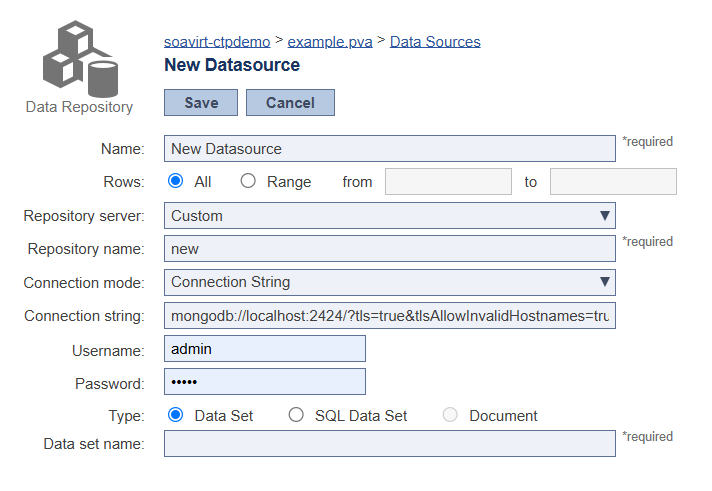
- If you are creating a data source for use in Virtualize’s SQL Responder tool,
...
- enable SQL Data Set.
- If the repository you specified in Repository Name is a document-based repository, Document will be automatically enabled and the location of the initialization scripts folder will be displayed.
- Save your changes.
Configuring a SQL Correlation Data Source
Unlike other data sources, SQL correlation data sources allow you to disable caching, so the virtual asset does not need to be redeployed in order to read new records. This makes it particularly suited for CRUD workflows. SQL Correlation Data Sources are only applicable to Service Virtualization, not API Testing.
...