...
- In the Tool Settings section, choose the components you want to extract from the REST URL by clicking on a value in the Available REST Extractions column.
- Click Add. The URL components will be added to the Extract panel.

- To change how the value is saved in the data bank, select a component and click Modify.
- Custom column name: Choose this option to specify the name of the data source column in which to store the value. Values are stored in an internal data source unless you specify otherwise (for example, if you select Writable data source column or Variable). This is the name you will use to reference the value in other places. For example, if it is stored in a data source column named "My Value", you would choose
My Valueas the parameterized value. You could also reference it as${My Value}in literal or multiple response views.
Writable data source column: Choose this option to store the value in a writable data source column (see Configuring a Writable Data Source in SOAtest or Configuring a Writable Data Source in Virtualize). This allows you to store an array of values. Other tools can then iterate over the stored values.
Variable: Choose this option to save the value in the specified variable so it can be reused across the current Test, Responder, or Action suites. The variable must already be added to the current suite as described in Defining Variables (SOAtest) or Defining Variables (Virtualize). Any values set in this manner will override any local variable values specified in the Responder suite or Action suite properties panel.
If you are modifying the Path extraction, you can change the URL Path index or Path parameter name (depending on which method you are using; see Message Responder Overview: Request URL Paths for more information about these options).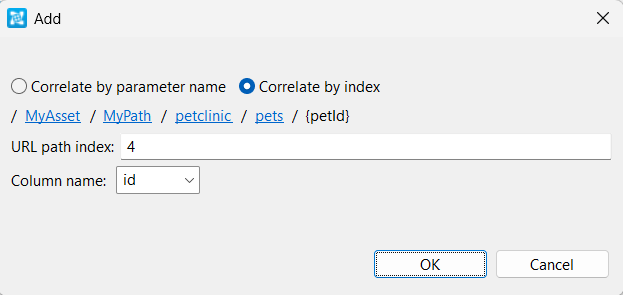
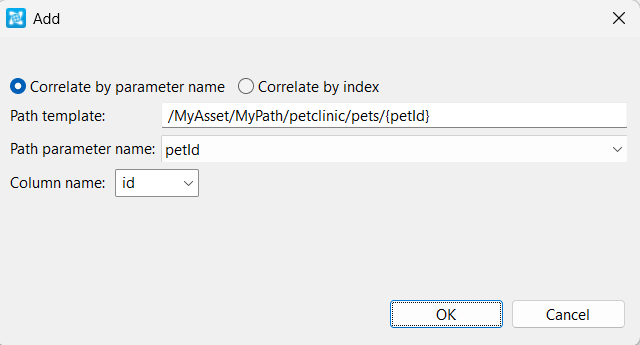
If you are correlating by index, remember that it is a zero-based index, meaning when you count segments, start at zero:
<host>:<port>/<method>/<path 0>/<path 1>/<path 2>/<path . . .>/<parameter>
If the REST URL Databank is attached to a responder with a URL in the Request URL for Assisted Parameter Selection field, you can automatically enter the appropriate path index by clicking the desired segment at the top of the dialog. Similarly, in that circumstance when you are correlating by parameter name, the Path template field will be automatically filled for you, just set the Path parameter name and Column name.
You can only extract one host, port, and method, but you can add several path and parameter values to extract complex URLs.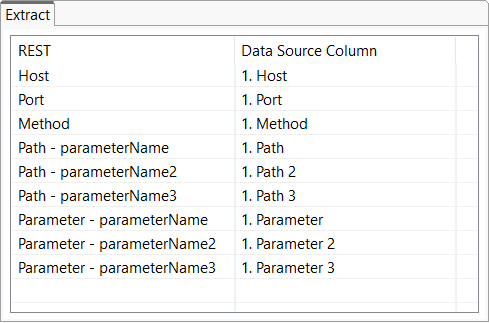
- Custom column name: Choose this option to specify the name of the data source column in which to store the value. Values are stored in an internal data source unless you specify otherwise (for example, if you select Writable data source column or Variable). This is the name you will use to reference the value in other places. For example, if it is stored in a data source column named "My Value", you would choose
- Configure any additional options (see Tool Options) and save your changes.
...