...
- The database server should be installed and running.
Preparing the Database via Command Line
| Anchor | ||||
|---|---|---|---|---|
|
Follow the directions below that are appropriate for your database. Once you have prepared your database, see Connect to an Existing DTP Database below for information about connecting DTP to your database.
...
- Click Configure Database Settings and select Create DTP database schema in the window that appears.
- Click Next.
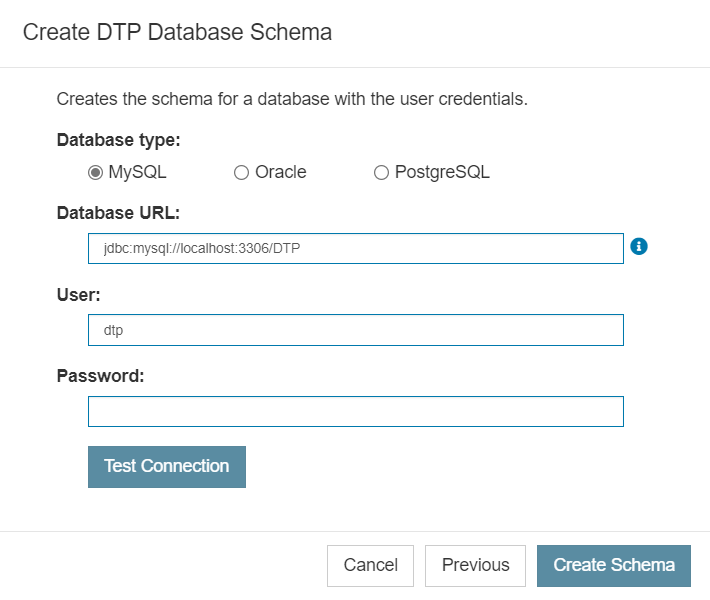
- Select a database type: MySQL, Oracle, or PostgreSQL.
- Enter the database URL and user credentials, then click Test Connection to confirm that it is correct.
- Click Create Schema.
Integration with Azure
...
ServicesAnchor Azure Azure
| Azure | |
| Azure |
You can integrate the following Microsoft Azure services, but please note: DTP does not ship with the JAR files necessary to fully integrate with
...
them. You will need to contact Parasoft support
...
to obtain the JAR files necessary to enable
...
integration.
...
Once you have, copy the files into the <DTP_
...
DATA_DIR>/lib/thirdparty directory and restart DTP (see Stopping DTP Services and Starting DTP Applications).
Also note: When integrating with Azure services, it is assumed that your database is prepared via command line.
Integration with Azure Key Vault
DTP Database settings are saved inside the <dtp-db-connection> element of the PSTRootConfig.xml file located in <DTP_DATA_DIR>/conf/. If your organization stores the DTP Database password in Azure Key Vault, you can configure DTP to retrieve the password by adding an <azure-key-vault> element. The example below is for MySQL but will work for all the supported databases.
...
This functionality assumes that you have you have configured Access Control and Managed Identity so that DTP deployed in an Azure VM has access to the secret on Azure Key Vault.
Integration with Azure PostgreSQL (Microsoft Entra Authentication)
DTP Database settings are saved inside the <dtp-db-connection> element of the PSTRootConfig.xml file located in <DTP_DATA_DIR>/conf/. You can configure DTP to use Microsoft Entra authentication when connecting to an Azure-hosted PostgreSQL database by appending additional properties as query parameters to the JDBC URL value in the <url> section. For example:
| Code Block | ||
|---|---|---|
| ||
<dtp-db-connection>
    <db-type>PostgreSQL</db-type>
    <user>dtp</user>
    <url>jdbc:postgresql://dtp-postgresql.postgres.database.azure.com:5432/DTP?sslmode=require&authenticationPluginClassName=com.azure.identity.extensions.jdbc.postgresql.AzurePostgresqlAuthenticationPlugin&azure.managedIdentityEnabled=true</url>
</dtp-db-connection> |
Note that in the example above, there is no need for the <password> element inside <dtp-db-connection> element since authentication will be delegated to Microsoft Entra. Also note: the parameters sslmode=require and authenticationPluginClassName=com.azure.identity.extensions.jdbc.postgresql.AzurePostgresqlAuthenticationPlugin are required. Separate parameters with an & (ampersand).
Troubleshooting
A defect in the MySQL 8.x JDBC connector may cause the database creation process may fail
...