This topic explains how you run a load test that involves multiple machines.
In this section:
| Table of Contents | ||
|---|---|---|
|
...
To view the synchronization state of a specific machine:
...
, right-click the appropriate machine node and
...
choose Check Synchronization.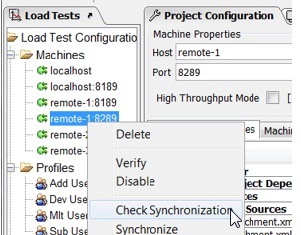
To check synchronization of all enabled machines in the configuration:
...
, right-click
...
the Machines folder and choose Check Synchronization.
The remote machine synchronization state is reported in the resource tree table, which is located in the Machine Dependencies tab of the remote machine configuration panel. If you select a row in the tree table, synchronization details will be shown in the Resource State sub panel.
...
Machines that belong to the local installation (localhost machines running on any port) will always appear as completely synchronized. This is because these Load Test machines belong to the same installation as the localhost machine which acts as a controller.
Manually Synchronizing Remote MachinesAnchor ManualSync ManualSync
To synchronize a specific remote machine:
...
, right-click the appropriate machine node and
...
choose Synchronize.
To synchronize all enabled machines in the configuration:
...
, right-click
...
the Machines folder and choose Synchronize.
A separate dialog will show the synchronization progress for the machines selected for synchronization.
...
If the SOAtest project you’re using in Load Test leverages a file data source, be sure to enable that data source’s Refresh Dynamically Based on Last Import option if you want the file data source to use all files that are in the import directory at the time the file data source is used. If you do not enable this option, the file data source will only use the files that are listed in the table in the file data source, even if the import directory has additional files.

Understanding Variables Resolution in the Process of Dependencies Transfer
SOAtest tests can be configured to use environment, data sources, or test suite variables. These variables can be used in file paths of input or output files or directories.
For instance, a REST Client payload Input file path can be configured using a variable.

Some SOAtest variables can be resolved statically (both when tests are running and not running), others can be only resolved dynamically (when tests are running).
An example of a statically resolved variable would be a SOAtest environment variable.
An example of a dynamically resolved variable would be a variable mapped to a CSV or Table data source column. The value of this variable depends on the current row of the data source, which depends on the runtime (dynamic) state of a running test.
Because dependency resource identification and transfer to remote machines happens before the start of the test execution, Load Test can only find and transfer to remote machines resources that can be statically resolved.
Dependencies with unresolved variables will have the ${} variable syntax in the Load Test Machine Dependencies view. Load Test will also print errors for these resources in the Messages view when it runs manual or automated remote machines synchronization.
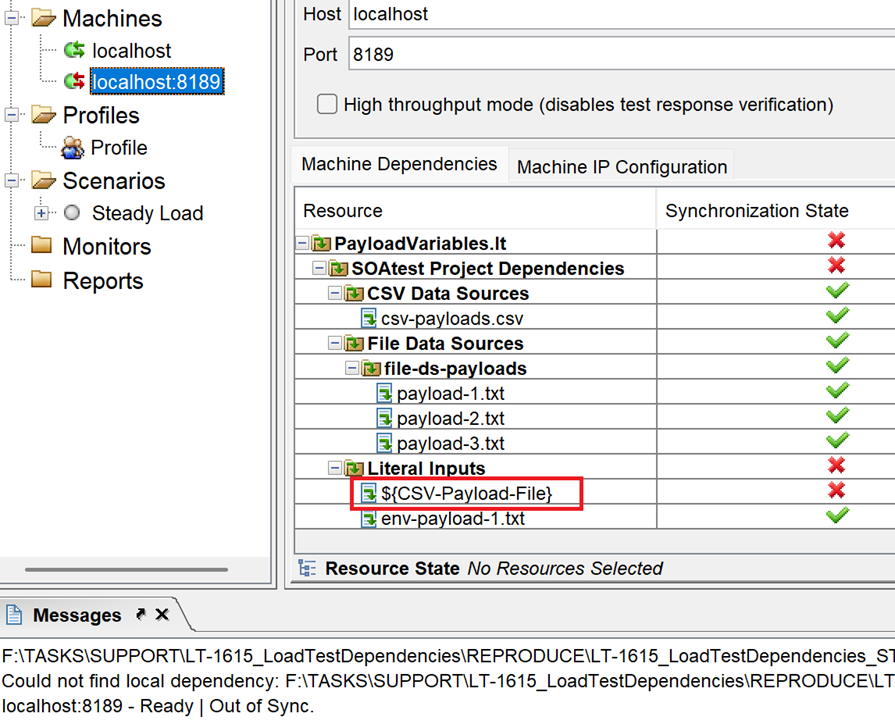
You can use Manual Remote Machines Synchronization on one of the remote machines in your Load Test configuration to identify external dependencies that cannot be resolved because of the dynamic variables.
Enabling or Disabling Remote Machines
To disable/enable an existing machine:
...
, right-click the appropriate node in
...
the Machines branch and choose Disable/Enable.
If a machine is disabled, it will not run with the load test until it is enabled again.
...
To configure a machine to run in High Throughput Mode:
...
, enable the High Throughput Mode option within the machine configuration panel.
For details on high throughput mode, see Using High Throughput Mode.
...
To start the Load Test Agent from the GUI (Windows only):
...
, go to Start > Programs > Parasoft > Load Test > Load Test Agent.
Running Load Tests
After you have started the test machines in Load Test Agent mode, you can start your test by clicking Load Test in the client machine’s toolbar.
...