...
Once you have imported your manual tests and associated them with CTP systems, you can collect test status and code coverage data while you perform them and even publish it to DTP. The workflow is as follows:
- Start a manual test session. Sessions are run within environments and will contain all the tests imported into the parent system.
- Start a manual test in the session. This activates test data collection. Any number of testers can start manual tests in the session, but each tester can only have one going at a time.
- Perform your manual testing as you normally would for the test you started in step 2. Test data is collected.
- Stop the manual test. CTP will stop collecting data for the test.
- Repeat 2-4 until all the desired manual tests have been completed.
- Stop the session and, if applicable, publish the results to DTP. You can delete the session now as well, if you're done with it.
Starting a Manual Test Session
| Anchor | ||||
|---|---|---|---|---|
|
- Open the Manual Testing module. Your systems, versions (if applicable), and their environments, as defined in the Environment Manager, are listed here alphabetically. Choose the environment for which you want to start a session.
- In the Manual Tests table, you will see a list of all the tests for this environment with the status for each based on when it was tested or, for tests that are in progress, when it was started. The Tested By column will tell you when it was last tested and by whom; hover over this information with your mouse for more details, including the testing session in which it was last tested.
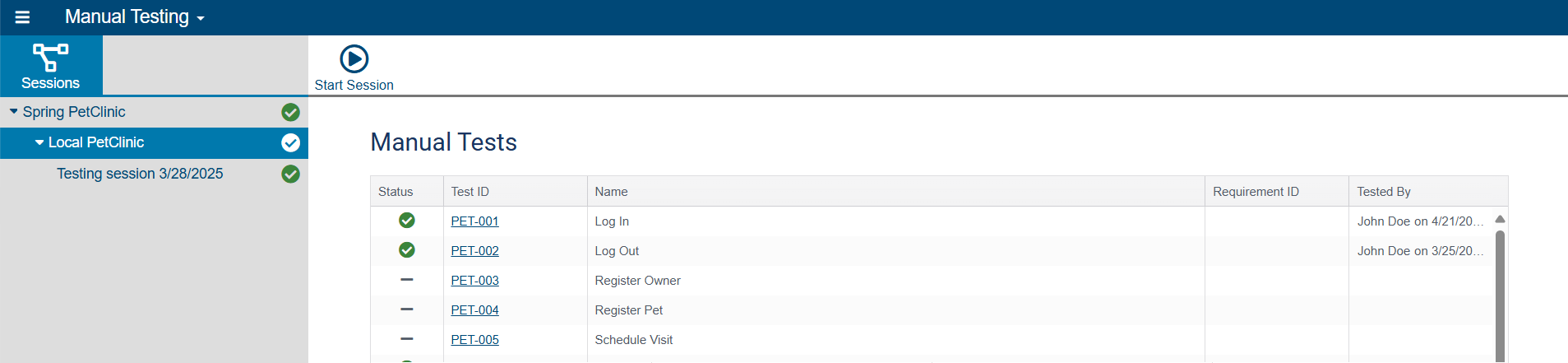
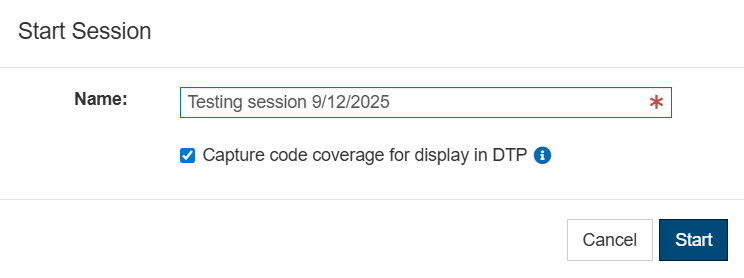
- Click Start Session and enter a name for the session in the dialog that opens. Note that the session name must be unique within the environment.
- If CTP has been configured to connect to DTP, you will also need to choose a session type.
- Incremental test session without publishing to DTP: Enable if the session should prioritize manual tests that have been impacted by code changes or other incremental testing needs. Previous test results that have not been impacted by code changes will be displayed in this session. Results are not published to DTP. Incremental test sessions are not tied to a build ID and do not need to be stopped because a build ID has changed.
- Full test session for publishing coverage to DTP: Enable if all manual tests should be the performed in the session regardless of previous results or whether they are impacted by code changes. Results and coverage information can be published to DTP. Full test sessions are tied to a build ID and must be stopped when build IDs change.
- Click Start. A new session will start with your tests.
...
When you start a manual test in CTP, test data is collected as you perform the steps in the test.
...
- have the option to capture code coverage data to send there for display.
- When enabled, you will have the opportunity to publish the test data that is collected to DTP when you're done testing. Be aware, however, that if any of the components in a system under test change to a newer build, you will not be able to start a new manual test in
...
- this manual test session. In that instance, you should publish the manual testing results that you have so far and start a new manual testing session for the updated build IDs.
...
- When this option is
...
- disabled, you won't be able to publish test data to DTP, but you
...
- will not
...
- need to start a new session when a build ID changes.
- Click Start. A new session will start with your tests.
Starting a Manual Test
| Anchor | ||||
|---|---|---|---|---|
|
When you start a manual test in CTP, test data is collected as you perform the steps in the test.
Note: Each tester can only have one manual test running per environment at any time, but multiple users can run tests simultaneously in the same environment if all the coverage agents are running in multi-user mode.
...
When you have completed your manual tests, you can stop the session and, in the case of full test sessionsif applicable, send the data that was collected to DTP. Be aware that you cannot stop a session that has a manual test running. Stop tests that are running before trying to stop a session.
- Open the Manual Testing module. Your systems, versions (if applicable), and their environments, as defined in the Environment Manager, are listed here alphabetically. Choose the environment that contains the session you want to stop.
- Click Stop Session. The Stop Session dialog opens.
- If CTP has been configured to connect to DTPthe option to capture coverage data for display in DTP was enabled when the session was started, you have the option to publish the session's coverage data to DTP by enabling Publish to DTP in the dialog. Note that this only applies to full test sessions; if this is an incremental test session, this option is disabled.
Info You cannot publish the session to DTP after it has been stopped. If you want to publish this data to DTP, it must be done now as part of the process of stopping the session.
- Click Stop.
...